PDF Margins: Edit, Add, and Print with Ease
Check, change, or add PDF margins and get cleaner prints.
Understanding PDF margins
To edit margins in a PDF, first decide whether you need to move content or change the page size. Use a crop tool to trim visible edges, or add white space around the page content. For printing, check the printer’s borderless setting too. These changes affect different parts of the document.
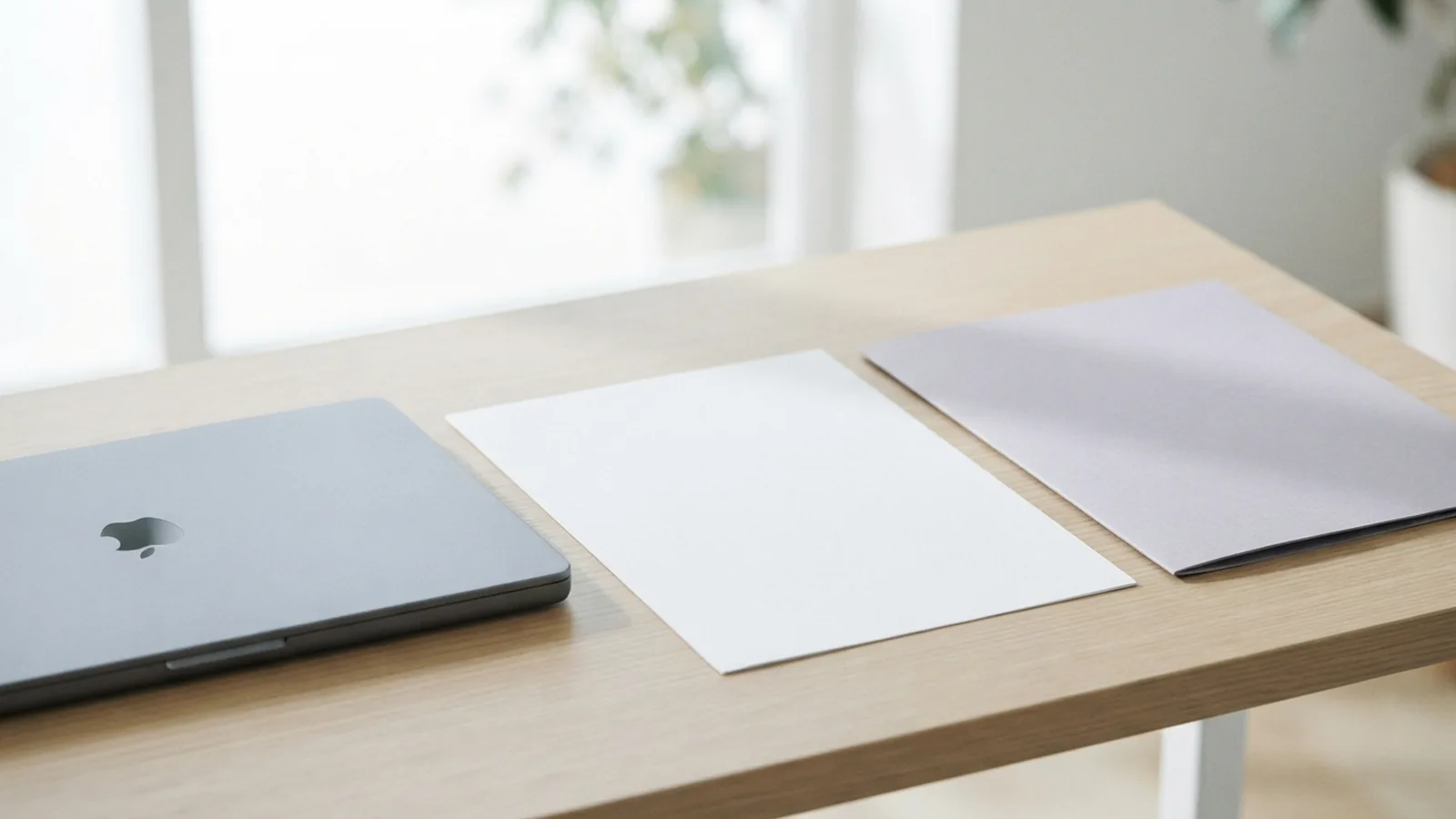
A margin is the blank area between a page edge and its text, images, or other content. Many PDFs have no true, editable margin setting. Instead, the content sits at fixed positions on a page. That is why changing margins can mean cropping, scaling, moving content, or adding a larger page around it.
Pick the result you want before making changes. Cropping can hide content near an edge. Scaling can make text smaller. Adding space around content can preserve its size, but may increase the page dimensions. Save a copy first, especially if you are editing a signed or shared file.
- Crop: Hide part of the page edge or set a smaller visible area.
- Scale: Shrink page content to leave more blank space.
- Add space: Place the original page on a larger page.
How to check margins in a PDF
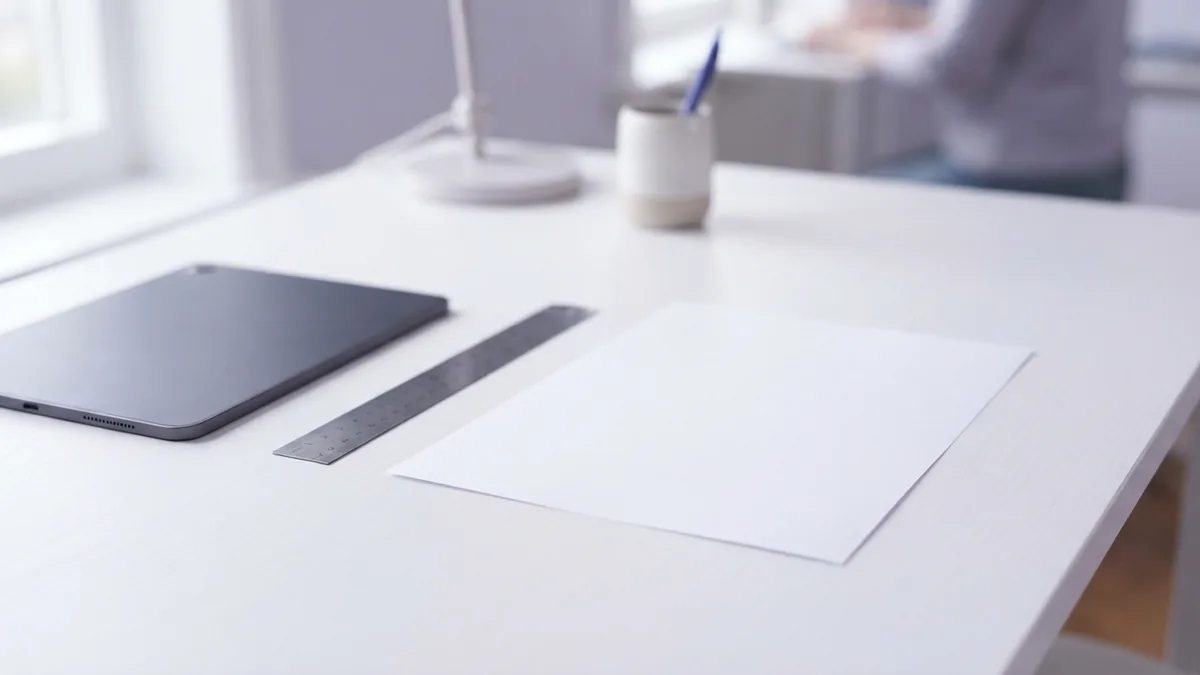
PDFs do not always show margin measurements, so inspect both the page and its settings. Open the file at 100% zoom and look at each edge. Check whether text, images, or page numbers sit too close to the paper boundary. Review several pages, since layouts can vary within one file.
To check the page size, open the document properties or page setup panel in your PDF editor. Compare the listed width and height with a familiar paper size, such as Letter at 8.5 by 11 inches or A4 at 210 by 297 millimeters. The page size alone does not reveal exact margins, but it helps you judge available space.
For a more precise check, use a ruler or measurement tool if your editor has one. Measure from the page edge to the start of the main content. Check top, bottom, left, and right separately. If the PDF is a scan, the page may also contain a skewed image or uneven borders.
- Open the PDF and view a page at 100% zoom.
- Check the page dimensions in document properties.
- Measure the clear space from each edge to the content.
- Repeat on pages with different layouts or images.
Ways to change margins in a PDF

The best method depends on whether content can move. In Adobe Acrobat, use the page crop controls to set visible edges or adjust the page box. The crop tool can hide outer areas, but it does not always move the text inward. Make a copy and test one page before applying a change to the whole file.
When you need to scale everything, look for a page sizing or print production feature. Reduce the content to a chosen percentage, such as 95%, then center it on the page. This can create a narrow border without changing the text positions relative to each other. Check small text after scaling, since it may become harder to read.
Free PDF editors may offer crop, resize, or page arrangement tools. In a browser-based editor, upload only files that are safe to share. Another option is to convert the PDF to a word-processing file, change the margins there, and export it again. Conversion can shift fonts, tables, and line breaks, so compare the new PDF with the original.
- Use crop settings to remove unwanted page edges.
- Scale and center content to create a slim border.
- Convert and re-export only when the original layout can be checked.
How to add margins around PDF content
To add margins without cutting off content, place the page on a larger canvas. For example, put an 8.5-by-11-inch page onto an 8.75-by-11.25-inch page. Center the original page to create an even one-eighth-inch border. The new page may not match a standard paper size, so confirm the final print size.
Some editors let you change the page size and set the content position. Choose a larger width and height, then center the existing content. If your tool lacks that feature, use a page layout program or convert the file to an editable document. Keep the original PDF so you can restore the source if the layout shifts.
Uneven content may need different spacing on each side. A left binding edge, for instance, can use more room than the right edge. Set the page size first, then position the content by eye or with measurement controls. Review every page, including covers and pages with full-bleed images.
Choosing PDF tools for margin edits
Adobe Acrobat is a strong choice when you need crop controls, page box settings, or careful print output. Its tools suit files with many pages or mixed page sizes. For a simple one-page change, a free desktop PDF editor may be enough. Check that the free version supports saving the changes you need.
Free tools vary. Some can crop pages but cannot move content or add a larger page behind it. Online tools can be quick, but weigh convenience against privacy. For sensitive records, use trusted desktop software and keep the file on your own device.
Choose a tool based on the job, not just its price. Test the change on a copy and inspect the saved PDF in a second viewer. If you need exact spacing, use a tool with page measurements. If the source document is available, editing it there often gives better results than changing a fixed PDF.
Common margin problems and print fixes
A common problem is a margin that cannot be edited. This often happens because the PDF stores page content in fixed positions, or because it is a scan. Use scaling or add a larger page around the content instead of trying to drag a margin control. For a scan, crop the image edges or return to the original file.
Content can also disappear after cropping. Undo the change or restore the saved copy, then use a smaller crop area. If text looks too small after scaling, add space around the page instead. Check fonts and images at normal viewing size before sharing or printing.
For printing with no margins, enable the printer’s borderless or edge-to-edge setting if the device supports it. Many printers cannot place ink at the paper edge, even when the PDF has no margins. A small white border may remain. Select the correct paper size, preview the print, and avoid scaling that cuts off content.
- Margins will not move: Scale content or put the page on a larger canvas.
- Edges are cut off: Reduce the crop or restore the prior version.
- White borders remain: Check for borderless printing support.
- Pages look uneven: Review page size and content position page by page.
Related reading
Print Multiple PDFs: Save Time and Paper
Print PDF files in batches on Windows or Mac, or fit pages onto one sheet.

Why PDFs Won’t Open, Print, or Sign—and How to Fix Them
Fix PDF opening, printing, and signing problems with clear steps.
PDF Compression: Smaller Files and Clear Pages
Shrink PDF files while keeping pages easy to read and share.