
Post a PDF on Instagram: Simple Sharing Methods
Turn PDF pages into Instagram-ready images, links, videos, or private messages.

Can You Post a PDF on Instagram?
No. Instagram does not support direct PDF uploads in feed posts, Stories, or Reels. If you want to post a PDF on Instagram, you must first change its format or share its link.
The easiest choice is PDF to image conversion. You can turn each page into a JPG or PNG file, then upload those files like normal photos. This works well for menus, guides, portfolios, worksheets, and short reports.
Other options suit different goals. A cloud link helps people download the full file. A video can show pages in a smooth sequence. Direct messaging works best for private sharing.
- Use images for public posts and carousels.
- Use a link when people need the full PDF.
- Use video for motion, timing, and stronger reach.
- Use direct messages for private file sharing.
Method 1: Turn PDF Pages into Images

PDF to image conversion is the simplest way to share a file on Instagram. Each PDF page becomes a separate JPG or PNG image. Instagram can then treat each page like a regular photo.
Start by opening a PDF conversion tool. Upload your file, choose JPG or PNG, and convert the pages. JPG files are smaller and work well for pages with photos. PNG files keep sharp lines and suit charts, icons, and simple layouts.
Check the result before you upload it. Look for cut-off edges, small type, or poor image quality. If a page feels hard to read on a phone, simplify it or split the content across two pages.
- Upload the PDF to a trusted conversion tool.
- Choose JPG for smaller files or PNG for sharper lines.
- Download the converted pages.
- Review each page on a phone screen.
- Upload the best pages to Instagram.
Build a Carousel from Multiple PDF Pages

An Instagram carousel lets you place several images in one feed post. This makes it useful for multi-page PDFs. Readers can swipe through the pages in order.
Choose a clear first page as the cover. It should tell viewers what they will gain from the post. Keep the most useful point near the start. Many users will not reach the final slide.
Instagram uses square, portrait, and landscape post shapes. A portrait layout gives pages more room on a phone screen. Keep every slide in the same shape. Mixed sizes can lead to uneven crops.
Try a short carousel with five to ten slides. Break long pages into smaller sections when needed. Add a final slide that tells readers where to find the full PDF.
- Use one visual style across all slides.
- Keep key content away from the edges.
- Use large type with strong contrast.
- Place the main benefit on the first slide.
- Check the carousel from a small phone screen.
Method 2: Share the PDF with a Cloud Link

A cloud link is the best choice when readers need the original PDF. Upload the file to Google Drive, Dropbox, or another trusted cloud service. Then copy a share link into your Instagram bio, Story, or profile field.
Set the file access before sharing it. The link should let the right people view or download the file. Test it in a private browser window. This step can reveal access limits before your audience sees them.
Instagram captions do not always offer useful clickable links. For that reason, many creators place the link in their bio. Stories may offer a link sticker, depending on the account and current Instagram features.
Keep the link short and easy to understand. A simple landing page can explain what the PDF contains. It can also help you track visits without placing a long address in your post.
Check These Link Settings
- Allow viewing for the intended audience.
- Choose download access only when needed.
- Test the link while signed out.
- Check that the file opens on a phone.
- Remove access when the offer ends.
Method 3: Convert the PDF into a Video
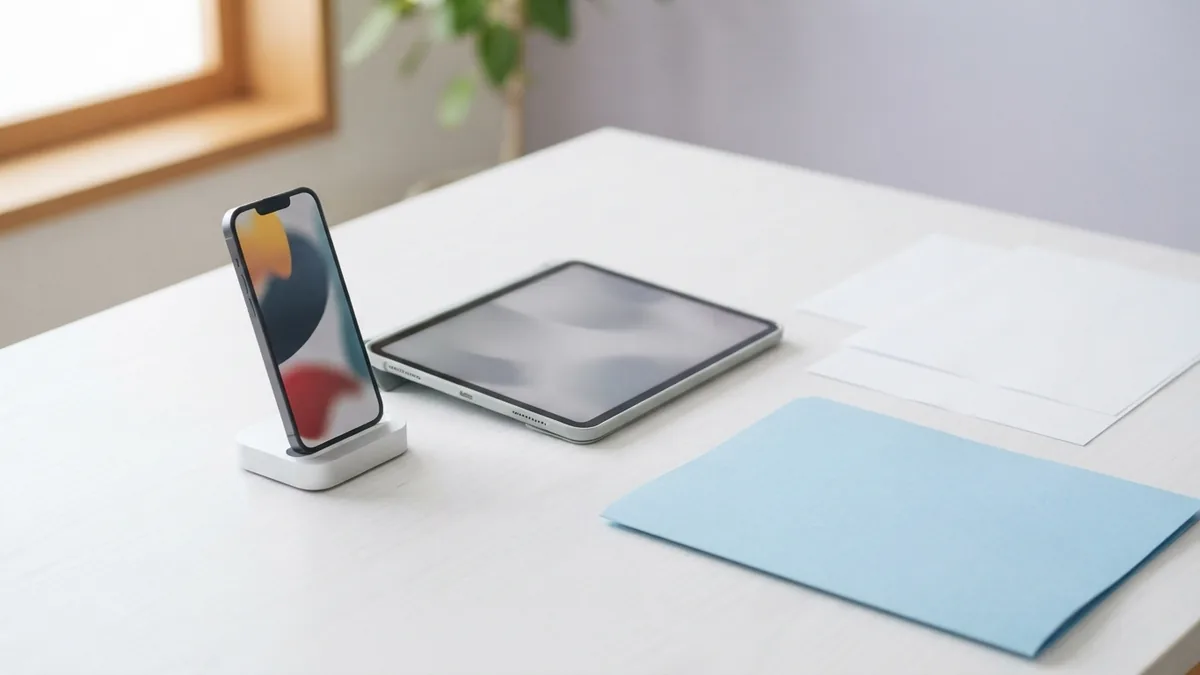
PDF to video conversion can make a static file feel more engaging. Each page appears for a set time, often with a gentle transition. You can then share the result as a Reel, Story, or feed video.
This method works well for tutorials, event plans, lookbooks, and short guides. Set each page to stay on screen long enough to read. For dense pages, use a longer pause or split one page into several scenes.
Add sound only when it supports the message. A quiet track can improve mood, but it should not distract from the content. Keep the video vertical when you plan to use it in a Reel or Story.
Review the final video on a phone before posting. Watch for fast changes, cropped pages, and hard-to-read details. A smooth video should guide the viewer without making them pause constantly.
Send PDF Content Through Instagram Direct Messages
Direct messaging offers a private way to share PDF content. You can send a cloud link in a message. You can also send converted page images when the recipient only needs a few pages.
Instagram may not let every account attach a PDF file as a native message file. The exact options can vary by account, device, and app version. A cloud link is often the safer choice for sending the full document.
Ask before sending a large file or a long set of pages. A short preview helps the recipient decide if they need the full document. This keeps the chat tidy and makes the exchange easier to follow.
- Send a link for the full PDF.
- Send images for a quick preview.
- Explain what the file contains.
- Confirm that the recipient can open the link.
Make Your PDF Easier to View on Instagram
Good formatting matters more on a phone than on a large screen. Small details can become unreadable after conversion. Review every page at the size your audience will see it.
Reduce file size before you upload or link the PDF. Large files load slowly on mobile data. Compress images and remove unused pages when possible. Keep a full-quality copy for your own records.
Use short blocks of content and clear spacing. Strong contrast helps readers in bright rooms or dark mode. Avoid putting vital details near the edge of a converted page.
| Goal | Best format | Useful tip |
|---|---|---|
| Public page set | Carousel | Use one image per page |
| Full document | Cloud link | Test access before sharing |
| Short visual story | Video | Hold each page long enough |
| Private preview | Direct message | Send only needed pages |
Choose the Right Way to Share Your PDF
The best answer to “how to post a PDF on Instagram” depends on your goal. Choose images when you want people to read inside the app. Choose a link when the full file matters more than quick browsing.
Choose video when timing and movement can improve the story. Choose direct messaging when the content should stay private. In many cases, a carousel plus a cloud link gives the strongest result.
Before you publish, check the file on a phone. Confirm that pages look sharp, links work, and the main point appears early. These small checks can make PDF sharing much easier for your audience.
Related reading
How to Save PDF Files Separately (Pages, Images, Devices)
Learn how to save PDF files separately: split pages, export images, and manage on desktop or Android.

PDF Font Identification: Tools and Techniques
Find PDF fonts with document tools, visual matches, and careful checks.

Combine Pictures into One PDF: Order and Quality
Turn JPG, PNG, and other pictures into one neat PDF with the right order and quality.