How to Add Video to a PDF: Make It Interactive
Learn how to add video to a PDF for interactive, engaging docs.
Understanding video in PDFs
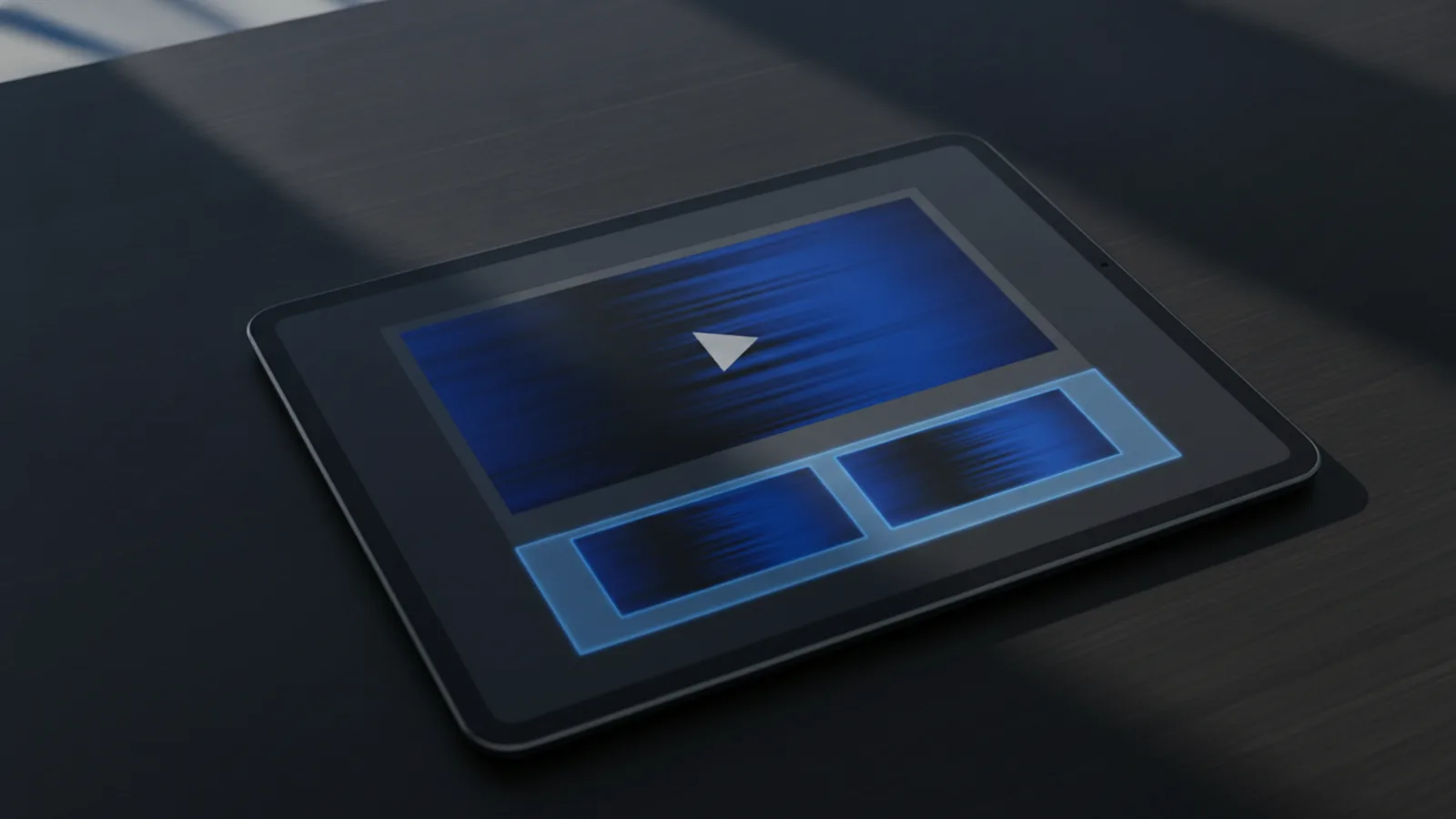
Yes, you can add video to a PDF, but the best approach depends on what “add” means for your goal. Some methods embed multimedia so the video can play right inside the document. Other methods keep the PDF small by linking to a hosted video and using a clickable thumbnail to open it.
PDFs were built for static pages first. That means not every PDF reader treats embedded video the same way. When compatibility matters, linking often works more reliably across devices.
When you plan interactive documents, think beyond playback. A good video add-on includes clear cues, a preview image, and a target that opens where viewers can play it.
- Embedded video: video is stored in the PDF file.
- Linked video: PDF contains a clickable link to an external video.
- Clickable thumbnail: a preview image that opens the video.
Benefits of adding video to PDFs
Adding video can lift engagement because it turns a page into a guided experience. Viewers can watch a concept instead of reading long steps. This is especially helpful for demonstrations, walkthroughs, and training materials.
Video also supports clearer collaboration when documents explain processes. For example, a project brief can include a 60-second overview clip for stakeholders. Then team members can watch the same reference video during reviews.
In education and onboarding, video-enhanced PDFs reduce confusion. Students spend less time translating instructions into actions. Teams also get more consistent understanding, because everyone starts from the same spoken explanation.
Even simple engagement metrics can be useful. If your workflow uses hosted videos, you can track views and watch-time for each asset. Those numbers help you decide which topics need clearer presentation materials next.
| Goal | Video method that fits |
|---|---|
| Show a demo inside the document | Embedded multimedia (when reader support is strong) |
| Keep the PDF lightweight and share widely | Clickable link to hosted video |
| Guide readers with a preview | Thumbnail linking to a video |

Methods to embed video
There are three common ways to add video to a PDF. You can embed video as multimedia, place clickable links, or create clickable thumbnails that open a video. Each method changes file size, playback behavior, and compatibility.
Embedded multimedia keeps everything in one file. That can be useful for offline sharing or archiving. The downside is that some PDF viewers may not play embedded video, or may require specific settings.
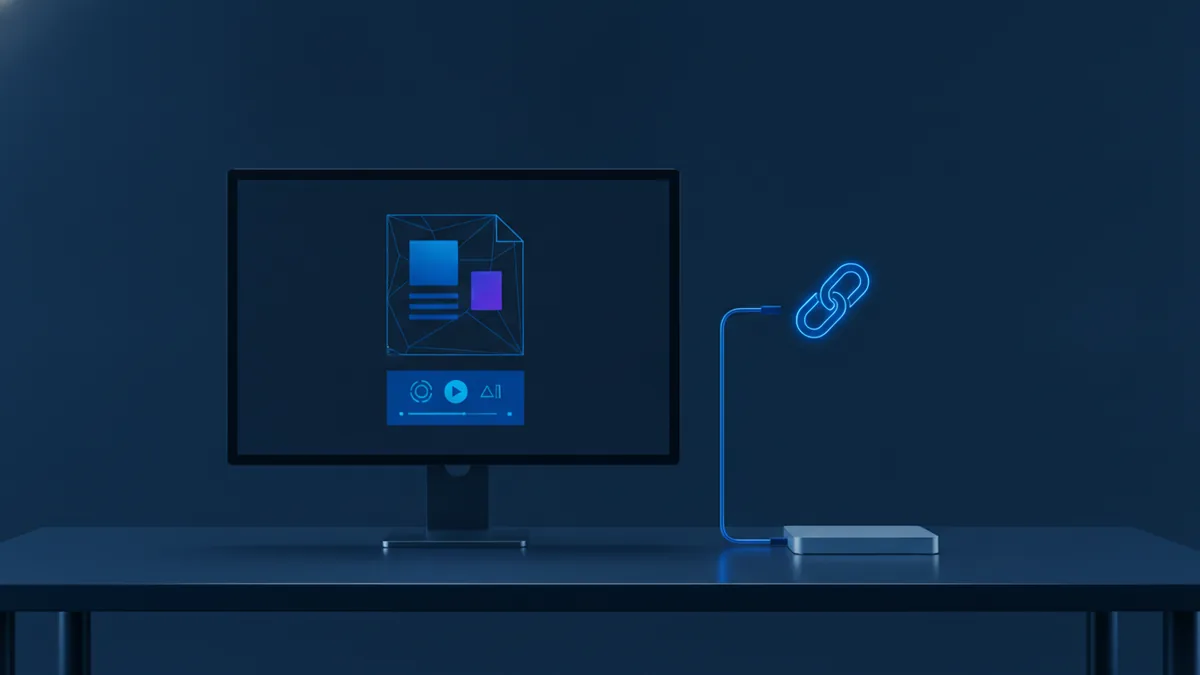
Linked video keeps the PDF clean and fast. The PDF can remain under a few megabytes, even if the video is large, because the video lives elsewhere. The tradeoff is that viewers need internet access or access permissions for the hosted file.
Clickable thumbnails improve usability. People see a preview and know where to click. A thumbnail approach also helps you control the viewer flow, like jumping to chapter points in a video.
- Compatibility-first: link to a video URL
- All-in-one sharing: embedded multimedia
- Better UX: thumbnail that maps to a link
Step-by-step guide for adding video to a PDF
This section covers practical ways to do it, starting with the most compatible method. Use the option that matches your audience and how you share documents.
Method A: Add a clickable link to a video
This is often the quickest path to a working result. It also avoids most playback permission problems because the video plays in a normal video player.
- Get a stable video URL that viewers can access. Use a direct link to the video page.
- Open your PDF editor and select the Link or Action tool.
- Create a clickable region on the page near the relevant section.
- Set the link action to Open a web page and paste your video URL.
- Preview the PDF on a desktop reader and click the link once.
If your PDF editor offers link styling, keep it subtle. A clean label like “Watch the demo” often works better than a heavy button look.
Method B: Add a clickable thumbnail that opens the video
Thumbnails make the interaction feel intentional. They also reduce “where do I click?” moments, which supports engagement.
- Export or capture a still frame from the video. Use an image that clearly shows what viewers will learn.
- Insert that image onto the PDF page where you want the interaction.
- Overlay or associate a link with the image area.
- Point the link to the same video URL as in Method A.
- Test on at least one mobile device and one desktop device.
For better results, size the thumbnail so it is easy to tap. Small targets fail in mobile readers, even if links are technically correct.
Method C: Embed video multimedia directly in the PDF
Embedding is the closest to “video in the document.” It can work well for internal teams using a compatible PDF editor and reader.
- Choose a video format supported by your PDF editor. Many tools work best with MP4 (H.264/AAC).
- Prepare a short clip first, like 30 to 90 seconds. Large videos can make PDFs huge.
- In your PDF editor, open the Multimedia or Video tool.
- Select the video file and choose placement on the page.
- Set the poster frame or cover image, if the editor supports it.
- Save the PDF and test playback in the reader your audience will use.
If your goal includes presentations, embedded multimedia may be tempting. But always test playback before you send it widely.
Quick format check: If your editor rejects a file, convert it and retry. Use a tool that lets you keep the same resolution and audio track.
Common issues and solutions
When video links or embedded media fail, the reason is usually one of a few categories. Clickability, permissions, and reader support are the big three.
Problem: Link looks right but is not clickable
This happens when the PDF editor places the image but does not attach the action. It can also happen if you place the link on an area covered by another object.
- Test by clicking in multiple PDF readers.
- Ensure the link region matches the visible thumbnail bounds.
- Remove overlapping shapes and try again.
Problem: Embedded video does not play
Some viewers do not support embedded PDF video. Others may require specific settings or updated software.
- Ask recipients which reader they use.
- Provide a fallback link to the hosted video.
- Try a smaller clip and retest playback.
Problem: “Video unavailable” after sharing
That usually means access rules changed. For hosted links, viewers must have permission to watch the video.
- Use public access or sharing links that do not expire.
- Avoid private links for external audiences.
- Verify playback in an incognito browser window.
Problem: PDF file size becomes too large
Embedded video can add tens or hundreds of megabytes. A PDF that used to be under 5 MB can quickly become hard to share.
If size matters, switch to linking. You keep the interactivity and avoid huge attachments. You can also shorten the embedded clip to the key segment.
Best practices for video integration
A few habits make your interactive documents feel polished. They also help your readers succeed on the first click.
Optimize the thumbnail: Use a clear still with readable key visuals. Choose high contrast so it stands out on white and light backgrounds. If your editor supports it, keep the thumbnail file compressed.
Keep links clean: Use a consistent URL structure. Avoid adding random tracking parameters that can break share behavior. If you have a short-link tool, test it inside the PDF too.
Label the interaction: Make it obvious what happens after clicking. A short caption near the thumbnail reduces guesswork and support requests.
- Use a 16:9 thumbnail crop for most videos.
- Keep embedded clips short, then link to longer videos.
- Test on mobile PDF readers before you distribute.
Finally, consider your engagement goal. If you need engagement metrics, linking is usually easier. If you need offline use, embedded multimedia may be the better fit.
Use cases for video-enhanced PDFs
Video-enhanced PDFs work across many industries because they blend text guidance and multimedia content. The key is choosing the right moments for video so it supports learning, not distracts.
Education: Course packets can include short lesson clips. For example, a worksheet can include a 45-second walkthrough for solving a problem set.
Marketing: Product PDFs can add a quick explainer video. A one-page spec sheet can link to a demo that shows the product in use.
Project management: Teams can attach a progress recap. A weekly status PDF can include a video summary, which helps remote collaboration tools keep everyone aligned.
You can also use videos for onboarding. A “how to” PDF can show the exact steps, then link to deeper training materials.
| Scenario | Best method | Why it helps |
|---|---|---|
| Training a new hire | Thumbnail link or embedded clip | Speeds up understanding |
| Sharing a client proposal | Clickable link to hosted video | Keeps the PDF small |
| Archiving a course packet | Embedded multimedia | Works offline when supported |
If you are wondering how to add video to pdf for your exact case, start with compatibility. Choose linking first, then embed only when your audience’s readers support it reliably.
Related reading
PDF Margins: Edit, Add, and Print with Ease
Check, change, or add PDF margins and get cleaner prints.

PDF to Slides: Tools and Workflows
Turn a PDF into editable slides and keep the layout looking its best.

Editing PDFs in PowerPoint: Images and Objects
Add, clip, convert, and present PDF content in PowerPoint with fewer surprises.