
How to Turn a Page Into PDF (Plus JPG and PNG Tips)
Learn how to turn a page into PDF, then convert to JPG or PNG.
Understanding PDF files
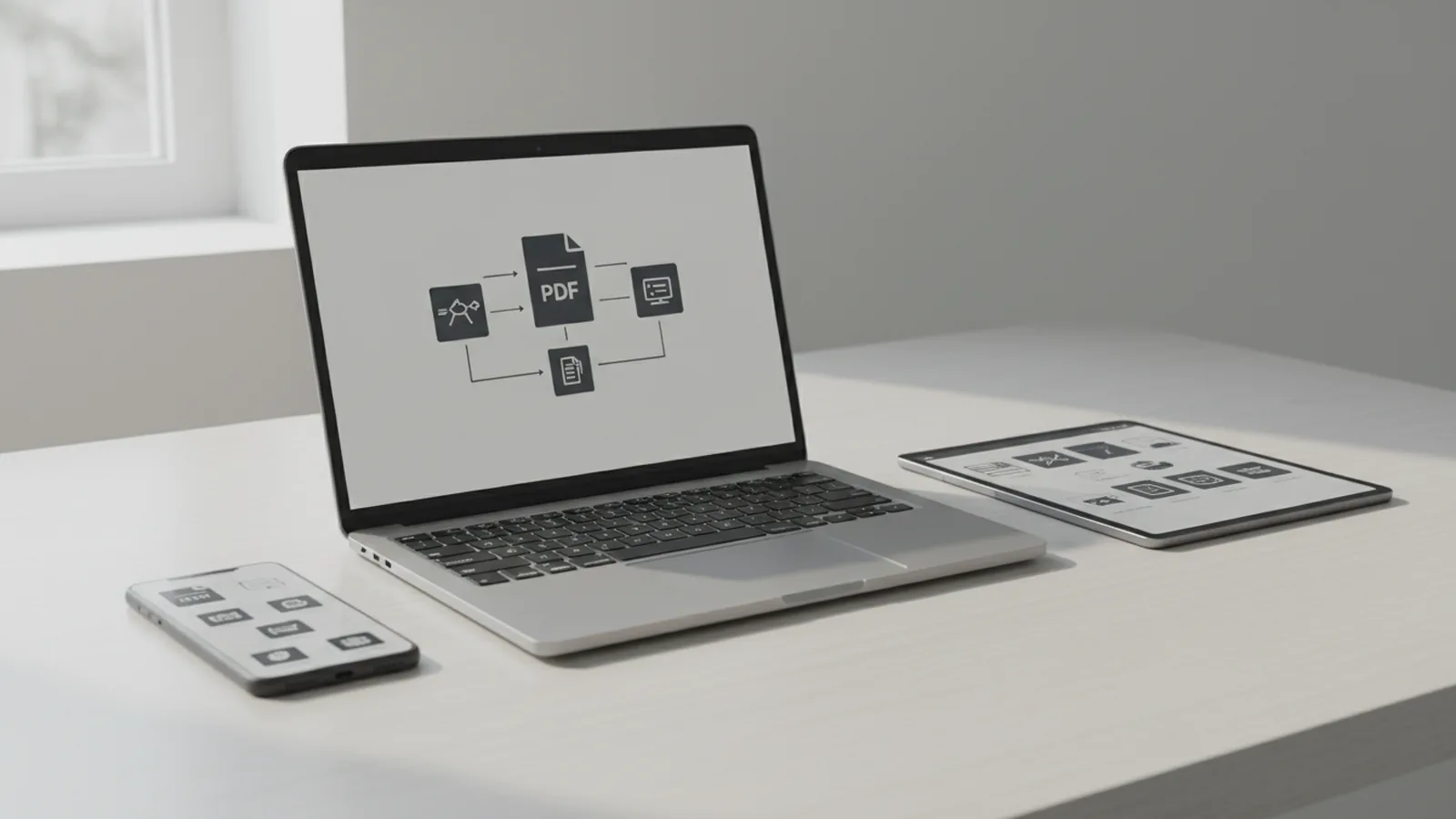
A PDF (Portable Document Format) keeps layout stable. Fonts, images, and page breaks stay the same across devices. That makes it ideal for forms, reports, and contracts.
PDF conversion is also built for easy sharing. You can send one file and avoid layout shifts in other apps. This matters when you need digital document management and consistent review.
Many PDFs include real, selectable text. If the file came from a scan, the content may be images instead. In that case, you may need OCR to turn image text into searchable text.
- Stable layout: what you see is what others get
- Common format: most devices and apps support it
- Text or images: scans may need OCR later
Methods to convert pages to PDF
The best answer to how to turn page into pdf depends on your source. A web page, a document, and an image each use a different path. Most workflows use Print or an app export step.
Think of it as an export task. You can convert one page at a time or batch pages into a single PDF. If you have many items, file consolidation into one PDF is usually faster for review.
If you want how to turn a page into a pdf using what you already have, start with Print. It is widely supported and gives you a preview before you save. If you need better control, you can switch to online PDF tools or PDF editing software.
How to turn a page into a PDF using Print
This is a practical way to how to turn a page into a pdf. Most apps offer a “save as PDF” destination in the print dialog. You keep control over page size and margins before the file is created.
- Open the page or document in the app you use.
- Choose Print from the File menu.
- Select Save as PDF as the printer.
- Check the preview for page order and scaling.
- Click Save, then verify the output opens correctly.
If the page looks zoomed or cropped, adjust scaling. Look for options like “Fit to page” in the print settings. Then save again and confirm the fix.
How to turn a page into a PDF on Mac
If you are asking how do i turn a page into a pdf on macOS, you can use the print dialog. Many apps support the same save-as-PDF flow on macOS. This is also the easiest path from Safari or Pages.
- Open the page in the app.
- Press Command + P to open Print.
- Select the PDF option near the save area.
- Choose Save as PDF.
- Pick a folder and click Save.
If your edges are cut off, change paper size or margins. You may also need to switch scaling to “Fit” style settings. Then create the PDF again.
Using online tools for conversion
Online PDF tools help when you do not want to install software. They work well on many laptops and mobile browsers. Typical steps are upload, choose an output, then download the result.
If you also need how do you turn a pdf into a jpg, online tools can be quick. You upload the PDF, pick the target format, and choose a page range. Some tools let you control output quality and compression.
For scanned PDFs, check whether OCR is available. If OCR exists, you can later copy text more easily. Without OCR, the output may stay as image pages.
- Upload the PDF you want to convert.
- Choose the output format like JPG or PNG.
- Select the page range and any quality settings.
- Start conversion and wait for the download link.
- Open the output and check sharpness and cropping.
How do you turn a PDF into a JPG or PNG
To answer how do you turn a pdf into a jpg, choose JPG in the format options. For how to turn a pdf into a png, choose PNG instead. JPG often makes smaller files. PNG can preserve crisp edges and text better.
Run a quick test first. Convert one page, then zoom in to see if text stays sharp. If it looks fuzzy, raise quality or use a higher output size.
Also check cropping. If the tool offers “fit” or “remove margins,” test it on one page. That helps you avoid cut-off headers or missing borders in the full file.
- Test one page first: spot blur and cropping early
- Compare JPG vs PNG: choose based on sharpness needs
- Verify page range: confirm all pages converted
Using software applications for better control
Desktop apps give you better control for repeat work. They often include options for image quality and text handling. They can also help with PDFs that contain scans.
If you are trying to how to turn pdf into docx, look for a conversion mode that preserves structure. Good results keep headings and tables as close as possible to the original. Some apps focus on layout, while others focus on extracting clean text.
For a how to turn pdf into a writable document goal, you want an output format you can edit. DOCX, text formats, and structured document exports are common choices. Then you can proofread and reformat parts that changed.
Popular targets: JPG, PNG, and more
Besides images, many people need other document formats. Some tools support conversions like PDF to PPT or PDF to EPUB. These are useful when you need a slide deck or a readable ebook layout.
When converting to images, remember that a PDF is page-based. If you convert a multi-page PDF, you may get multiple JPG or PNG files. Always check the output naming pattern so pages stay in the right order.
If your goal is how to turn pdf into jpg on mac, check app support for the macOS version. Many desktop apps handle this similarly, but the UI differs. The key is to confirm the image resolution settings before you run the full export.
| What you want | Common output | Quality tip |
|---|---|---|
| Convert PDF pages to photos | JPG or PNG | Test one page at your target zoom |
| Edit content in Word | DOCX | Choose structure-preserving mode |
| Work with scans | Editable text via OCR | Enable OCR before exporting |
Consolidating PDFs and other formats
Sometimes you do not just convert a page into a PDF. You need to combine files too. This is where how to turn two pdf files into one becomes the real goal.
File consolidation saves time for review and storage. Instead of opening multiple files, you handle one PDF. It also helps keep version control simple when you send the final bundle.
To merge PDFs, use an online merger or PDF editing software. You typically upload both files, reorder pages or files if needed, and then download the combined PDF.
How to turn two PDF files into one (merge workflow)
- Open a PDF merger tool or app.
- Add the two PDF files you want to combine.
- Reorder them if the page order matters.
- Check the combined preview for missing pages.
- Export or download the merged PDF.
If the merge results in odd page jumps, check the original file page sizes. Sometimes one PDF uses a different page size. Then the viewer may show it with extra margins.
Finally, if you need images from a combined PDF, convert after merging. That keeps the page numbering consistent and avoids duplicate steps. It also reduces mistakes when you later convert the full document to JPG or PNG.
Quick checklist for PDF to JPG and PDF to PNG exports
- Choose JPG or PNG: JPG for smaller size, PNG for crisp edges
- Pick the right page range: convert only what you need
- Test sharpness: zoom in on one converted page
- Check cropping: confirm margins and page borders
Related reading
MOV to PDF on Mac: Frames and Files
Turn video frames into a neat PDF on your Mac.
XBRL to PDF: Readability and Record-Keeping
Turn XBRL reports into readable PDFs and keep the source files safe.
PST to PDF: Methods and Best Practices
Compare Outlook, software, and expert options for converting PST files to PDF.