
How to Convert PostScript Files to PDF on Windows and Mac
Convert PostScript files to PDF on Windows, Mac, or the command line.
Understanding PostScript Files
To convert a PostScript file to PDF, use Adobe Acrobat, macOS Preview, or a tool such as Ghostscript. Windows users can also print the file through a PDF printer. Mac users have a built-in PDF option in the print window.
PostScript is a page description language from Adobe. It tells a printer how to draw each page. The file can hold fonts, shapes, images, and layout commands.
PostScript files often use the .ps file ending. Encapsulated PostScript files use .eps instead. Both formats need an interpreter before they can appear as finished pages.
A PDF stores the page in a more portable form. It keeps the layout ready for viewing, sharing, and printing. That makes PDF a better choice for most day-to-day work.
Why Convert PostScript to PDF?
PDF files open on nearly every modern computer and phone. Most users do not need a special page description tool. This makes file sharing much simpler.
PDF also gives you better control over the final result. You can check page size, embedded fonts, image quality, and print marks before sharing the file.
Conversion can also reduce workflow problems. A PDF is easier to attach to email, add to a document set, or send to a print shop.
- Keep the page layout across different systems
- Preview every page before printing
- Combine the result with other PDF files
- Add passwords, notes, or digital signatures
- Store a stable copy for later use
Windows Methods That Work
Windows offers several ways to convert a PostScript file to PDF. The best choice depends on your software and the number of files involved.
Use Adobe Acrobat or Distiller
Adobe Acrobat can open many PostScript files and save them as PDFs. Adobe Distiller is another Adobe tool made for this task.
- Open Adobe Acrobat on your Windows computer.
- Select the option to create a PDF from a file.
- Choose the PostScript file from your local drive.
- Wait while Acrobat reads and builds the pages.
- Check the page size, fonts, and image quality.
- Save the finished PDF with a clear file name.
Distiller uses job settings to control the result. Choose a preset for screen viewing, office printing, or high-quality print work.
Print through a PDF printer
Windows includes Microsoft Print to PDF on many current versions. Open the PostScript file in a suitable viewer. Select Print, then choose Microsoft Print to PDF as the printer.
Set the paper size and page range before printing. Choose a save folder when Windows asks for the output name. This method works well for one or two files.
Try free desktop tools
Ghostscript is a common free choice for Windows users. It can read PostScript and create PDF files with the ps2pdf command.
Some free viewers also offer a PDF printer. Test the output before using a tool for a large batch. A few tools may change fonts or crop pages.
Mac Methods for PostScript Conversion
macOS has a fast built-in route for many PostScript files. Open the file with Preview or another app that can render it. Then use the print window to create a PDF.
- Open the PostScript file in Preview.
- Choose File, then Print.
- Set the paper size and page range.
- Open the PDF menu at the bottom of the print window.
- Choose Save as PDF.
- Pick a folder and save the new file.
Preview may not open every PostScript file. This can happen with damaged files or rare font settings. Try Adobe Acrobat or Ghostscript when Preview fails.
Third-party Mac apps can help with batch work. Adobe Acrobat gives more control over fonts and output settings. A PDF printer app can also support a print-based workflow.
For a small job, the built-in print route is often enough. It needs no extra install and takes only a few clicks. Always open the result and inspect each page.
Using Software Tools for Better Control
Dedicated tools help when you need more than a single conversion. They can process many files, set image quality, and keep output in one folder.
Adobe Distiller is useful when a print shop gives you job settings. Those settings can control color, paper size, image sampling, and font handling.
Ghostscript suits users who want a free tool with batch support. Its official guide explains the Ghostscript file use options and output settings.
| Method | Best for | Main limit |
|---|---|---|
| Preview print dialog | Quick Mac conversions | Less control over output |
| Adobe Acrobat | Office and print work | Paid software may be needed |
| Ghostscript | Free and batch conversion | Uses command line syntax |
| PDF printer | Simple Windows jobs | Results depend on the viewer |
Pick the tool that matches the job size. A simple file does not need a complex setup. Large batches need repeatable settings.
Command Line Conversion Options
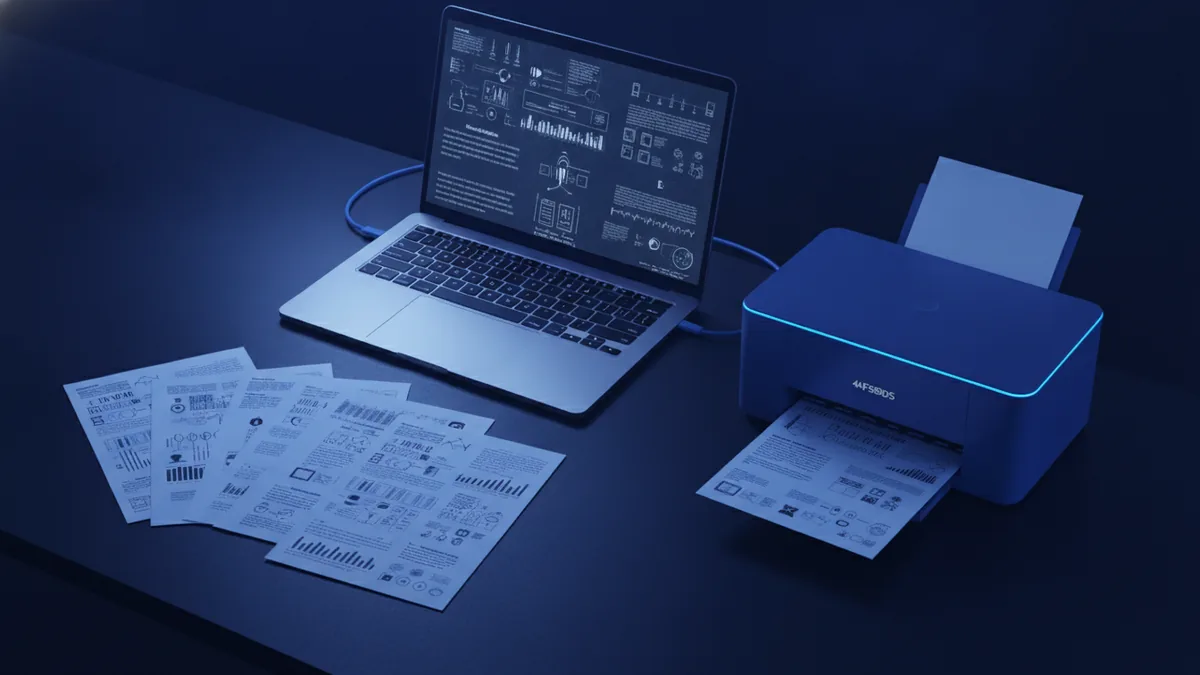
Command line tools are useful for repeat work. They can convert files without opening a desktop app. They also work well inside scripts.
Use ps2pdf with Ghostscript
Install Ghostscript first. Open Terminal on macOS or Command Prompt on Windows. Then run this command:
ps2pdf input.ps output.pdf
Replace the two file names with your own paths. The first name points to the PostScript file. The second name sets the new PDF name.
You can also set a page size or output level through Ghostscript options. Start with the basic command. Add options only when your output needs them.
Use pstopdf on macOS
Some Mac systems include the pstopdf command. In Terminal, run:
pstopdf input.ps -o output.pdf
The -o option sets the output file. If the command is missing, install Ghostscript instead. You can then use ps2pdf.
Automate repeated conversions
A short shell script can process every PS file in a folder. This saves time when a team receives many files each day.
For example, a Mac shell loop can run pstopdf on each file. Test it on a copy of the folder first. Add a separate output folder to prevent accidental overwrites.
Keep the original files until you check the results. Record failed names in a log. That makes batch fixes much easier.
Common Errors and Practical Fixes
Conversion errors often come from missing fonts, broken paths, or damaged source files. The same file may work in one app and fail in another. Compare the output before choosing a new tool.
- Blank pages: Check the page range and source file structure.
- Missing fonts: Install the needed fonts or ask for an embedded source.
- Cropped content: Set the correct paper size and page box.
- Wrong colors: Review color settings in Acrobat or Distiller.
- Command not found: Install Ghostscript or correct the system path.
- Unreadable output: Test another viewer and inspect the source file.
Font errors are common with older PostScript files. The file may name a font that your computer lacks. A replacement font can change spacing and page breaks.
Cropped pages often point to a bad bounding box. Try a different page size or tool. Print one page first when the file comes from an unknown source.
Do not overwrite the source during testing. Save each test with a new name. This lets you compare settings and return to the original.
Choose the Right Conversion Method
For one Mac file, use Preview and the print dialog. For one Windows file, try Adobe Acrobat or Microsoft Print to PDF. These paths need little setup.
For many files, use Ghostscript and a script. For print work, Adobe Distiller may give better control. In every case, open the finished PDF and check its pages.
The best answer to “how to convert PostScript to PDF” depends on your system and goal. Start with the simplest safe method. Move to command line tools when speed and repeat work matter.
Related reading

Merge PDFs: Order and Sharing
Join PDFs in the right order with online tools or built-in desktop apps.

How to Turn a DOCX Into a PDF: Easy Methods
Convert DOCX files to PDF with Word, online tools, or free desktop software.
PDF Files: Format, Uses and Limits
See how PDFs work, what they contain, and when they are useful.