
How to Separate Pages in a PDF (Split and Save Each Page)
Learn how to split a PDF into separate pages using online tools or software.
Understanding PDF File Structure
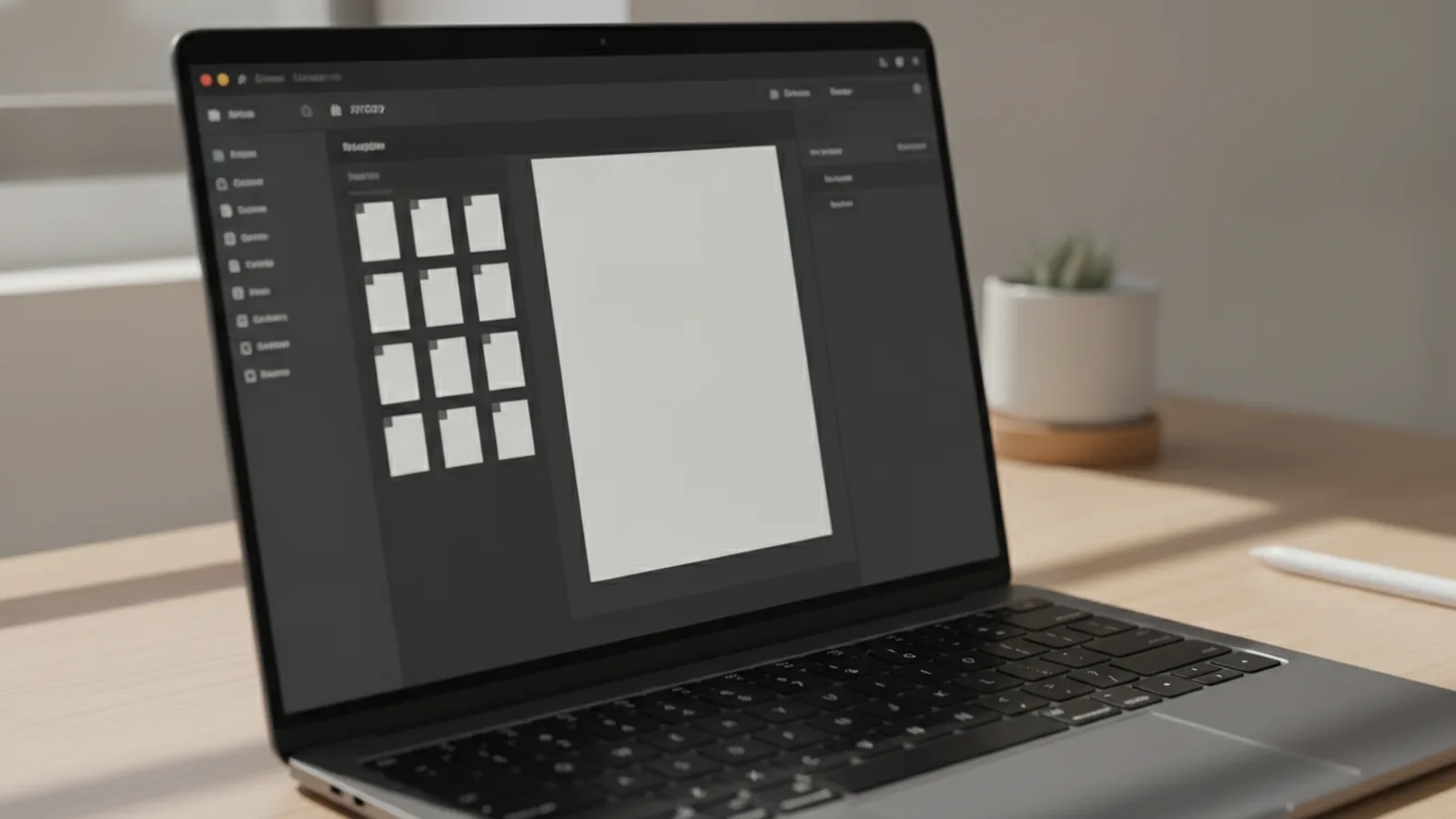
A PDF can hold many pages inside one file. That structure lets you share one document without losing the page layout.
Even if it looks like a single page on screen, the file still contains page objects with their own content. When you “split” a PDF, you extract those page objects into new files or a new multi-file output.
PDF layout matters during separation. A split that cuts through a header, footer, or a two-page spread can change how the page looks when it stands alone.
- Check page count first (for example, 25 pages in one PDF).
- Identify whether pages are single, double-page spreads, or form pages.
- Look for repeating headers or watermarks that should stay with each page.
Why Separate PDF Pages?
People usually separate pages for control and organization. One common goal is to make smaller files that are easier to share by email or upload to a portal.
PDF file management also improves when each page has a clear purpose. For example, you can save a single page with payment details, then keep the rest for your records.
Separated pages are also easier to review. If a PDF has scanned pages, you can re-check one page at a time and fix issues without reworking the whole document.
- Share only what someone needs, not the full document.
- Organize by topic, date, or section.
- Make later edits simpler with smaller files.
If you are asking “how can I separate pages of a pdf,” the short answer is yes, you can save separate pages of a pdf. The better question is which method fits your speed needs and privacy comfort.
Methods to Separate PDF Pages
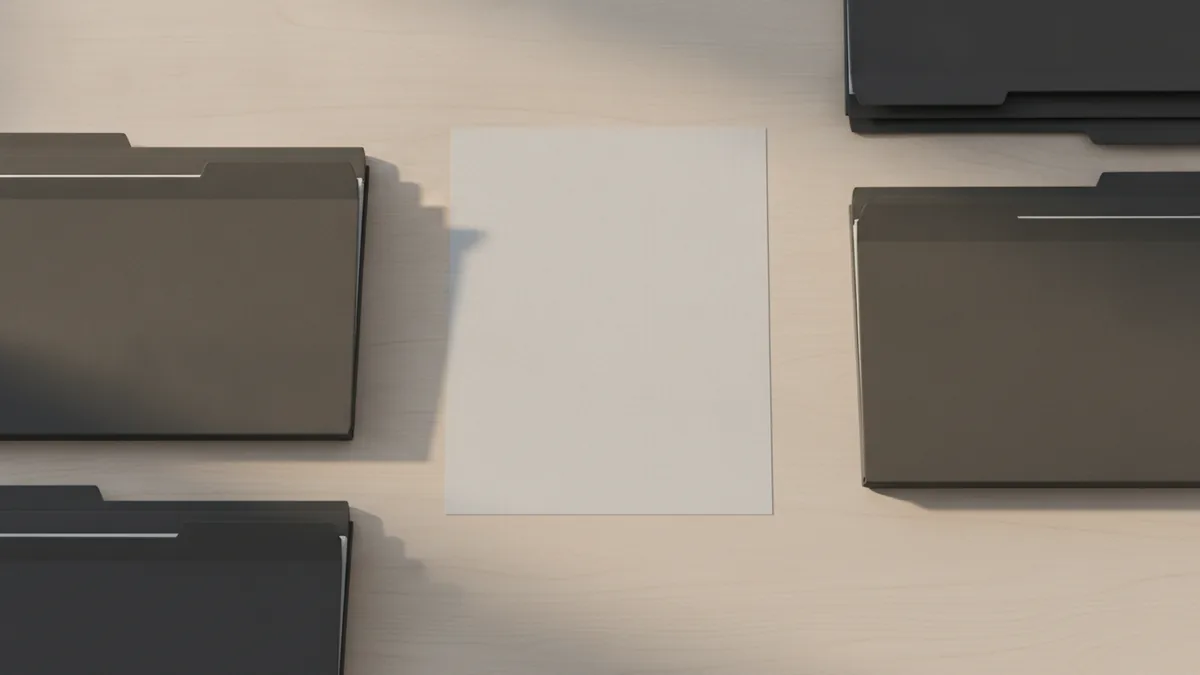
There are three practical ways to split a PDF into single pages. The first is using an online PDF tool. The second is using Adobe Acrobat PDF tools. The third is using free PDF software installed on your device.
Most tools work with the idea of page ranges. For instance, you may choose page 1 only, then page 2 only, or you may choose an option like “split into individual pages.”
When you “how do I separate pages in a pdf,” you can also decide how you want the output. Some tools create one PDF per page. Others create a ZIP file containing page PDFs.
| Method | Best for | Typical output |
|---|---|---|
| Online PDF tools | Fast splitting without installs | Individual page PDFs or a ZIP |
| Adobe Acrobat | Precise splitting and better control | New PDFs per selection |
| Free software | Privacy and offline work | New files per page |
Before you pick a method, confirm the PDF type. Scans and layered PDFs behave differently across tools, especially for form fields and rotated pages.

Using Online Tools
If you need to learn how to separate pages from a pdf quickly, online PDF tools are usually the fastest route. Tools like Smallpdf and ilovepdf offer quick workflows that do not require software installation.
A typical flow is straightforward. You upload your PDF, choose the split option, select the pages or “all pages,” then download the result. For many services, the download is either a set of files or a ZIP you can extract locally.
Online PDF tools are great for one-off tasks. They can also help when you do not have Adobe Acrobat installed, or when you want to avoid learning new software.
Still, you should treat privacy as part of the process. If your document includes personal data, check how the service handles files and whether it deletes them after processing.
Tip: If you are working with sensitive PDFs, try offline tools instead.
- Open an online PDF tool page for splitting.
- Upload your PDF from your device.
- Select “split into pages” or choose a page range.
- Start processing, then download the output.
- Open a few saved pages to verify layout and orientation.
If you ever wonder “can you separate pages in a pdf,” online tools make it easy to do so. Just remember that large PDFs may take longer to upload and process.
Using Adobe Acrobat
Adobe Acrobat PDF tools are popular when you need more advanced control. If you are wondering how do you separate pages in a pdf with strong layout handling, Acrobat often gives you options beyond basic splitting.
In Acrobat, the key feature is splitting or exporting by page. Depending on your version, you can choose a split method, then set exact pages or rules for how the output should be created.
One advantage is precision. You can often avoid mistakes like splitting a chapter header off from its first page, or producing output with missing content.
When you need to save separate pages of a pdf while keeping quality high, Acrobat is a solid choice. It also helps when you are dealing with PDFs that include interactive elements like form fields.
- Use page range selection to avoid cutting mid-section.
- Preview the output to confirm rotation and margins.
- Keep an eye on links between pages, if any exist.
Even then, Acrobat is not magic. If the PDF was created with unusual page geometry, check a few pages after exporting.
Using Free Software Solutions
Free PDF software can answer the question “how to separate pages in pdf” without paying for a license. Two common options are PDF24 and Inkscape, depending on your PDF type and your comfort level.
PDF24 is often used for PDF splitting and other PDF editing tasks. It can work well when you want offline processing and you are keeping privacy in mind.
Inkscape is a bit different. It can help when you need to work with vector content, and for some users it becomes a workaround for more complex layout cases. However, it may not be the best choice for every scanned PDF because scans are often stored as raster images.
When using free software, focus on reliability. Test on one page first, then process the full document once you confirm output quality.
- Install the tool and open the splitting workflow.
- Select “all pages” or specify page numbers.
- Run the split and save the results.
- Verify that page order is correct.
- Check that saved pages open quickly and look right.
- Prefer offline tools for medical, legal, or personal documents.
- Keep the original PDF untouched until you confirm results.
- Use extraction for “how to save separate pages in pdf” when you need one-page PDFs.
Tips for Successful Page Separation
Successful PDF splitting depends on preparation. Understanding the layout and structure of your PDF is crucial for effective separation, because page design affects how the result will look.
Start by checking page orientation and page numbering. Some PDFs mix portrait and landscape pages. If a tool exports pages without rotation, you may need to fix orientation afterward.
Also consider whether your PDF contains scans. For scanned PDFs, page splitting does not improve text quality, but it can help with review and re-scanning workflows.
Finally, always think about security and privacy when using online tools. Even reputable online services can be a risk for confidential documents.
| Issue | What to check | Fix |
|---|---|---|
| Wrong order | Confirm page numbers | Re-run split with correct range |
| Cut-off headers | Watch margins and spreads | Split by page, not by sections |
| Rotated pages | Spot-check 2–3 pages | Rotate or re-export |
| Privacy risk | Check file handling policy | Use offline free software |
If you are trying to separate two pages in pdf, the same principles apply. Pick the exact page numbers, export them, and then confirm both pages open correctly.
With the right tool and a quick preview step, you can save separate pdf pages reliably. Next, you can use those pages for document organization, sharing, and targeted edits.
Related reading
Make an Existing PDF Fillable: A Simple Process
Add form fields to a static PDF and make data entry easier.
Editing PDFs in Photoshop: Layers and Exporting
Open, edit, and save a PDF in Photoshop while protecting the original.
Save Images from PDFs: Methods and Formats
Extract PDF images or turn a picture into a PDF on your device.