How to Save or Extract Specific Pages From a PDF
Learn how to extract specific PDF pages with online tools or PDF software.
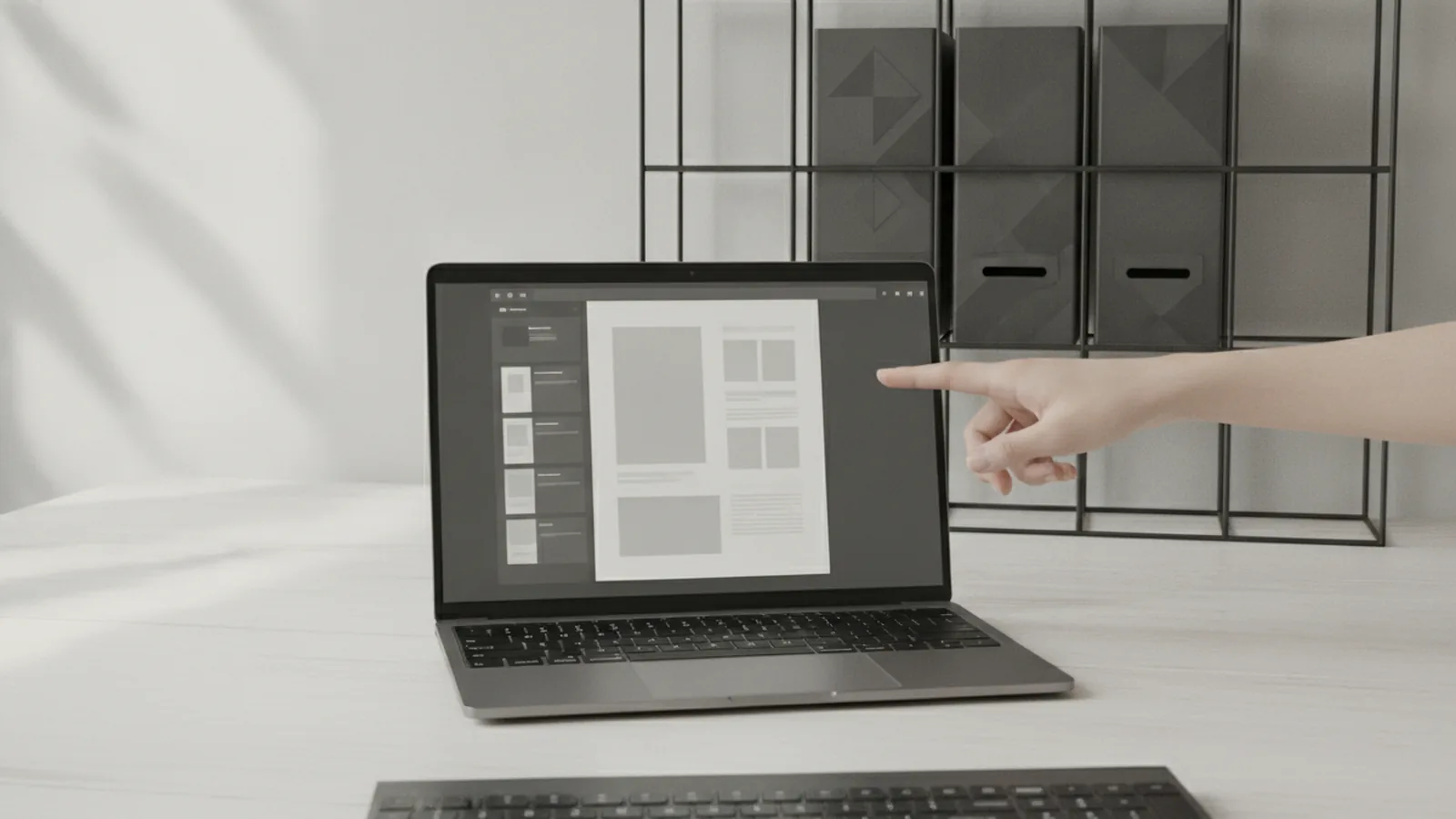
Understanding PDF Page Management
If you need only a few pages, you can save, extract, or download just those pages. The goal is simple: keep the needed content and avoid moving whole documents around. This saves time, cuts file size, and makes file management easier.
A PDF (Portable Document Format) is a file format that keeps layout, fonts, and spacing. It is commonly used for contracts, invoices, forms, manuals, and scanned documents. Because PDFs keep their visual structure, they are popular for sharing digital documents across devices.
Page management in a PDF means you can work at the page level. That includes selecting a page range, exporting pages into a new file, or deleting pages you do not need. When you export only certain pages, you also reduce clutter in your folders and email attachments.
- Use page extraction to create a new PDF with selected pages.
- Use PDF editing to remove unwanted pages or rearrange them.
- Use compression later if you want smaller file sizes.
Methods to Save Specific Pages (and What They Mean)
To answer “how do you save certain pages of a pdf,” you usually start with page selection. Then you choose whether to create a new PDF (export or extract) or edit the current one (delete or remove pages). Each method fits a different workflow.
In practice, there are three common approaches. One is using built-in PDF software features that export a page range. Another is using online PDF tools that upload a file and return a new PDF. The third is using your operating system’s preview tools for quick exports.
Here are the typical outcomes you can expect from each method. You may see options like “Extract,” “Export,” “Save as,” or “Print to PDF.” The wording varies by tool, but the result is the same.
| What you want | Best method | Common option labels |
|---|---|---|
| New PDF with selected pages | Page extraction or export | Extract pages, Export PDF, Save page range |
| Delete unwanted pages from the file | PDF editing | Delete, Remove, Organize pages |
| Quick single-page save | Print to PDF or export | Print, Save as PDF |
When you ask “how to extract certain pages from pdf” or “how to download only certain pages of a pdf,” you are really aiming to create a smaller, cleaner file. That is especially useful for digital document organization when different teams need different parts.
Using Online PDF Tools to Extract Page Ranges
Online PDF tools are often the fastest way to try page extraction. You upload the document, choose which pages to keep, and download the new PDF. This is handy when you do not have PDF software installed.
Most online tools follow a similar flow. You select the PDF, pick a page range like 3–7, and confirm the extraction. Then the tool generates a new file that contains only the pages you chose.
Here is a clear step-by-step process you can use for online tools. It works for most page extraction features, even if buttons and labels differ.
- Upload your PDF to the online PDF tool.
- Open the page extraction or select pages section.
- Pick specific pages or enter a page range.
- Preview the output if the tool offers a preview.
- Download the new PDF with the selected pages.
For example, if you only need pages 1, 4, and 8, choose individual pages instead of a full range. If the tool supports it, select multiple pages in one job. If you need “how to save only certain pages of a pdf,” exporting a smaller PDF is usually the cleanest result.
Keep one practical detail in mind. Some tools return a file with a slightly different name pattern, like adding “extracted” or a suffix. After downloading, rename the file so your file management stays consistent across projects.
Extracting Pages with PDF Software (Adobe Acrobat, Preview on Mac)
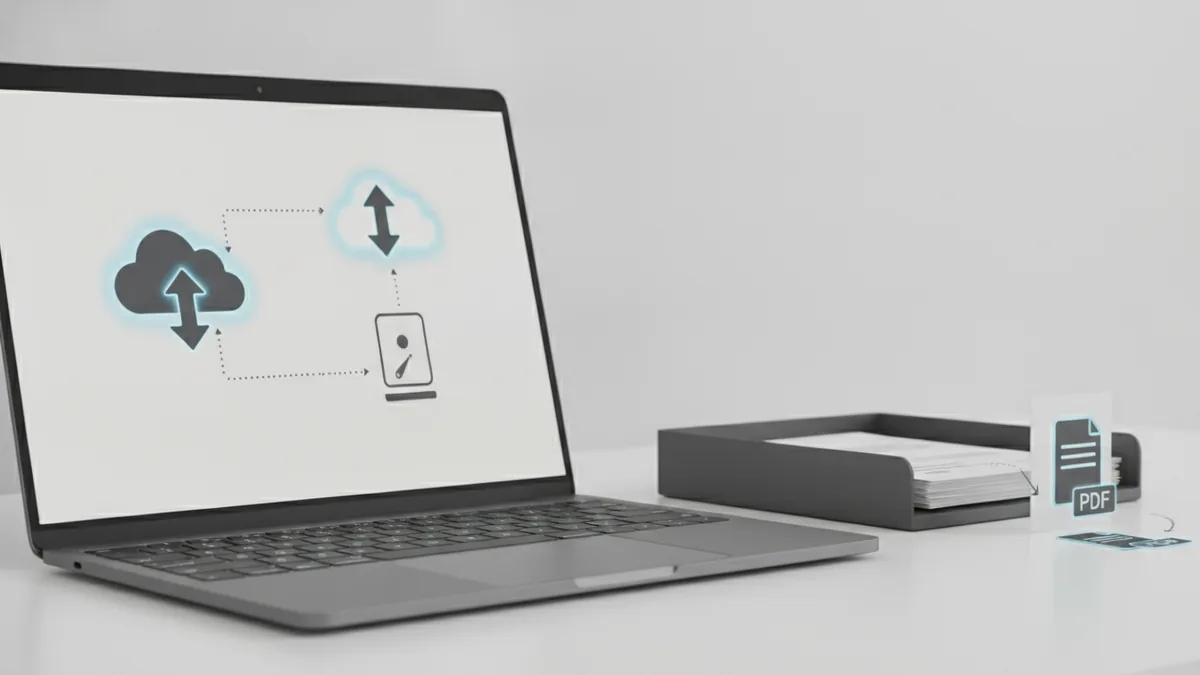
PDF software gives you more control and often better results for complex files. If you want “how to save certain pages from a pdf” with consistent formatting, software tools are a strong option. They also work well for repeated tasks across many documents.
In Adobe Acrobat, you can use the export or organize tools to save a page range. The exact menu names vary by version, but the workflow stays familiar. You locate the page tools, choose “extract” or “organize,” then set the page range you want to keep.
On macOS, Preview can handle quick exports too. It is a built-in option that many people already have. You can select pages to save by using print options or export-style actions.
Adobe Acrobat style workflow
Open the PDF in Acrobat and go to the pages or organize view. Choose the option to extract pages or create a new PDF from selected pages. Then specify the page numbers you want, confirm, and save the new file. This answers “how to export certain pages from pdf” in a repeatable way.
Preview on Mac style workflow
Open the PDF in Preview and view the page thumbnails. Select the page(s) you want to keep, or set the range in the print dialog. Then choose a “Save as PDF” option as your output. This is a practical way for “how to save only certain pages of a pdf mac” without installing extra software.
No matter which tool you use, confirm the page order before you save. If the extraction changes order, your new file can become confusing fast. After saving, open the exported PDF and scan the first and last page for accuracy.
Tips for PDF Management: Keep Files Clean and Small
Saving only necessary pages is not just about convenience. It reduces clutter in folders and makes sharing easier. It also helps with storage limits when you manage many digital documents.
It is also easier to comply with internal rules when your files match their purpose. For example, a “client onboarding packet” might need only pages 2–6 from a larger contract. A smaller extracted PDF is clearer for future you and for teammates.
These are practical tips to make page extraction part of a repeatable workflow. They focus on organization and safe handling of files.
- Rename after download using a clear pattern like “ProjectName_PageRange_YYYY-MM-DD”.
- Check page numbers carefully. PDFs often count from 1, not from a visual cue.
- Preview the extracted output when offered. It catches off-by-one mistakes quickly.
- Use deletion or removal when you want to keep the file structure.
- Consider PDF compression after extraction if the file will be shared often.
If you also need “how to delete certain pages in pdf” or “how to remove certain pages from a pdf,” choose the edit approach. Delete unwanted pages and save the updated file when you want to keep the rest of the document intact. This is different from “how to save only certain pages of a pdf,” where you intentionally create a new smaller PDF.
For some workflows, extraction and deletion are both useful. Extract pages into a new file for external sharing. Then keep the original document for internal records. That balance keeps your digital document organization tidy.
Finally, always use the simplest method that fits the job. Online tools are great for quick ranges. Desktop PDF software is better for frequent work, large files, or tricky layouts. Pick the option that gives you reliable output with the least friction.
Related reading
How to Turn Any File Into a PDF
Turn documents, images, and presentations into PDFs in a few simple steps.

How to Rearrange PDF Pages Free Without Installing Software
Move PDF pages into the right order online, free, and without installing software.

How to Turn Photos Into PDFs on Any Device
Turn photos into clean PDFs on phones, Macs, Windows PCs, or online.