How to Send an Editable PDF to Anyone
Send editable PDF forms by email, link, or cloud storage with ease.
What Makes a PDF Editable?
An editable PDF lets the recipient enter details without printing the file. Most forms use fillable fields for names, dates, signatures, and other data. This saves time and keeps each reply in the same layout.
To learn how to send an editable PDF, first check that the file has active fields. Click a blank area and look for a cursor or field outline. If nothing responds, the file may only be a scanned page or a flat PDF.
A fillable PDF does not always allow full document changes. A form may let users enter data but block changes to its design. That setup protects the layout while still allowing useful replies.
- Fillable PDF: A form with fields for typed or selected answers.
- Editable PDF: A file that may allow changes to text, pages, or form fields.
- Flat PDF: A fixed file with no active areas for input.
How to Create an Editable PDF Form
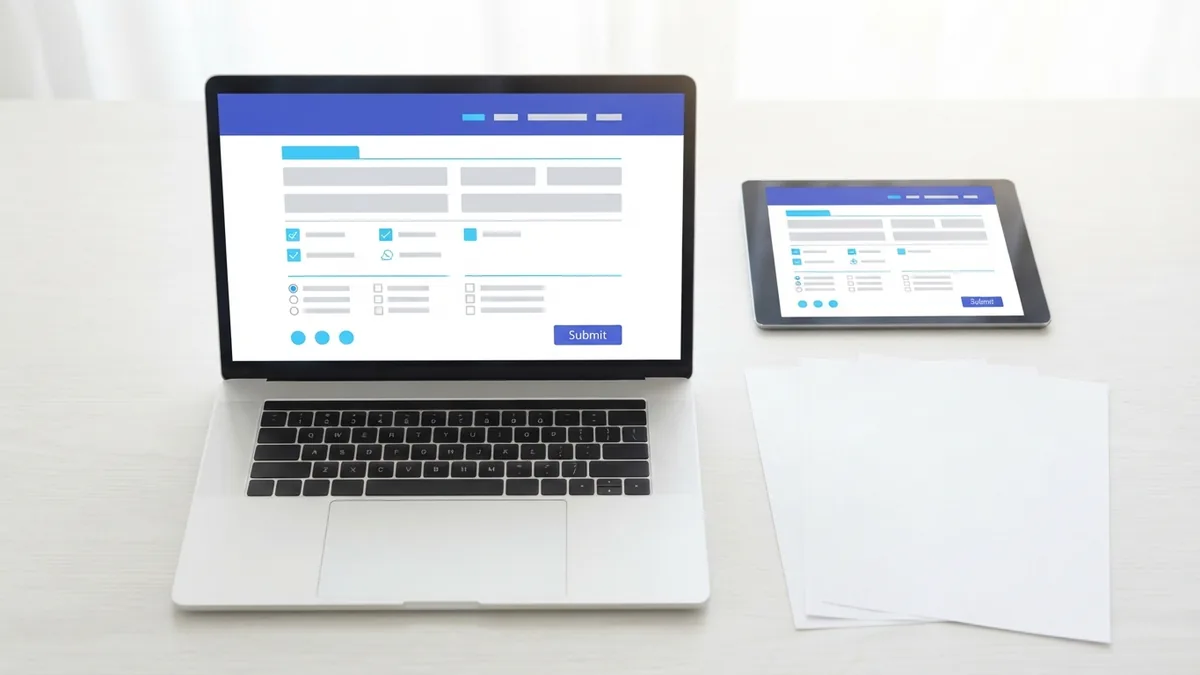
You can build an editable form with Adobe Acrobat or an online PDF service. Start with a clean PDF that has clear labels and enough room for each answer. Save a backup before you add fields.
Open the form tool and choose the option that detects fields. Review every detected field by hand. Add fillable text fields where the tool misses a blank line or box.
Set a useful field name for each box. Mark key fields as required when the recipient must complete them. Add checkboxes, drop-down lists, or date fields when they reduce typing.
For a simple guide to field creation, see Adobe's guide to creating fillable PDFs. Test the form in a separate viewer before you send it.
- Open the source PDF in a trusted form editor.
- Run field detection, then add missed fields.
- Set field names, sizes, and required settings.
- Save a new copy and test every field.
Ways to Send an Editable PDF
Sending an editable PDF through email is usually the fastest choice. Attach the finished file to a new message, then name the file clearly. State what the recipient should complete and how they should return it.
Keep the attachment small when possible. A form with a few fields often stays well below common mail limits. Large scans may fail to send, so reduce image size before attaching them.
Cloud storage works well for large files or shared work. Upload the PDF, set the right access level, and copy the share link. Choose view or edit access with care. A public link may expose private form data.
You can also use a file transfer service or a work portal. These options help when mail blocks certain file types. The recipient should download the file before filling it out.
| Method | Best use | Main check |
|---|---|---|
| Email attachment | Small forms and direct replies | Attachment size and viewer support |
| Cloud link | Large files or group work | Access rights and link expiry |
| Work portal | Private team or client files | Account access and file rules |
Best Practices Before You Press Send
Open the final file in two different PDF viewers. Enter sample data into each field. Check that saved entries remain after you close and reopen the file.
Tell the recipient which app or browser works best. Some basic viewers display a form but cannot save entered data. Ask the recipient to download the file if browser editing causes trouble.
Make the form easy to use with clear labels and a logical tab order. Use a readable font and strong contrast. The W3C PDF accessibility guidance covers useful checks for tagged files and form labels.
Protect private data before sharing the file. Remove hidden notes, old fields, and unwanted pages. Use a password or secure link when the form contains financial or personal details.
- Use a clear file name, such as rental-form-march.pdf.
- Explain the task in the first two lines of the email.
- State the return date and preferred reply method.
- Send a test copy to yourself first.
- Share only the access level the recipient needs.
Common Problems and Simple Fixes
A recipient may report that the PDF cannot be edited. First, ask them to open the downloaded file in a full PDF reader. A browser preview may not support every field type.
Some fields may vanish after saving. This often points to an old viewer or a broken form build. Reopen the file in the editor, check each field, and save a fresh copy.
Printing can also remove the editable feature. A printed page becomes a flat copy. Tell recipients to save the completed file before printing or returning it.
If the email fails, check the attachment size and file name. Remove unusual symbols from the name and try a cloud link. If access fails, create a new link with a clear expiry date.
What to include in your email
Keep the message short but specific. Name the form, explain the needed fields, and give a return step. A clear note prevents most back-and-forth messages.
“Please complete the highlighted fields, save the PDF, and reply with the saved file by Friday.”
When you know how to send an editable PDF, the process is simple. Build fields, test the saved file, choose a safe delivery method, and guide the recipient.
Related reading
How to Create and Edit Editable PDF Forms
Create, edit, and test fillable PDF files from common source apps.
PDF Editing: Fix Saving and Permission Issues
Find out why a saved PDF resists edits and how to fix the file.

How to Download and Edit a PDF on Windows and Mac
Download, edit, and save PDF files with clear steps for Windows and Mac.