3 Ways to Make a PDF Writable
Turn a fixed PDF into a form people can fill, sign, and share.

Understanding Writable PDFs
A writable PDF lets you type, tick boxes, add notes, and sign the file on screen. You do not need to print the document first. To make a PDF file writable, open it in a PDF editor and add fields or text areas.
A scanned file needs one extra step. An editor may treat each page as a flat picture. Optical character recognition, or OCR, can read that picture and turn it into editable text. You can then place new fields over the page.
Writable PDFs suit contracts, job forms, school records, and project notes. They keep the page layout fixed while allowing selected areas to change. This gives you more control than a plain editable document.
- Text fields let users type names, dates, and answers
- Check boxes support yes-or-no choices
- Signature fields let users sign without printing
- Comment tools support notes and review work
Why Writable PDFs Save Time
A writable PDF cuts out several slow steps. Users can fill out the file, save it, and send it back by email. There is no need to print, scan, or retype the same details.
This change can improve workflow efficiency for small teams. For example, a five-page application may need ten answers and one signature. A fillable form keeps each answer in the right place.
Writable files also reduce errors caused by hard-to-read handwriting. They make records easier to search and store. A saved copy can show the completed form without changing the original blank version.
Use a clear field plan before you start. Mark every place that needs input. Then decide whether each area needs text, a box, a date, or a signature.
Ways to Make a PDF Writable

There are two common ways to create a writable PDF. You can edit an existing file with an online PDF editor. Or you can build a new form with software made for PDF forms.
Online tools work well when you need a quick result. Upload the file, add fields, and download the finished copy. Check the site's privacy terms before uploading files with private data.
Desktop software suits repeat work or large form sets. It often gives you more control over field names, tab order, and signing rules. It may also work without an internet connection.
If you ask, “How do you make a PDF file writable?” the basic process is simple:
- Open the source PDF in an editor
- Run OCR if the pages are scanned images
- Add text boxes, check boxes, and signature fields
- Test every field with sample answers
- Save a blank master and export a fillable copy
Using PDF Editing Tools
Start by opening the file in your chosen PDF editor. Look for a tool named Prepare Form, Form Fields, or Edit PDF. The exact name may differ between tools.
For a simple text area, choose the text field tool. Draw a box over the place where users should type. Set a useful field name, such as “Customer name” or “Project date.”
Use a check box for each choice that users may select. Use radio buttons when users must choose only one option. Add a date field when the date should follow one set format.
Keep fields large enough for the expected answer. A name field may need one line. A comments field may need several lines. Do not cover printed labels or key page details.
Test the file in a second PDF viewer after you save it. Some viewers show fields well but handle special scripts poorly. A quick test can catch missing fields before you send the form.
Creating Fillable PDF Forms
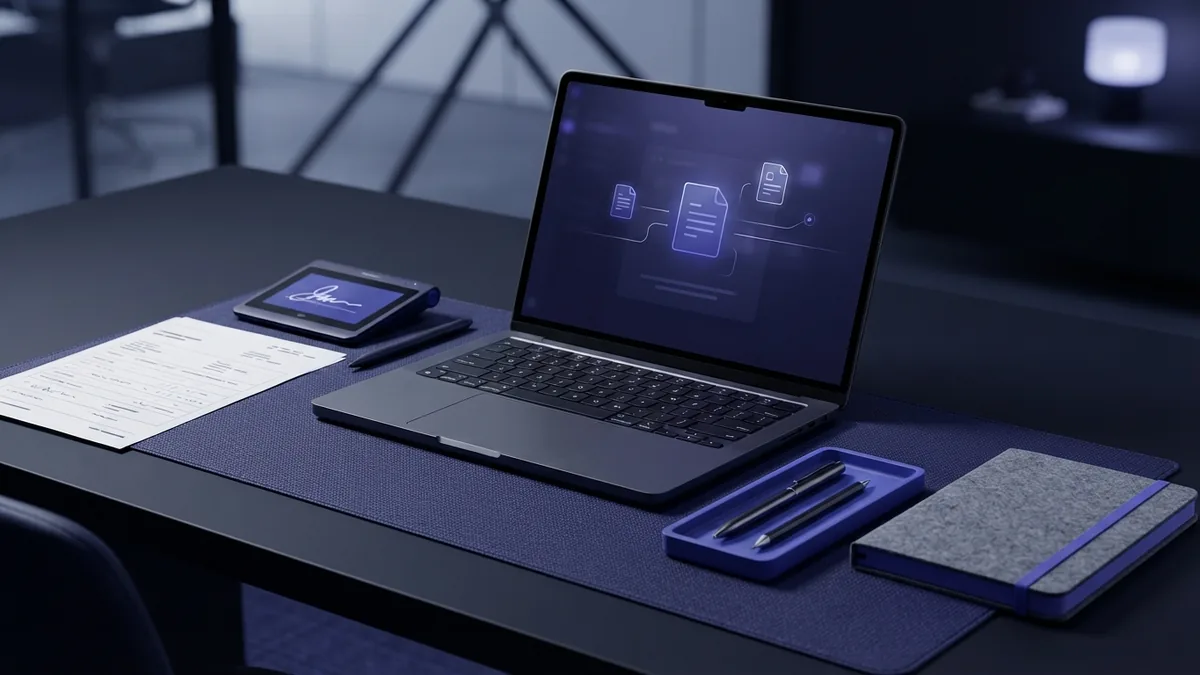
A fillable form needs a clear path from start to finish. Place fields in the same order that a person reads the page. Use short labels so users know what each field needs.
Give fields simple names and set tab order when the tool supports it. Tab order controls where the cursor moves after each answer. Good order makes a long form feel much faster.
Choose required fields with care. Make a field required only when the answer is truly needed. Too many required fields can block users who do not have every detail.
Add a signature field near the final approval step. Some tools support a dynamic signature that records a typed, drawn, or uploaded mark. Check your business rules before choosing a signing method.
| Field | Best use | Common mistake |
|---|---|---|
| Text field | Names, addresses, and short answers | Making the box too small |
| Check box | Several choices may be selected | Using it for one-choice questions |
| Radio button | Only one answer may be selected | Giving each choice a different group |
| Signature field | Approval or sign-off | Placing it far from the final terms |
Collaborating With Writable PDFs
Writable PDFs can support review work as well as form filling. Team members can add comments, highlight text, or draw simple marks. These tools help reviewers point to exact parts of a document.
Set a clear review plan before sharing the file. Ask each person to use comments for questions and fields for final answers. This keeps notes separate from the data that belongs in the form.
Use version names that show the file state. Names such as “contract-review-01” and “contract-approved” reduce mix-ups. Keep the blank master in a separate folder from completed files.
Some teams use shared storage for review copies. Limit access to people who need it. Remove private data from test files before sharing them outside the team.
Saving, Exporting, and Sharing the Final File
Save the blank form before adding any answers. Then save a new copy for each completed submission. This protects the original and gives you a reusable template.
Keep the PDF format when recipients must use the fields. Exporting to a picture format will remove those fields. Export to Word only when someone needs to edit the page layout itself.
Check the saved copy before you share it. Type in each field, select each choice, and test the signature area. Then close and reopen the file to confirm that the answers remain.
Use a clear file name and share the right version. If the file holds private details, use a secure sharing method. Send the blank form only when recipients need to complete it themselves.
- Keep one untouched blank master
- Save completed forms as separate copies
- Retain the PDF format for active fields
- Test the file after export
- Share only the needed version
A Quick Check Before You Send
The answer to “How do I make a PDF file writable?” is not just adding boxes. The form must also be easy to use and safe to share. A final check protects both goals.
Confirm that every needed field works on your computer and a second viewer. Check that text stays inside each box. Make sure the file opens without a password or warning that blocks normal use.
If you need to convert a PDF file to writable format, begin with OCR for scanned pages. Then add the fields by hand and test the result. With this process, old paper forms can become useful digital forms.
Related reading

PDF Template Forms: Steps and Tools
Build clear, fillable PDF templates with Acrobat or online tools.

Convert Files to PDF: Simple Steps
Convert documents, images, and more to PDF on any device.

Fillable PDF Forms: Fields and Saving
Turn a regular PDF into a fillable form with fields, checks, and signatures.