How to Edit a PDF Resume Without Losing Formatting
Edit a PDF resume with the right tools, backups, and export settings.

Understanding PDF resume formats
A PDF resume is designed to keep the same layout on any device. Fonts, spacing, and line breaks should match between your phone, laptop, and recruiter’s computer. That stability is the main reason PDFs are used for resumes.
But “PDF” is not one single file type. Many resumes are created from a word processor and saved as a normal, editable PDF. Others are scans saved as images, which look like a PDF but contain no real text.
Before you try to change anything, check whether the PDF has selectable text. If you can highlight a sentence, your file likely contains real text. If you can’t, you probably need document conversion via OCR to make editing possible.
Why edit a resume in PDF (and what can go wrong)
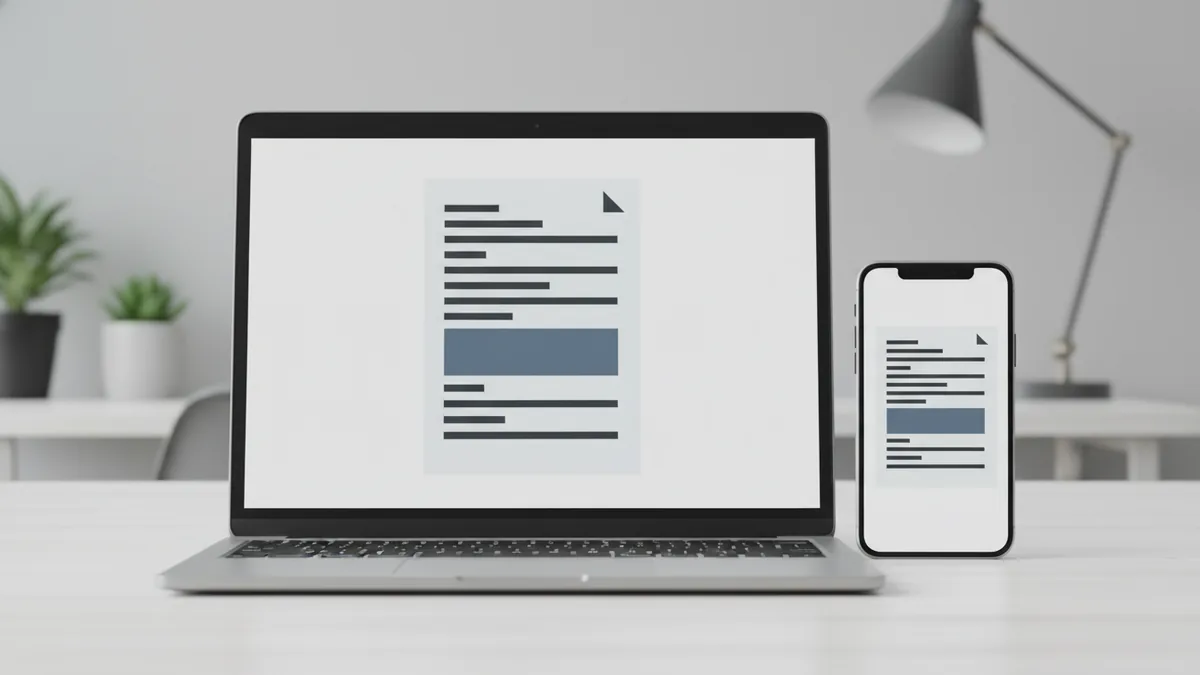
When people search “how to edit a pdf resume,” they usually mean changing a few details. Examples include updating job titles, adding a certification, or fixing a phone number. Editing in PDF matters because you want resume formatting to stay consistent.
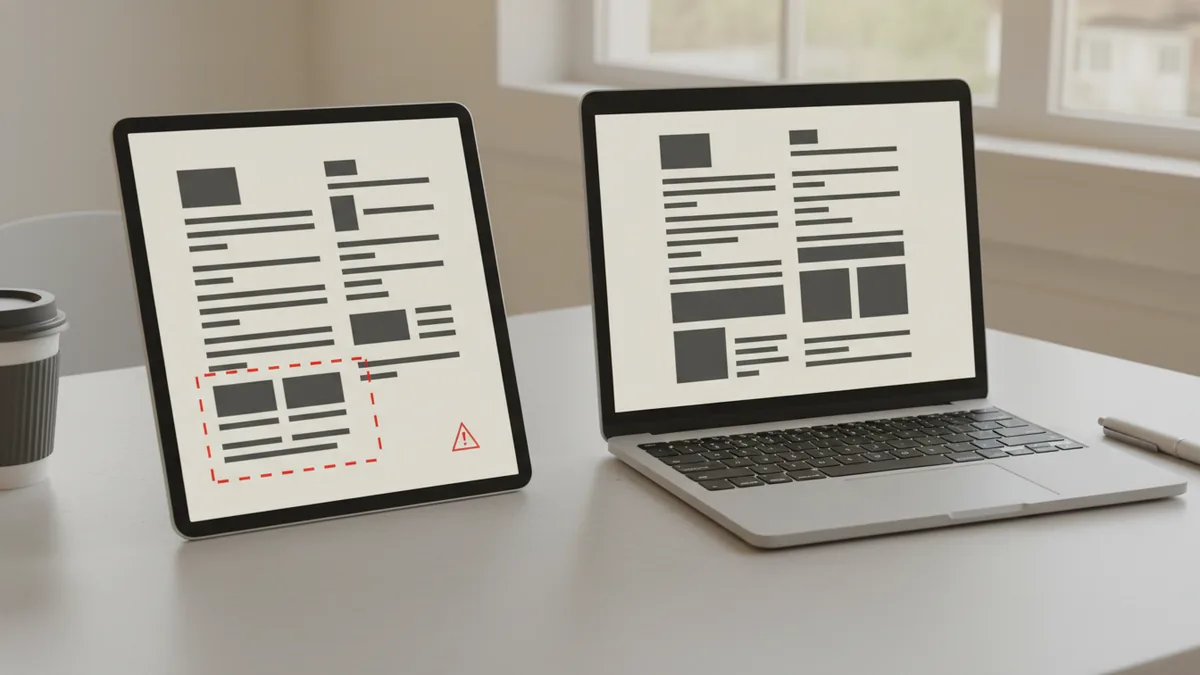
The risk is layout drift. If you replace text poorly, spacing and alignment can shift. Recruiters might see broken lines or weird gaps, even if the content is correct.
The goal is to edit in a way that preserves resume formatting. That usually means using tools that support text boxes, embedded fonts, and careful export settings.
Another common issue is overwriting the original file. You want to edit my pdf resume safely, so your backup stays intact if something goes wrong during saving.
- PDFs can preserve formatting across devices and platforms.
- Scanned PDFs may need OCR before true editing is possible.
- Bad edits can break spacing, alignment, and line wrapping.
Methods to edit your PDF resume
There are three practical paths. The best one depends on whether your resume is text-based or scanned. It also depends on whether you need light edits or more complex changes.
Method one is text-based editing. If the PDF has selectable text, you can often change content directly. Many PDF editing tools let you add text in existing areas, which helps preserve formatting.
Method two is annotation-based editing. Some tools can add highlights, comments, or callouts. That is useful for internal review, but recruiters often expect the final resume to be fully updated, not just annotated.
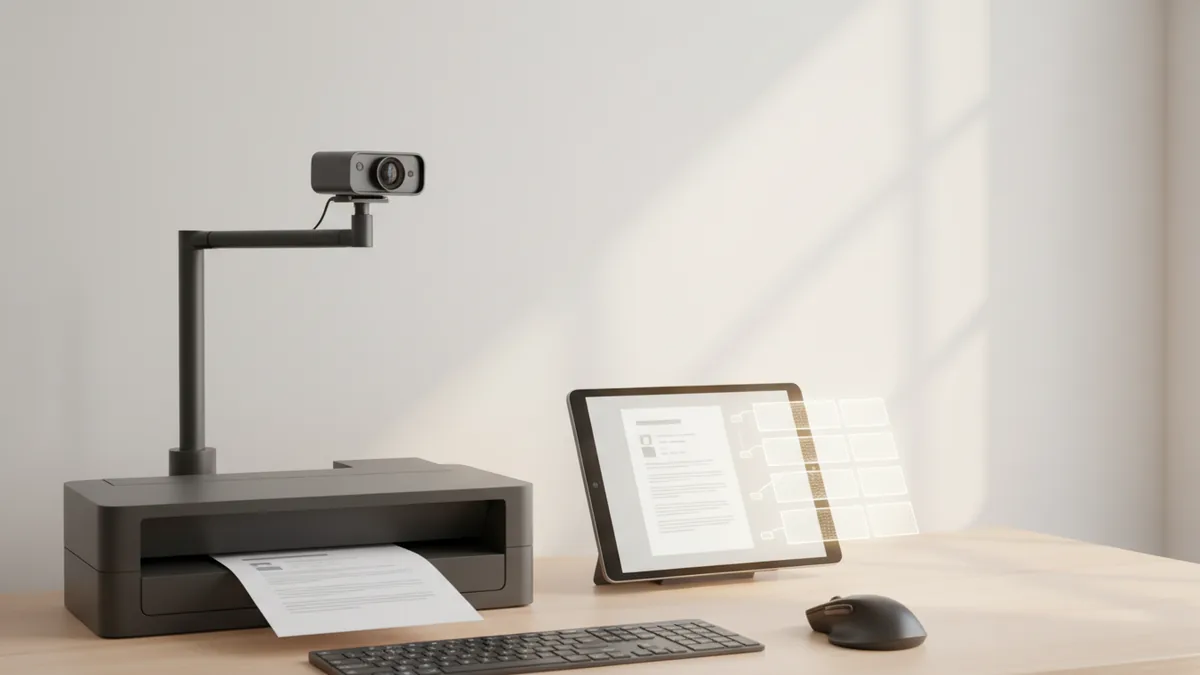
Method three is document conversion. If your resume is a scan, you’ll need OCR to convert the content into editable text. After that conversion, you can make changes and re-export as a new PDF.
- Identify whether text is selectable in your PDF.
- Pick the matching tool method: direct edit, add content, or OCR conversion.
- Make changes, then check the preview at 100% zoom.
- Export a new PDF file and verify key sections.
Using online tools for editing PDF resume files
Online PDF editors can be convenient if you need quick edits. Some tools let you edit text directly, such as replacing a line under “Experience” or updating dates. This approach is often faster than opening heavy desktop software.
When using online PDF editors, focus on editing features that match resume needs. Good tools support adding and moving text boxes, inserting images like a headshot, and placing annotations when you want a clean review trail. Many also support form-like text editing, which can help keep alignment stable.
To keep formatting clean, avoid large layout changes. For example, instead of rewriting an entire paragraph, update a few words in place and keep the same font size. If you must change length, test line breaks carefully because resume formatting can wrap differently.
Backup is still essential. Download the original first, rename it with something like “resume-original.pdf,” and keep it untouched. Then create a second file for your edits, so you can revert quickly.
If your resume is scanned, find an online tool that includes OCR. OCR (Optical Character Recognition) converts image text into real text. After OCR, you can correct misread characters, then fine-tune placement.
- Direct online editing works best when PDF text is selectable.
- Annotations help review, but final hiring versions need real updates.
- OCR is the fix for scanned resumes that cannot be edited.
Editing with software applications (Word processors and PDF tools)
Desktop software is a strong choice when you need precision. Many people ask how to change a pdf resume using Microsoft Word or similar tools. In some workflows, you can convert the PDF to a Word document, edit it, and save it back to PDF.
This conversion route can work, but it depends on the PDF’s structure. If the PDF was created from a clean resume template, Word conversion often keeps spacing close. If the PDF is complex, conversion may change fonts and margins.
For better control, you can use software specifically designed for editing PDFs. These tools typically let you select text elements, adjust font settings, and place content more predictably. They also handle embedded fonts better, which supports consistent resume formatting when you save PDF files again.
If your resume uses images, like a scanned header or logo, be careful when editing around them. Replace text near images rather than dragging large blocks, or you may create misalignment.
For scanned resumes, software with OCR can be even more reliable. OCR can convert the scan into editable text layers. After OCR, you correct errors and ensure the result matches the original layout grid.
| Editing need | Best approach | What to watch |
|---|---|---|
| Update a few lines (dates, titles) | Direct PDF editing or text replacement | Line wrapping and spacing |
| Fix a scanned resume | OCR conversion, then edit | OCR character errors |
| Add a small graphic or photo | PDF editor text/image tools | Image size and alignment |
| Rewrite sections heavily | Convert to an editor, then export | Fonts and margins after conversion |
Saving and exporting your edited resume correctly
Saving is where formatting problems often appear. After you edit your PDF resume, preview it at multiple zoom levels. Check the header, the “Experience” section, and any columns. Also open it on another device if you can, because PDF rendering can differ slightly.
Always save a new file name. A safe pattern is to keep the original, then export something like “resume-updated-1.pdf.” That helps when you apply different versions for different job postings.
Choose export settings that keep quality high. If the tool offers optimization or compression, compare the output visually. Resume text should remain sharp when zoomed in, especially for small fonts.
Finally, re-check the basics recruiters care about. Verify phone number digits, email spelling, and dates. Then confirm section headings still align and nothing overlaps.
To avoid future headaches, consider creating your resume in an editable source format first. Then you can export a clean PDF anytime you need to create, edit, and update versions quickly.
- Preview after saving at 100% and check section alignment.
- Export as a new PDF file name, not overwriting the original.
- Confirm text accuracy and verify email and phone details.