
How to Make a PDF Read-Only: Adobe, Flattening, Passwords
Make PDFs harder to edit: Adobe permissions, flattening forms, and password rules.
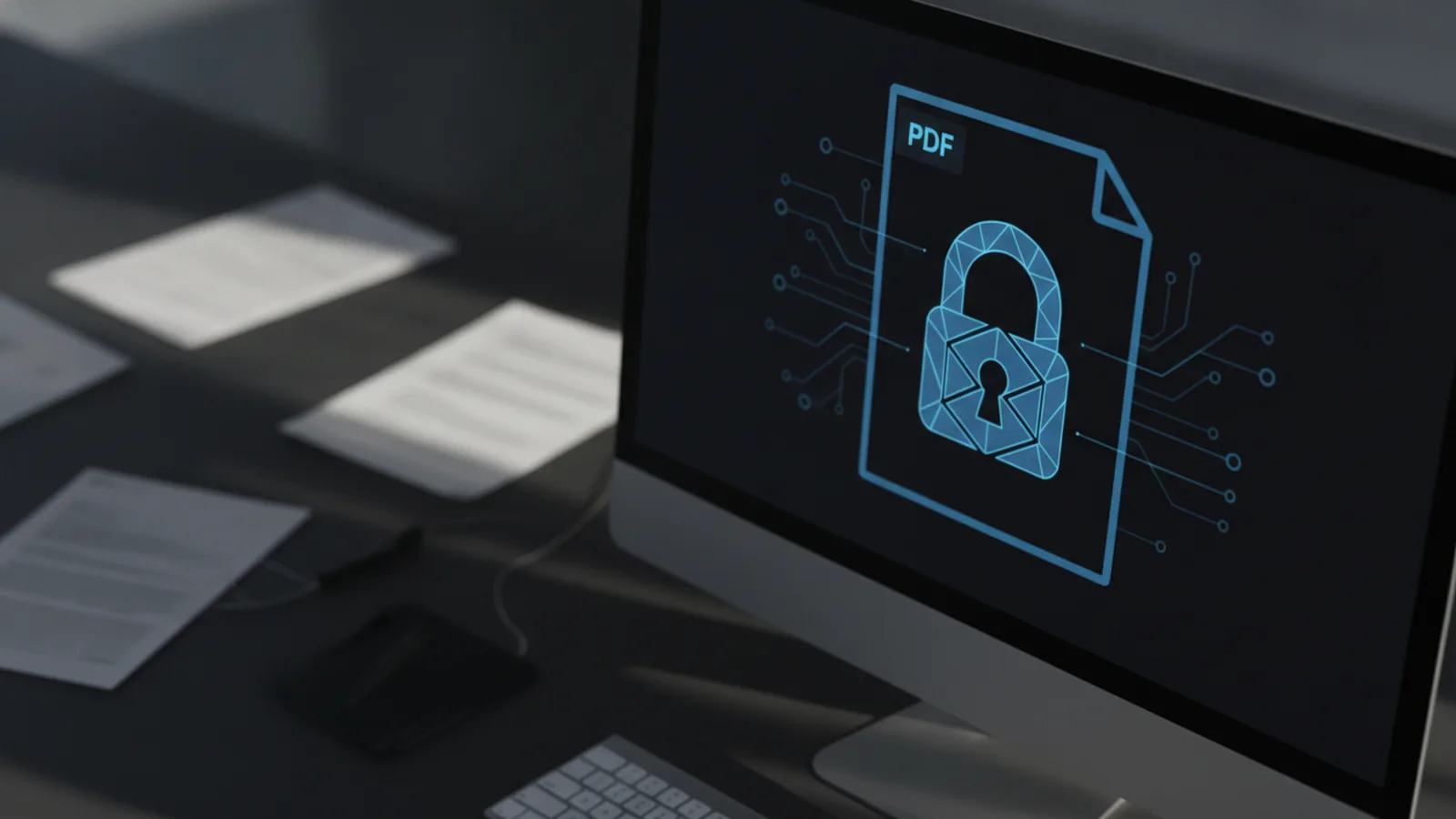
If you need to stop others from editing a file, the simplest answer is to turn on PDF document protection. You can do this with Adobe by setting permissions, or with password rules that block edits and printing. You can also flatten fillable forms so the fields become fixed content. Below are the practical ways to handle each case, including what to do when you need to make a PDF not read only later.
Understanding a read-only PDF (and why it matters)
A read-only PDF is a document set up so most viewers cannot change its text, images, or form fields. It does not magically prevent every action on every device, but it strongly limits editing in common PDF readers. This is the core idea behind PDF security and document protection.
Read-only behavior can come from two main mechanisms. One is permission settings inside the PDF. The other is encryption plus password restrictions. Either way, the viewer gets clear rules, like “no edits allowed” and “printing may be blocked.”
When a PDF is created from a normal document, it is usually not “editable” anyway. But when the file contains interactive form fields, or when the author leaves permissions open, someone can often modify content. That is when you want to lock it down.
- Permissions limit what actions a viewer is allowed to do.
- Encryption enforces those limits via a lock key.
- Flattening removes form fields so they cannot be edited.

Ways to make a PDF read-only
There are several practical methods to make a PDF read only, and the best choice depends on how the PDF was built. If you have a plain PDF with no form fields, permissions and encryption are often enough. If the PDF is fillable, flattening PDFs can be the cleanest fix.
Here are common approaches you will see in PDF editing software and PDF security tools. Each option can reduce editing, but only flattening PDFs truly removes editable form controls.
- Set editing permissions to “no changes” in the PDF security settings.
- Add a password that blocks editing and can block printing.
- Encrypt the PDF so restrictions are enforced by the reader.
- Flatten fillable fields so the form becomes normal page content.
Also consider your “reader environment.” Many workplace workflows use Adobe Acrobat, Chrome, or mobile viewers. Some viewers respect permissions fully. Others may still allow limited actions. That is why you should test the protected PDF in the same software your recipients use.

Make a PDF read-only in Adobe (permissions and restrictions)
If you are asking how to make a pdf read only in adobe, the permissions route is usually the fastest. The main goal is to set restrictions that block document changes, like edits to text or form fields.
In Adobe Acrobat Pro, open the PDF. Then go to the security tool area for protecting documents. Look for an option similar to “Protect” and then “Restrict editing.” The screen typically asks you to choose restrictions and a password setup method.
Use these settings as a starting point, then adjust for your needs. Choose a password model that fits your workflow. For example, you can keep viewing open but require a password for changes. You can also set rules for copying content, commenting, or form field filling depending on the version.
- Allow printing? Turn it on or off based on your policy.
- Allow commenting? Disable it if you want “no notes” too.
- Block document changes to stop edits to pages and fields.
- Use an owner password for enforcement where offered.
After you apply the protection, close and reopen the PDF. Try common actions like selecting text, adding notes, and editing form fields. This confirms the permission settings work as expected in your viewer. If your recipients use a different reader, test there too.
If your goal is strict document protection, remember that password encryption and permissions are linked. Without correct settings, someone may be able to bypass the intent. With correct settings, most viewers will show a warning and block the action.

Flattening fillable PDFs so fields cannot be edited
Flattening is different from permissions. When you flatten a PDF, you turn interactive fields into static content. That means the fillable form management layer is gone, so the recipient cannot change the form fields anymore.
This is the best method when you need a “locked” copy of a filled form. For example, after someone completes a form, you can flatten it so later edits are no longer possible. It is also useful when you worry about form field tampering.
In tools that support it, look for an option like “Flatten Forms.” The workflow is often simple. Open the PDF, choose flattening from the form tools menu, and save a new file. Keep the original unflattened version in case you must regenerate the form later.
Practical tip: flattening can change how text is selected. A field that was once a text box may become plain content. That can be good for security, but it may reduce copy-paste quality. If you need copy-paste, consider permissions instead of flattening.
- Use flattening after the form is finished.
- Save a new file so you keep an editable source.
- Test selection if recipients need to copy data.
Password protection: block editing and printing
Password restrictions are one of the most common ways to create a read-only PDF. When you ask how do i make a pdf read only, password protection often comes up first. It works by encrypting the document and requiring a password for restricted actions.
Typically you set two passwords. One password may control opening the document. A second password may control document changes. In many workflows, you allow viewing without a password and use a “change password” to block edits. Some tools also add a printing setting to the same rules.
To set this up, open the PDF in your PDF editing software and find a security or protection panel. Choose the option for password protection. Then select restrictions for editing and printing. Use strong passwords and share them only with trusted people.
Also decide what “printing” means for you. Blocking printing can help protect sensitive content. But if your recipients need paper copies, allow printing and rely on edit restrictions instead. You can also block copying and text extraction in some tools.
- Set the PDF to require a password for document changes.
- Disable editing permissions for form fields and page edits.
- Optionally restrict printing and copy actions.
- Save and verify the rules with a test user account.
If you later need to make a PDF not read only, the ability to remove protection depends on having the right password. Without it, you may not be able to unlock or change the restriction state safely.
Alternative tools for securing PDFs
If you cannot or do not want to use Adobe, there are other tools that support PDF security. Many desktop PDF viewers also offer basic protection, especially for permission locking. Some online tools can apply password restrictions, but you should be careful with uploads of sensitive documents.
When choosing an alternative, look for features that match your goal. If you need to stop edits, permissions or passwords must be included. If you need to lock a filled form, flattening PDFs is the key feature.
Here are practical selection points to guide your choice:
- Permissions settings for edits, comments, and copy actions.
- Encryption that actually enforces restrictions in common readers.
- Form flattening for fillable PDFs and completed forms.
- Reversibility if you may need to make a PDF read-only off later.
For sensitive files, prefer tools that let you run locally or that clearly state their handling and retention policy. If you only need basic restrictions, a trusted desktop tool can be enough. If you need strong enforcement across many devices, choose software known for good PDF security support.
Finally, always test. Open the protected file in the same app your recipients use. Then try actions that matter, like selecting text, changing form fields, and saving a modified copy. This catches surprises before you send the document.
Related reading

Sibelius to PDF: Export and Check
Export Sibelius scores as PDFs and check every page before sharing.

VitalSource Bookshelf to PDF: Safe Offline Options
Check export rights first, then choose a safe way to read VitalSource books offline.

Khazar Conversion: Evidence and Debate
What medieval sources say about the Khazars, Judaism, and a debated conversion.