
Sibelius to PDF: Export and Check
Export Sibelius scores as PDFs and check every page before sharing.

Introduction to Sibelius and PDF conversion
Sibelius is music notation software for composing and arranging scores. Its project files keep music editable, while a PDF shows a set page layout. This makes PDFs handy when readers need to view or print a score.
If you are looking for how to convert Sibelius file to PDF, start with the export tools built into Sibelius. The steps are much the same across versions, though menu names can change. Save your original project before making layout changes.
Use the editable file when a player or collaborator needs to change notes, parts, or page layout. Use a PDF when the score is ready to read, print, or mark up. A PDF does not replace the Sibelius project.
Why convert a Sibelius score to PDF?
A PDF keeps the score's page size and spacing steady across devices. The recipient does not need Sibelius to open it. That helps when sharing music with players, teachers, conductors, or a print shop.
It also gives you a fixed copy of a finished score. Readers can print it or add notes with common PDF tools. They cannot change the source music as they could in the Sibelius project.
- Share a score with people who do not use Sibelius.
- Print pages with a layout that stays consistent.
- Keep a fixed copy beside the editable project.
- Send a full score, selected parts, or both.
Think about what each reader needs before export. A conductor may need the full score, while each player may need only their own part. Check those choices before saving the PDF.
How to export a Sibelius score as a PDF
The built-in PDF export is usually the best way to convert Sibelius to PDF. It uses the score's own page layout and avoids an extra conversion step. Menu names may differ by version, but the main checks stay the same.
- Open the project. Start Sibelius and open the score you want to share. Wait for it to load, then check for any warnings about missing fonts or features.
- Review the score. Look over page size, paper direction, margins, and page count. Check that instrument names, staves, rests, and symbols appear as expected.
- Open the PDF export tool. Look in the File menu or the program's export area. Choose the PDF option, if your version offers one.
- Choose the score or parts. Select the full score, the parts, or both. If the window has a page range, check that it includes the pages you need.
- Name and save the file. Pick a clear file name and a folder you can find again. Keep the original Sibelius project in its own file.
- Open and inspect the PDF. Check every page for missing marks, blank pages, or cut-off staves. Make sure the page turns and part order make sense.
If direct export is not available, use Sibelius's print option. Choose a PDF printer, such as Microsoft Print to PDF on Windows or Save as PDF on macOS. Set the page range and paper size, then save the result.
Try not to scale the score down without checking the result. Shrinking can make notes and text hard to read. If the page does not fit, adjust the layout in Sibelius and export again.
Use a Sibelius version that can open the project as intended. A newer score may use features that an older version cannot show well. If you see warnings or odd symbols, ask for a compatible file or open it in a newer release.

Fix common export and notation problems
Formatting issues often start in the score layout, not in the PDF. A staff near the page edge may get cut off during printing. Check page size, margins, and print scaling before you export again.
Notation can also change if the computer lacks a font or symbol used by the score. Open the project in Sibelius and inspect the affected bars. If the marks still look wrong, ask the score's creator to export it from their setup.
- Pages are cut off: Check margins, paper size, and scaling.
- Parts are missing: Confirm the export includes the right parts.
- Symbols look wrong: Check fonts and notation in Sibelius.
- The PDF is blank: Export again or try print to PDF.
- The project will not open: Check whether your Sibelius version supports it.
Do not rely on the export preview alone. Open the saved PDF in a separate viewer and inspect it at normal page size. For a large print run, print one test page first.
When you spot a notation error, fix the source score rather than trying to patch the PDF. This keeps the music in one clear place. Export a fresh copy after each change, then check the affected pages again.
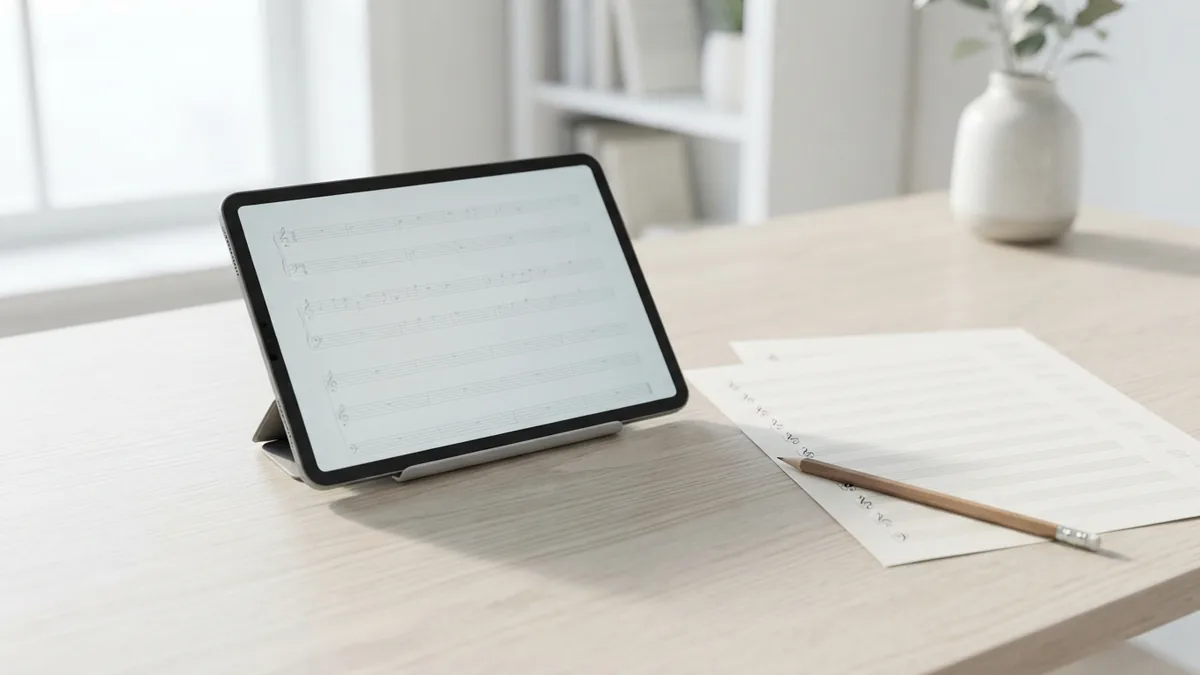
Other ways to convert or prepare score files
Print to PDF is the simplest fallback when your Sibelius version has no direct export command. It uses your computer's print system, so options can vary. Check that the selected paper size matches the score and that the print setting does not shrink the music.
PhotoScore and PDFtoMusic can help with other score tasks, but they do not replace Sibelius's PDF export. PhotoScore can read printed or scanned notation and help turn it into editable music data. PDFtoMusic can read score PDFs and create music files.
These tools may help when you need to move music between formats or work from a scan. They are not the first choice for making a clean PDF from an open Sibelius project. Use Sibelius export when you can, then check the result for notation accuracy.
For a scan or a file made by someone else, review any converted notes before sharing. Music-reading tools can misread symbols, ties, or staff lines. The source may need hand edits before it is ready for rehearsal or print.
Final checks before you share
Before sending the score, confirm that the PDF opens and has the right page count. Check the first and last pages, then scan the rest for clipped marks or blank sheets. Make sure the file name tells readers which version they have.
Keep both formats when the music may need later edits. The PDF is the easy copy for reading and print, while the Sibelius file holds the editable score. A quick review after export can prevent confusing rehearsal copies and costly print errors.
- Confirm the PDF has the right score or parts.
- Check margins, notation, and page turns.
- Keep the original project beside the exported PDF.
Related reading

VitalSource Bookshelf to PDF: Safe Offline Options
Check export rights first, then choose a safe way to read VitalSource books offline.

Khazar Conversion: Evidence and Debate
What medieval sources say about the Khazars, Judaism, and a debated conversion.
MOV to PDF on Mac: Frames and Files
Turn video frames into a neat PDF on your Mac.