How to Edit a PDF Document Without Losing Its Format
Edit PDF text, images, and pages with the right tool and safe save steps.
Understanding PDF Documents
Yes, you can edit a document in PDF format. The best method depends on the change you need. You can fix text, add images, move pages, or fill forms. Some edits need a full PDF editor.
PDF files are made for steady viewing and sharing. Their layout should look the same on most devices. This strength also makes direct edits harder than edits in a word file.
A PDF may hold text, fonts, images, shapes, and page data. These parts do not always act like one normal document. A tool must read each part before it can change the file.
Scanned PDFs bring another issue. They hold page pictures instead of real text. You need OCR, or text reading software, before you can change those words.
Why Edit a PDF?
People edit PDFs for many simple reasons. You may need to update an address, fix a typo, or change a date. You might also add a price, sign a form, or replace an old image.
Editing can save time when the source file is gone. You do not need to rebuild the whole page from scratch. A small change may take less than five minutes.
Here are common tasks that need a PDF edit:
- Correct a spelling error or wrong number
- Update contact details or payment terms
- Add a note, image, stamp, or signature
- Fill in a form or add a text box
- Remove a blank page or change page order
- Cover private details before sharing a file
Check the source file first, if you have it. Editing the original word file often gives cleaner results. Use a PDF editor when you only have the final PDF.
Ways to Edit a PDF Document
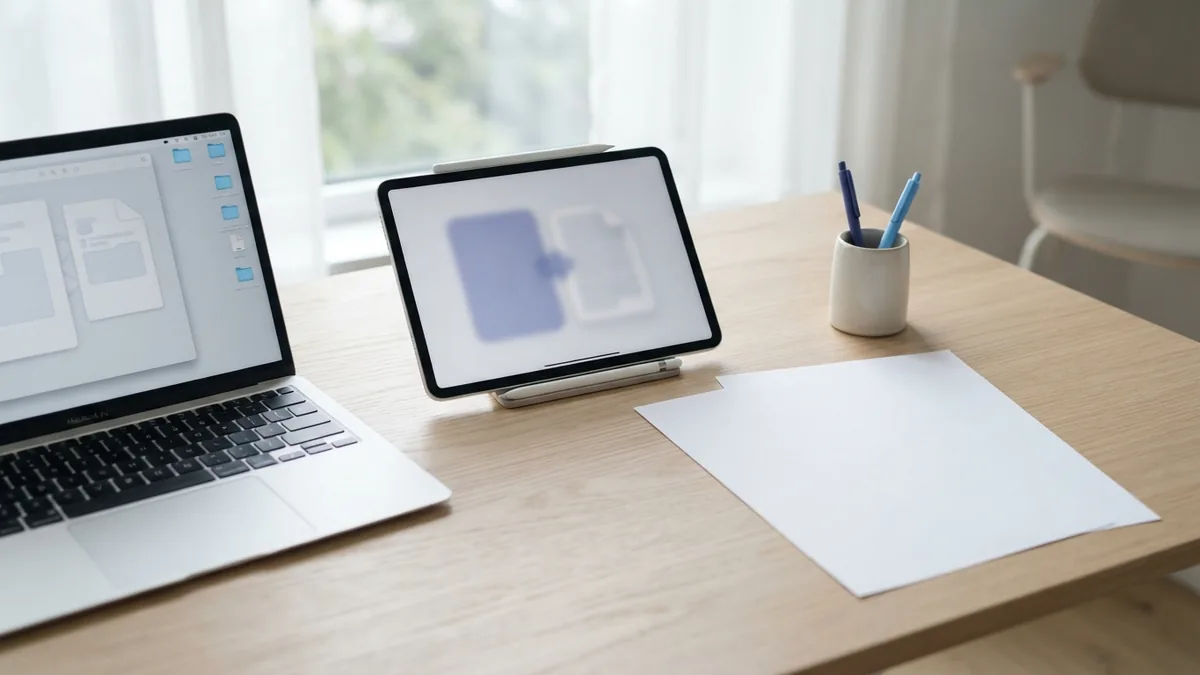
There are three main ways to edit a PDF. You can use a desktop app, Microsoft Word, or an online PDF editor. Each choice suits a different task.
A desktop app works well for regular work. Free apps can add text, images, shapes, and comments. Paid tools may also change existing text and match fonts more closely.
Online tools are useful when you need a quick edit. You upload the file, make changes in your browser, then download the result. No software install is needed.
Word can help with text-heavy PDFs. It first turns the PDF into an editable word file. This can change page breaks, fonts, tables, and image positions.
| Method | Best for | Main risk |
|---|---|---|
| Desktop PDF app | Frequent edits and page work | Some features may cost money |
| Microsoft Word | Text changes and simple layouts | Layout shifts after conversion |
| Online PDF editor | Fast edits on any device | Upload privacy needs care |
| Free desktop app | Notes, images, and basic changes | Less control over old text |
Choose the tool by the task, not by the file name. A short note needs less power than a complex form. Test the output before you send it.
Using Microsoft Word to Edit a PDF
Microsoft Word can open many PDF files and turn them into editable content. This answers a common question: can you edit a document in PDF with Word? Yes, but Word works through file conversion first.
- Open Microsoft Word on your computer.
- Select Open, then choose the PDF file.
- Read the warning about conversion and select OK.
- Change the text, images, or page content you need.
- Choose Save As and select PDF as the file type.
Word usually works best with PDFs that contain normal text. It may struggle with columns, charts, forms, and unusual fonts. It may also split one page across several pages.
Review every page after the conversion. Compare the new file with the old one. Look for changed line breaks, missing images, and bad spacing.
Save the Word file only when you need a second editable copy. Keep the original PDF as a backup. This gives you a safe way to compare both versions.
Editing PDFs with Online Tools
An online PDF editor lets you make changes from a web browser. This can help when you use a work computer or a tablet. Most tools support text boxes, images, page moves, and notes.
Start by checking the tool's edit options. Some sites add new text only. Others can change text already on the page. The difference matters when you need to fix a sentence.
Use this simple process:
- Open the online editor on a trusted site.
- Upload a copy of your PDF.
- Pick the edit tool that matches your task.
- Make one change at a time.
- Check the full file before downloading it.
- Remove the upload from the site, when that option exists.
Do not upload private files without checking the service first. Read its file handling terms. Avoid online tools for files with passwords, bank details, or private client data.
Online tools can also compress or convert files. Those extra steps may lower image quality. Use them only when you need them.
Free Desktop Apps for Basic PDF Edits
Free desktop applications can handle many basic PDF tasks. They often let you add text, images, shapes, comments, or page numbers. Some also let you join files and remove pages.
These apps may not change the original text layer. Instead, they place new content over the page. This works well for a label or note. It does not work well when you must change a long paragraph.
Check these points before you install an app:
- Which operating systems does it support?
- Can it edit existing text or only add new text?
- Does it export a clean PDF without a mark?
- Can it keep links, forms, and bookmarks?
- Does it open files without sending them online?
Free tools often have limits, but they suit light work. Use a test file first. Keep your original file untouched.
Best Practices for Editing PDFs
Make a copy before you edit. Name it with a clear version tag, such as “report-edited.” This helps you restore the first file if something goes wrong.
Work in small steps and save often. After each major change, check the page view. Small layout errors can hide until you print or share the file.
Keep these checks in your workflow:
- Check every page for missing text or images
- Confirm that links still open
- Check forms, comments, and bookmarks
- Review the file on a phone and computer
- Print one page when paper output matters
- Remove hidden notes or private data before sharing
Use the same font when possible. A missing font can replace letters or shift lines. If the layout matters, turn a final copy into a fixed PDF after review.
Be careful with text extraction from PDF files. Copied text may lose columns, spaces, or reading order. Check the source page before you reuse extracted content.
Saving Changes to a PDF Document
Saving is the final part of learning how to edit a document in PDF format. Choose Save As when you want to keep the first version. Use a new name so you do not erase your backup.
Pick PDF when you need a file that keeps its layout. Pick an editable word format when more changes will follow. The right choice depends on who needs to use the file next.
Check the saved file for quality and compatibility. Images may look softer after compression. Fonts may change when another tool saves the file.
Before you send the PDF, confirm these details:
- The file opens in a second PDF viewer
- Pages show the right size and order
- Text remains sharp when zoomed
- Links and form fields still work
- The file size suits email or upload limits
- The file has the right access settings
For most people, the best answer to “how can I edit a document in PDF?” is simple. Use Word for text-heavy files. Use an online editor for quick, low-risk changes. Use a desktop PDF app for repeat work and better control.
Save a clean final copy, then open it once more. That last check can catch the mistake you missed.
Related reading
Edit PDFs from Email: Steps and Safety
Edit email PDFs with the right tool, safe steps, and clean formatting.
Manipulating PDF Files: Pages and Content
Edit, merge, split, and save PDF files with less hassle.
Save Typed Data in PDF Forms: Keep It Safe
Save filled PDF forms safely and keep your typed data intact.