
How to Extract a Single Page from a PDF (Online or Desktop)
Extract one page from a PDF fast, using online tools or desktop apps.

Understanding PDF extraction
If you only need part of a longer document, PDF extraction lets you isolate one page as its own file. This is often faster than reworking the full PDF. It also helps with document management when you must share a specific section only.
In most cases, extraction keeps the page content, links, and layout the same. That means the extracted page usually looks like it did inside the original file. The result can be another PDF, or a different format such as JPG or Word, depending on the tool.
Common reasons to extract a single page include sending a single form page, sharing an invoice page, or turning one slide-like page into an image. People also use it for PDF splitting when they first identify the pages they need.
- Isolate one page for sharing or archiving
- Reduce file size for easier sending
- Keep the page layout intact
Methods to extract specific PDF pages
There are two main ways to extract a page. One is a dedicated “extract page” feature inside a PDF tool. The other is a workaround that prints or exports a selected page into a new file.
Which method you pick depends on your goal. If you need a clean single-page PDF, use extraction. If you need an image or a quick share, export to JPG, Word, or print-to-PDF can work well.
Here is what each method is best for. Match the method to the output format you want.
| Goal | Best approach | Typical output |
|---|---|---|
| Keep page layout as PDF | Extract page tool | Single-page PDF |
| Make an image for slides | Export page to image | JPG or PNG |
| Quick sharing without new software | Print a page | Print-to-PDF or printer page |
| Need a copy for editing | Export page to Word | DOCX (when supported) |
Also remember page rotation. If your page is sideways, rotate it first so the extracted result looks right.
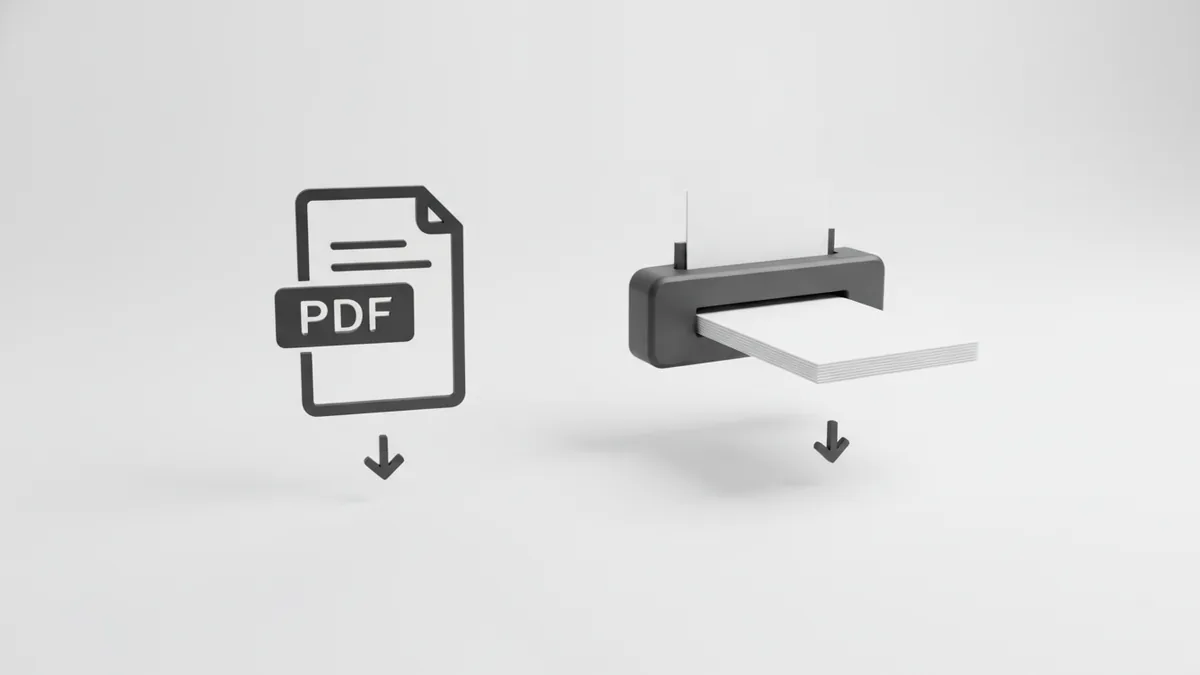
Using online tools to extract one page
Online PDF tools are often the quickest way to answer “how to extract a single page from a PDF.” Many offer free extraction features. In many cases, you do not need to create an account or install software.
The usual flow is simple. You upload the PDF, choose the page number or range that includes only one page, and then download the result. Some tools support selecting the page as thumbnails, which helps when page numbers are unclear.
When using Online PDF tools, check the security details. Good services explain how long files stay on their servers. If privacy matters, prefer tools that delete uploaded files after a short time window.
Online tools can also help with page rotation in PDFs. If you need “how to rotate a single page in pdf” before exporting, rotation is often available inside the same tool set. That saves you from doing multiple steps in different apps.
- Open the online extraction tool in your browser
- Upload your PDF file
- Select the single page you need
- Choose output format, like PDF or JPG
- Download the extracted file
Quality is usually intact for text and vector content. For scanned pages, quality depends on the original scan resolution. If the scan is 300 DPI, the extracted page typically stays sharp.
Some tools offer PDF security features like watermarking. If you must keep sensitive content private, verify what protections the tool applies during upload and download.
Using desktop applications for single-page export
Desktop applications are a solid option when you need offline work or repeat tasks. They also help when you want control over page output. Many users ask “how to export a single page from a pdf” and get the best results from a dedicated app.
A common workflow uses “save as” or “export” commands combined with page selection. Some apps let you specify a single page number, then write a new file with only that page. This is usually more consistent than manual cropping.
Desktop tools also help with formats beyond PDF. Many can export to image formats, or convert a page to Word for easier editing. The extracted page usually keeps the same visual layout, but conversion to Word may change fonts or spacing.
One more benefit is easier handling of page rotation. If your page is sideways, rotate it in the source PDF or in the export settings. Then the extracted page is already oriented correctly.
- Use extraction to create a new single-page PDF
- Use export to create JPG, PNG, or DOCX when needed
- Rotate the page before extracting for correct orientation
- Batch steps when you extract from many PDFs
If you need to “how to print a single page of a pdf,” desktop apps are also useful. Choose print, set pages to the one page you want, then print to your printer or to a PDF. Print-to-PDF can produce a new PDF, but it may rasterize some vector content.
For clean results, extraction tools usually beat printing. Printing is great when you only need a quick copy.
Best practices and tips for clean, accurate results
Start by confirming the correct page number. Page numbers in the viewer and page indexes in tools can differ. If your PDF has cover pages, the “first page you see” may not be page one internally.
Next, think about output format. If you need a sharable document, extract to PDF. If you need a picture, export to JPG. If you need text edits, export to Word when the tool supports it.
For questions like “how do i save a single page of a pdf” or “how to save a single page of a pdf file,” the key is choosing the right save method. Prefer “extract page” or “save page as” options, not screen captures.
Quality checks prevent surprises. Open the downloaded page and zoom to 100%. Confirm text is crisp and images are not blurry. If you are working with scanned pages, verify the original scan resolution first.
Finally, consider privacy. Even if a tool is trustworthy, avoid uploading the same sensitive document repeatedly. Download the single-page result promptly. If the service offers a time-based deletion promise, follow it and clear browser uploads afterward.
These habits also help with document management. Your extracted files stay organized and ready for sharing, archiving, or later processing.
- Verify the page number before you extract
- Extract to PDF for best layout fidelity
- Rotate page orientation before exporting
- Review the download at normal and 100% zoom
- Delete or clear files promptly when privacy matters
Quick answers to common single-page tasks
People often search for specific wording like “how to download a single page from a pdf.” The pattern is always the same: upload, pick page number, then download the new file.
If your goal is “how to save a single page of a pdf,” look for an option named extract, save page, or split. These options create a new file rather than modifying the original.
For “how to copy a single page from a pdf,” extraction is the best equivalent. You get a new file that contains only that page content. If you instead copy and paste, formatting may shift.
If you want “how to export single page from pdf” into a non-PDF format, check export choices like JPG and Word. Try one page first if you are unsure about conversion quality.
And if you need “how to save a single page from pdf” using only print features, select one page in print settings. Use print-to-PDF when you want a digital file output. For maximum fidelity, prefer extraction tools.
Related reading
MOV to PDF on Mac: Frames and Files
Turn video frames into a neat PDF on your Mac.
XBRL to PDF: Readability and Record-Keeping
Turn XBRL reports into readable PDFs and keep the source files safe.
PST to PDF: Methods and Best Practices
Compare Outlook, software, and expert options for converting PST files to PDF.