
How to Email Large PDF Files Without Attachment Problems
Send big PDFs with less hassle using links, compression, and secure transfer tools.

Start With the Right Way to Send a Large PDF
How can I email a large PDF file? Use a cloud link or file transfer service when the PDF exceeds your email limit. For smaller files, try compression first. This avoids bounced messages and slow uploads.
Most email providers limit attachments to 25 MB or less. Some services allow more, but the recipient’s service may set a lower limit. A message can fail even when your own mailbox accepts the file.
Check the PDF size before you attach it. A 32 MB file needs a different approach from a 12 MB file. Cloud links work best for large files and repeated sharing.
- Under 25 MB: try a normal attachment.
- Near or above 25 MB: use a cloud link.
- Very large files: use a transfer service.
- Sensitive files: add a password and an end date.
Also check the recipient’s access needs. A link may work better than an attachment for phones, tablets, and slow networks.
Five Practical Ways to Email Large PDF Files
1. Compress the PDF
PDF compression can reduce file size by removing extra data. It often helps with scans, image-heavy reports, and photo PDFs. Text-only PDFs may shrink very little.
Compression can also lower image quality. Keep the original file before you compress it. Then open the smaller file and check every page.
2. Send a cloud storage link
Upload the PDF to Google Drive, Dropbox, or OneDrive. Set the right access level, then copy the share link into your email. The message stays small because it contains a link, not the full file.
This method also helps with updates. You can replace the file in the same cloud folder without sending a new email. Recipients who use the same link can then open the latest version.
3. Use a file transfer service
Transfer tools suit files that exceed normal cloud sharing needs. Dropbox Transfer can send files up to 250 GB. Recipients do not need a Dropbox account to download them.
Choose this route for video-rich PDFs, design packages, or many files in one delivery. Add a short note that explains the download deadline. The recipient then knows when the link will stop working.
4. Split the PDF
Splitting a PDF can help when the recipient needs only certain pages. Create smaller parts by chapter, form type, or project stage. Name each part clearly before you send it.
This method creates more files to track. It also makes version control harder. Use it only when separate sections make sense.
5. Share a folder link
A folder link works well when the PDF belongs with related files. Add the report, source files, and notes in one folder. Keep access limited to the people who need it.
Cloud sharing keeps all files in one place. It also avoids repeated attachments when the project changes. Remove access after the work ends.
| Method | Best for | Main trade-off |
|---|---|---|
| Compression | Files just above the limit | Image quality may drop |
| Cloud link | Most large PDFs | Access settings need care |
| Transfer service | Very large files | Links may expire |
| Split PDF | Selected pages | More files to manage |
These options answer how to email a large PDF without forcing the attachment through your mail service.
Use Cloud Storage for Simple, Repeat Sharing
Cloud storage is often the easiest answer to how to email large pdf files. Upload the file once, set access, and send the link. The recipient can view or download the PDF from a browser.
Start by checking the link settings. “Anyone with the link” offers easy access, but it gives less control. A named-person setting gives better control when the file contains private data.
Keep the file in a folder with a clear name. Avoid moving it after you send the link. Some services can break links when users change folder access or delete the source file.
Cloud links also solve a common version issue. You can update one file instead of resending several attachments. Tell recipients when the file has changed, so they know to review it again.
- Upload the PDF to Google Drive, Dropbox, or OneDrive.
- Open the sharing controls for that file.
- Choose named users or a link with limited access.
- Set view or download rights based on the task.
- Copy the link and paste it into your email.
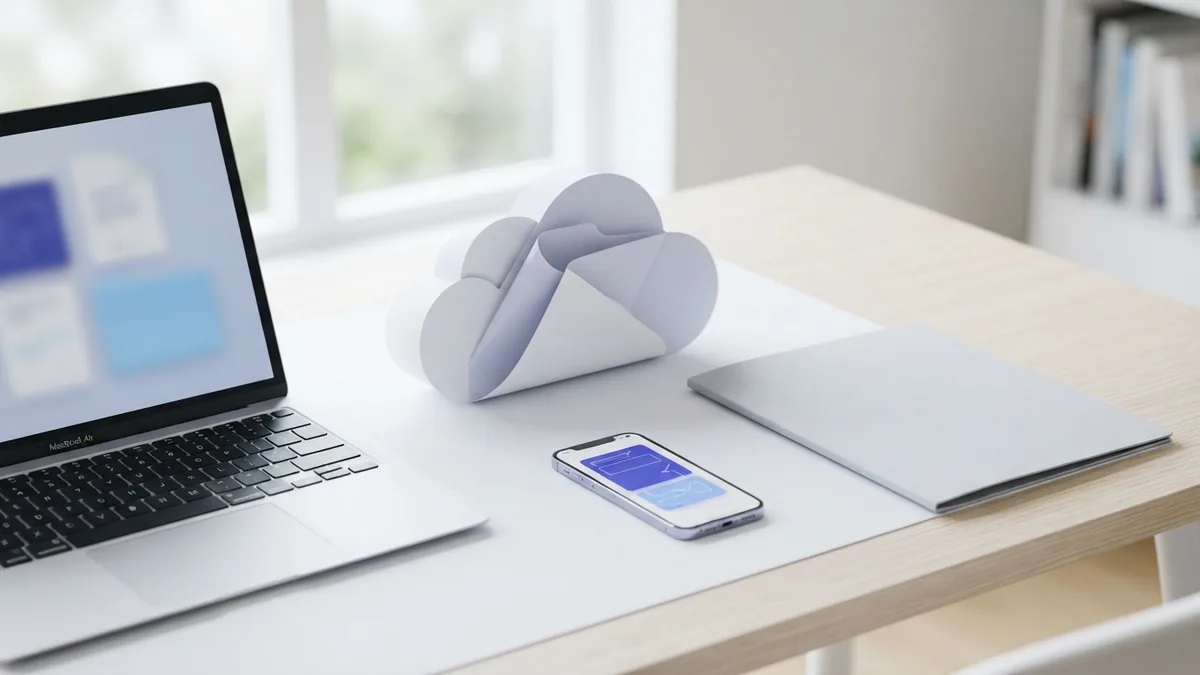
For a quick handoff, Dropbox Transfer offers a separate route. Its official service page lists transfers up to 250 GB. Recipients can download the files without creating an account.
How to Email Large PDFs in Outlook
How to email large PDF files in Outlook depends on the file size. First, check the size in File Explorer or Finder. Then decide between a smaller attachment and a shared link.
For a small PDF, open a new Outlook message and choose the attach command. For a larger PDF, upload it to OneDrive or another trusted service. Paste the share link into the message instead.
Outlook may show an option to upload a file to OneDrive. Use that option when it appears and review the access setting before sending. Do not assume every recipient can open a private link.
Write a clear note beside the link. State what the file contains and whether the recipient should view or download it. If the link expires, include the end date in the message.
- Use a direct attachment for a small PDF.
- Use OneDrive or another cloud link for a large PDF.
- Test the link in a private browser window.
- Ask the recipient to confirm access if the file is urgent.
These steps work for Outlook on the web and most desktop versions. Menu names can differ by account type. The core method stays the same.
Protect Large PDFs Before You Send Them
Large files often contain contracts, reports, records, or private work. Treat the link as sensitive as the PDF itself. A public link can spread beyond the intended recipient.
Add password protection when the file holds private data. Send the password through a different channel, such as a phone call. Do not place the password in the same email as the link.
Use an expiration setting when the sharing service offers one. It limits access after the recipient has had time to download the file. You can also remove access as soon as the task ends.
Review the file before upload. Remove hidden pages, old versions, comments, and private metadata. A clean PDF shares less information by accident.
Use a quick security check
- Confirm the recipient’s email address.
- Set view-only access when editing is not needed.
- Add a password to sensitive PDFs.
- Set an expiry date for temporary access.
- Remove access after delivery and review.
Test the final link before you send it. Use a private browser window or a second account. This reveals broken links and overly broad access.
Choose the Best Method for Your File
The best answer to how to email large pdf files depends on size, privacy, and repeat use. Compression suits a file that barely misses the limit. A cloud link suits most work files.
Use a transfer service for very large files or one-time delivery. Use a folder link when several files must stay together. Split the PDF only when separate sections help the reader.
Keep the email short and clear. Name the file, explain the next step, and state any deadline. A good delivery message reduces follow-up questions.
Before you press send, check three things: size, access, and version. That small check prevents most delivery problems. It also gives the recipient a smoother download.
Related reading
Scanning Multiple Pages: Methods and Fixes
Scan and save a multi-page document as one PDF on your phone or computer.
PDF Compression: Smaller Files, Better Quality
Shrink PDFs by tuning image settings and choosing the right compression level.
Compress PDF Files: Size and Quality
Shrink PDF files while keeping text and images clear.