How to Decrease PDF File Size Without Losing Quality
Learn how to decrease a PDF size fast, on web, Mac, and Adobe Reader.
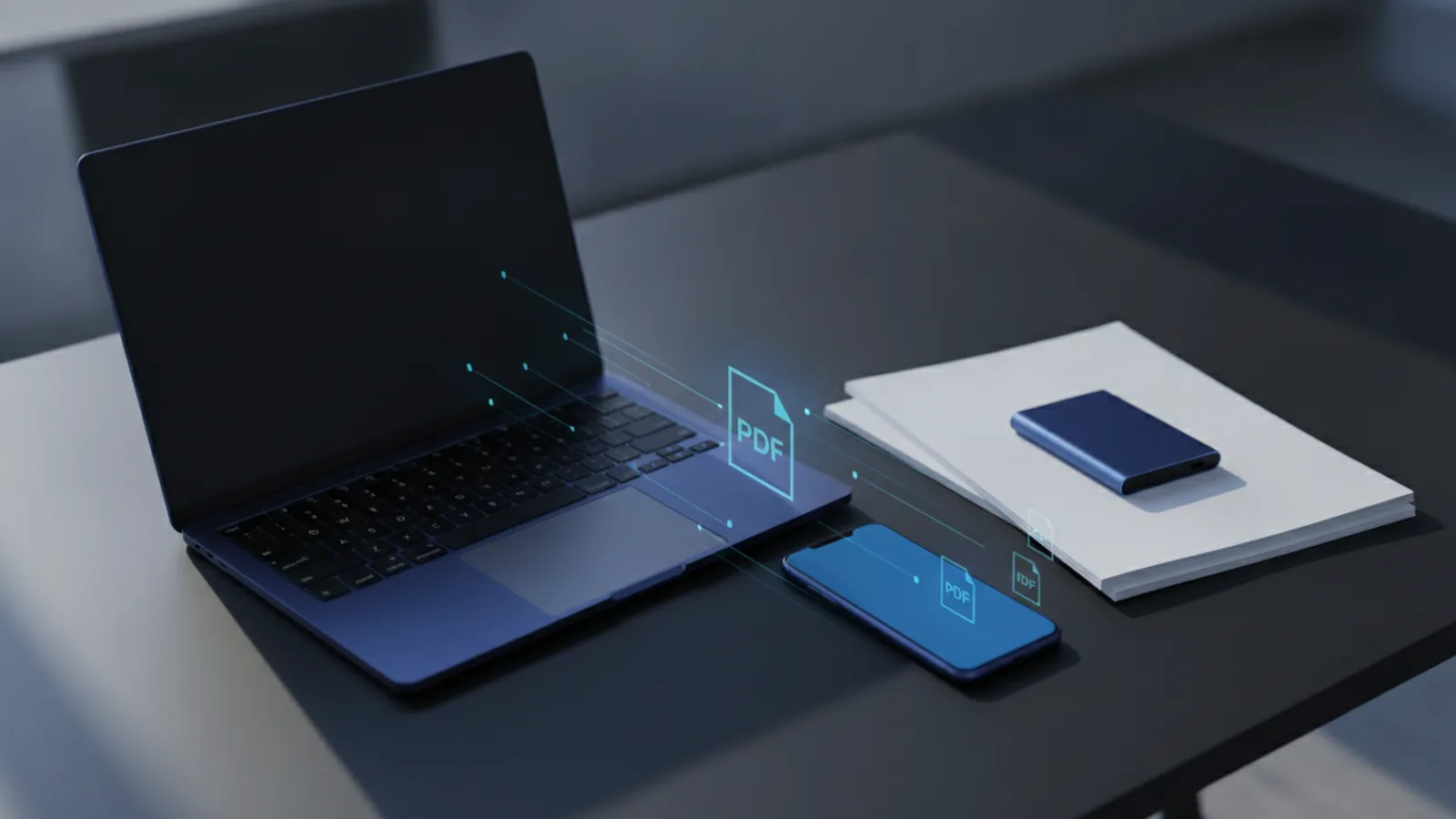
Understanding PDF file sizes (and what they mean)
A PDF file size is how many bytes the document needs to store. It changes based on page content, fonts, images, and how the PDF was created. For sharing, a smaller file loads faster and is easier to upload to email, portals, and chat tools. For storage, smaller PDFs help with cloud storage management and system storage management.
PDF compression can reduce file size without changing what people see. But not every reduction is equal. Some methods remove data that affects appearance, especially with scanned images. If you want “how to decrease pdf file size without losing quality,” you need the right balance of compression and image handling.
- Text-heavy PDFs often stay small unless fonts or embedded objects grow.
- Image-heavy PDFs usually dominate file size.
- Embedded fonts can add bulk even when pages look simple.
Why PDFs get big in the first place
Most oversized PDFs are caused by content choices made earlier in the workflow. A common case is when images are inserted at high resolution and never resized. Another common case is when you scan documents. Scans often store full pixel data, which can create very large PDFs.
PDFs can also become large because they embed fonts. If a PDF includes multiple font families, weights, or full font subsets, the file grows. Embedded fonts are usually helpful for consistent rendering. Still, they can be a major reason a “simple” export becomes heavy.
Finally, PDFs may contain other hidden bloat. For example, a PDF can include large vector graphics, layered content, or repeated images across many pages. Even then, the best “file optimization” approach depends on the document type.
Methods to decrease PDF size (without wrecking the look)
The most reliable strategies target the biggest file drivers. In practice, that means reducing image resolution or changing how images are encoded. It also means avoiding unnecessary recompression steps that degrade quality each time.
Before you compress, check what type of PDF you have. If it is mainly text, you usually need only light optimization. If it is image-heavy, you will likely need some image resolution reduction to see real gains. Lossless vs. lossy compression matters here.
Use these methods in order of least risk to most impact.
- Re-save the PDF from its source app at a lower export setting when available.
- Compress with a PDF optimizer that lets you choose a balance (for example, “medium” vs “high”).
- For scanned images, reduce image resolution (often 300 DPI is plenty for readable documents).
- If you must shrink a lot, allow controlled lossy compression on images.
Compressing with online tools (free and easy)
Online PDF compression is often the fastest way to learn how to decrease a pdf file size. The basic flow is usually upload, wait for compression, and download the smaller result. Many tools also support batch PDF compression tools, which helps when you have multiple documents.
Here is a step-by-step approach you can use with most web-based compressors. It keeps quality in mind while still reducing size.
- Open a reputable PDF compression page in your browser.
- Upload your PDF file.
- Look for a quality level or compression strength option.
- Start compression and wait for the processed file to finish.
- Download both the compressed PDF and keep the original.
- Compare one or two key pages at full zoom.
If the compressed PDF looks blurry, you can try a lighter setting. If it still uploads too slowly, you can run a second pass. Avoid repeated heavy compression passes, because that compounds image loss.
For document sharing, it helps to test the target system. Some portals re-compress uploads again. That can make “good enough” compression better than maximum compression.
How to decrease PDF size on Mac using built-in tools
If you are looking for how to decrease pdf file size mac systems without extra software, macOS can help. The simplest path is to export the PDF again using a Quartz filter style workflow. This often reduces file size by re-encoding content.
Try this approach with Preview, Apple’s built-in viewer. It tends to work well for many general PDFs, especially those with embedded images and basic layouts.
- Open the PDF in Preview.
- Choose File, then Export.
- Confirm the format as PDF.
- Look for a Quartz Filter option.
- Select a filter aimed at reducing file size.
- Save the exported PDF and compare sizes.
When you compare, look at both text edges and image sharpness. If the text looks jagged, your filter may be too aggressive. If images are still clear, you likely achieved a safe reduction.
This method is also useful when you want how to decrease a pdf size quickly before uploading to cloud storage. Keep a copy of the original so you can revert if a quality issue appears.

How to decrease pdf file size in Adobe Reader
If you need how to decrease pdf file size in adobe reader, Adobe Reader offers a practical path. The exact wording can vary by version. Still, the idea is the same: save a reduced copy by lowering image quality and other PDF settings.
Use the steps below. They focus on controlled compression rather than a blind “shrink everything” approach.
- Open the PDF in Adobe Reader.
- Go to File, then Save As.
- Select the option for a reduced-size PDF, such as Optimized PDF or Reduced Size PDF.
- Choose a preset that matches your goal.
- Save the new file and check the resulting size.
- Open the new PDF and zoom into images and small text.
If Adobe offers settings for image downsampling, choose values that protect readability. For many documents, targeting about 300 DPI for images is a common sweet spot. For dense scans, you may need to keep higher resolution in critical pages. For charts or diagrams, verify line clarity after export.
If you are aiming for how to decrease a pdf file size without losing quality, start with the lightest optimization preset. Then step up only if the file is still too large for your sharing target.

Tips for maintaining quality while compressing
Quality problems usually show up first in images, then in text. Blurry images, banding, and jagged text edges are the usual signs you compressed too hard. Another issue is that some PDFs reflow content slightly when layers or fonts change.
Use these tips to preserve quality. They are especially important for image resolution choices and scanned documents.
- Test on a worst-case page. Use the page with the smallest text or densest graphics.
- Prefer one compression pass. Avoid multiple rounds of strong compression.
- When possible, choose settings that keep text crisp. Many tools treat text differently than images.
- For scans, set image resolution to a readable level before heavy compression.
- Keep the original PDF until you confirm quality on zoomed-in sections.
For documents shared across systems, also consider what the receiving platform does. Some cloud storage and upload flows compress or scale again. That means you can often stop earlier and still get good results.
If you must reduce size a lot, use lossy compression only for images. Text can often remain effectively unchanged if the tool handles it correctly. That is the practical path to how to decrease pdf file size without losing quality for most real-world documents.
Quick comparison example: A 20 MB scan-based PDF might drop to 6–10 MB with moderate downsampling to 300 DPI. A text-heavy PDF with embedded fonts might only shrink slightly unless you remove excess embedded data. That is why matching the method to the content type gives the best results.
When to stop and what to do next
Stop compressing when the document looks right at full zoom on the key pages. Then confirm the file can be uploaded where you need it. If your target is strict, try a different tool or a different preset rather than stacking more compression runs.
If you still struggle with very large PDFs, check the source workflow. Often, the fastest improvement is exporting the original document at a better setting. That prevents the “compress forever” cycle later.
By combining the right compression method with careful testing, you can reduce file size and keep readability. That is the core of effective PDF compression.
Related reading
Notes to PDF: Steps and Tips
Export Apple Notes as a PDF on iPhone, iPad, or Mac with these steps.
PDF Signatures: Methods and Steps
Create, add, and troubleshoot a signature in your PDF with simple steps.
Rotate One PDF Page: Steps and Fixes
Turn one PDF page, keep the rest unchanged, and save a corrected copy.