How to Convert HEIC Files to PDF (Easy Methods and Tips)
Convert HEIC to PDF for easier sharing, printing, and compatibility.

Understanding HEIC Files
HEIC files are image files made with Apple devices. HEIC stands for High Efficiency Image Container. It is designed to store photos with great detail while keeping file sizes smaller.
On iPhone and iPad, HEIC is often used instead of older formats like JPEG. That choice can be great for storage on your device. It can also cause problems when you move the file to a Windows PC or share it with people who use other apps.
Because HEIC is not as widely supported as common image formats, some apps may fail to open it. Others may open it but show wrong colors or delay loading. Converting to a PDF avoids many of those compatibility issues.
- HEIC is common on Apple devices
- HEIC support varies on non-Apple software
- PDF is widely supported across devices
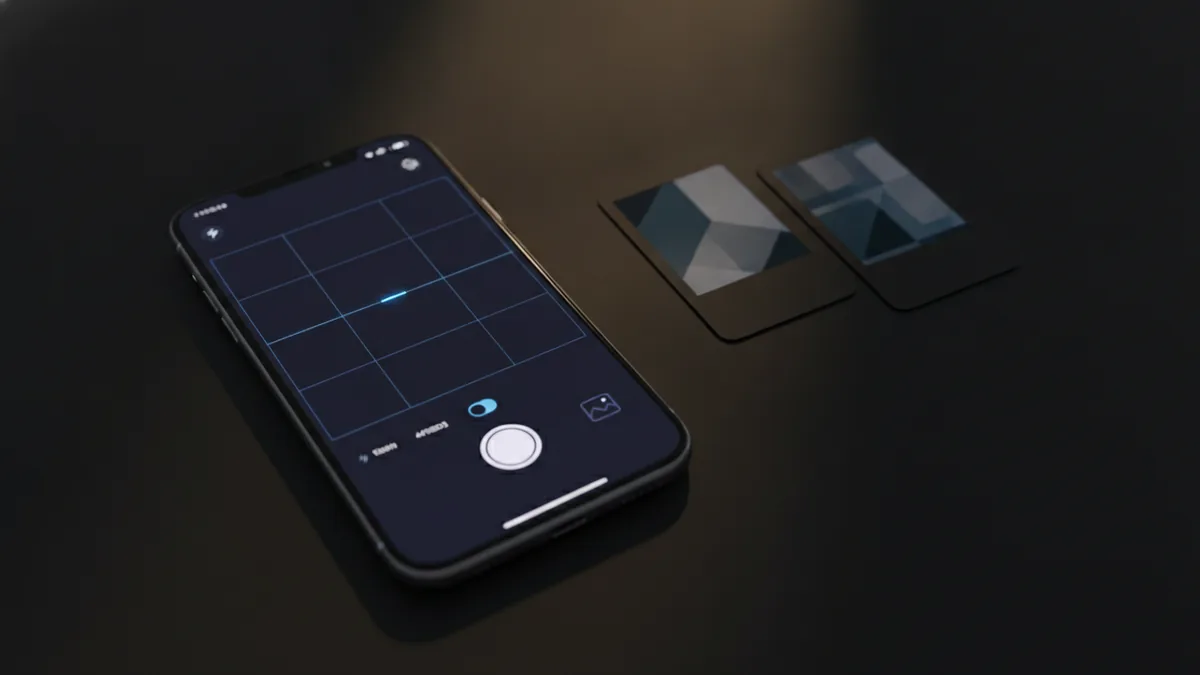
Why Convert HEIC to PDF?
PDF is a universal format for images and documents. Most operating systems and apps can open PDFs without extra setup. That makes it a practical choice for sharing and long-term storage.
HEIC can be tricky outside the Apple ecosystem. Some photo viewers treat HEIC as an unsupported file type. Others may convert it on the fly, but the result is not always predictable.
When you convert HEIC to PDF, you can also improve how people interact with your images. PDFs are easier to send by email, store in cloud folders, and attach to forms. Many apps also offer basic zoom, crop, and print options for PDFs.
Another advantage is consistency. A PDF produced from your HEIC images will look similar across devices. That is especially helpful when color accuracy matters.
| Format | Compatibility | Sharing and printing |
|---|---|---|
| HEIC | Best on Apple devices | Often harder to print |
| Works broadly | Built for print workflows |
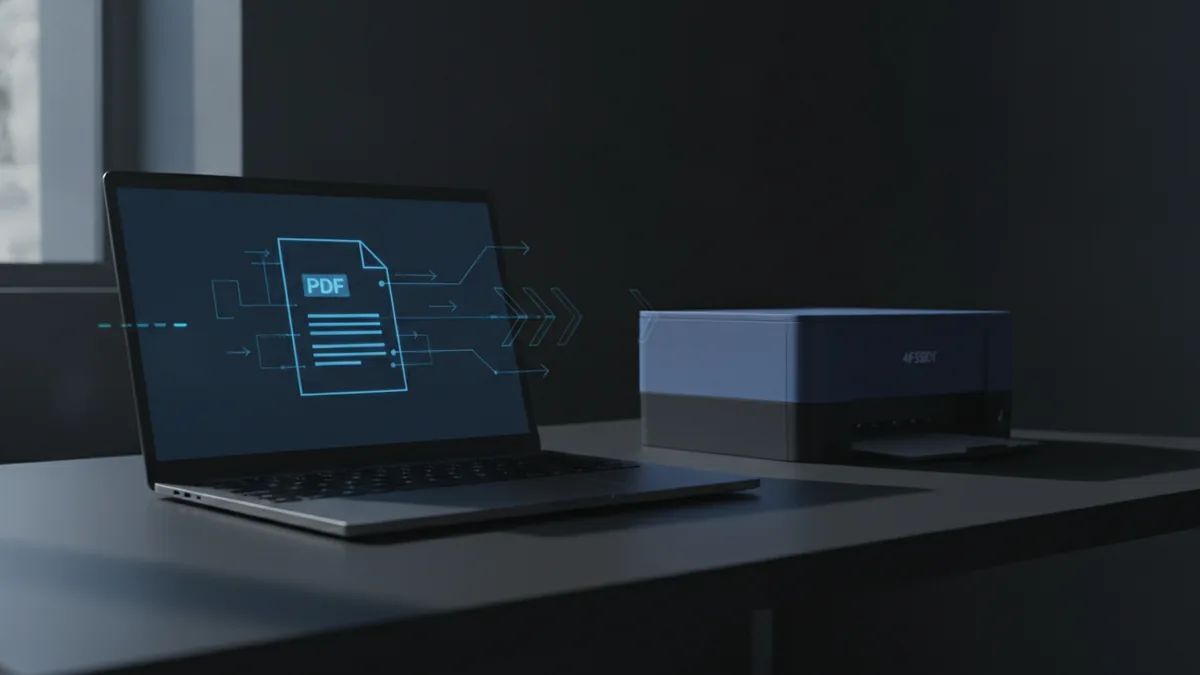
Methods to Convert HEIC to PDF
You have a few solid ways to convert HEIC to PDF. The simplest option is usually an online converter tool. Many online converter tools let you drag and drop HEIC files right into your browser.
Online tools are convenient when you want quick results. You can also batch convert multiple images into one PDF document. That saves time if you are preparing a set of photos for sharing or printing.
Desktop tools are another option. Some image apps can export images as PDF, even if they do not always handle HEIC cleanly. If you prefer offline work, a desktop converter can be faster after the initial setup.
Finally, you can convert HEIC to an intermediate format like JPEG and then place it into a PDF. This can work, but it may risk some quality loss depending on settings. Direct HEIC-to-PDF conversion is often the cleaner path.
- Use an online converter tool with drag-and-drop
- Use a desktop app that exports HEIC to PDF
- Convert via an intermediate image format, when needed
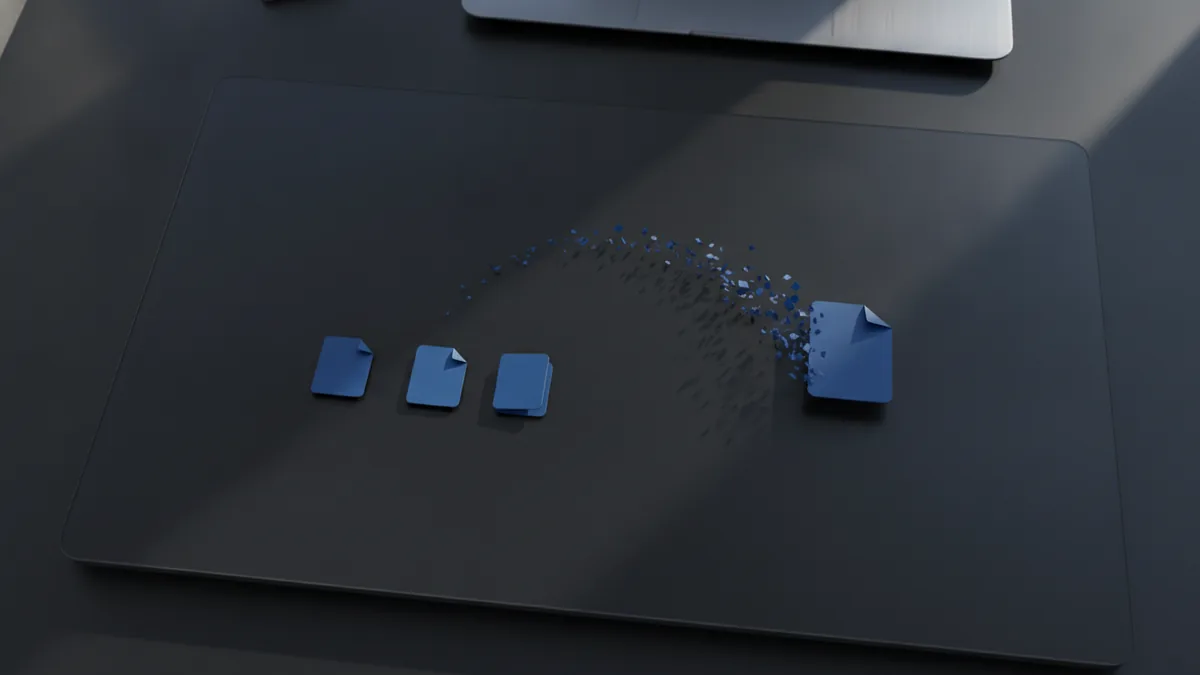
Step-by-Step Conversion Process
Here is a practical approach to how to make a heic into a pdf with an online converter. The exact buttons can vary, but the flow is usually the same across tools. Start by choosing the files you want to convert.
Next, upload your HEIC files. Many tools let you upload multiple files at once. This supports batch conversion and can output one combined PDF file.
Then, select the output format or conversion type. Make sure the tool is set to produce PDF. Some tools also let you pick whether to create a single PDF or separate PDFs.
Finally, download the resulting PDF. Open it on a different device if possible. Quick checks catch issues like orientation changes or missing images.
- Pick your HEIC files from your computer or phone storage
- Drag and drop them into the converter upload area
- Choose PDF output and decide on single or batch output
- Start conversion and wait for processing to finish
- Download the PDF and open it to confirm image placement
If you are specifically searching for how to make heic to pdf, this is the core workflow. If you are also trying how to make an heic a pdf for multiple photos, batch output is usually the key setting. It is the difference between many files and one organized document.
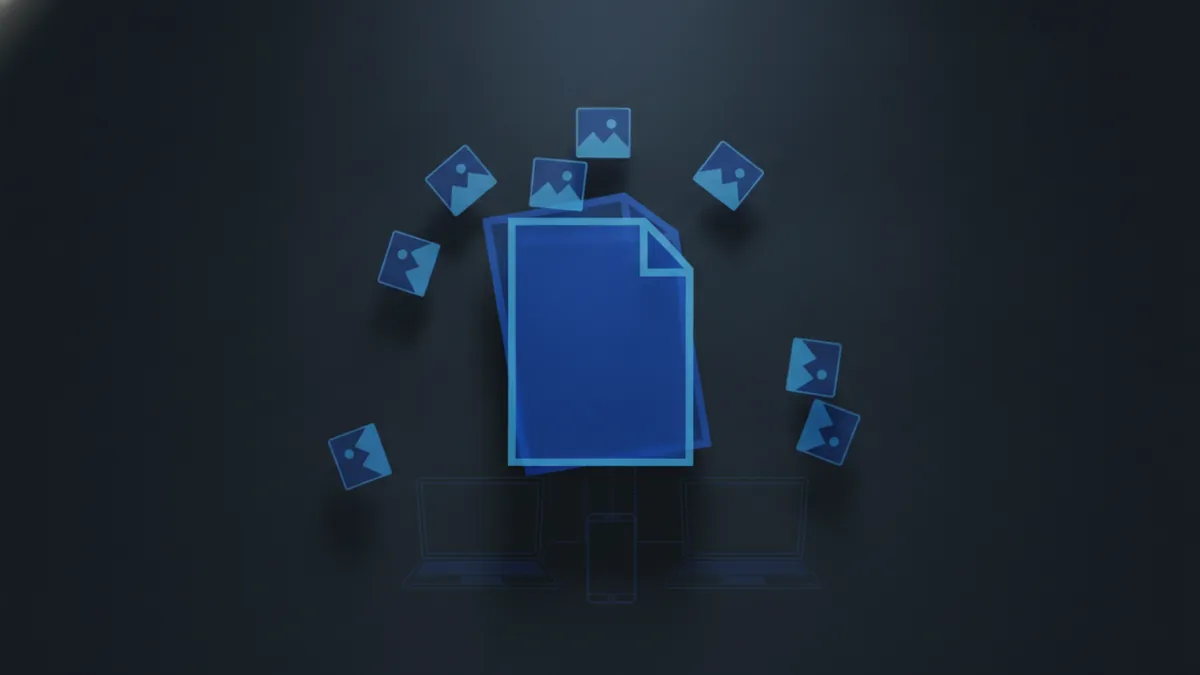
Benefits of PDF Format for HEIC Files
PDF makes HEIC images easier to share. Many email providers and messaging apps handle PDFs smoothly. That reduces the risk that the recipient cannot open your photos.
PDF also simplifies printing images. When a printer dialog supports PDF, you can print directly with predictable sizing. With HEIC images, you often need extra software or a conversion step anyway.
Another benefit is document-style organization. You can combine multiple HEIC images into a single PDF page flow. That is helpful for receipts, ID backups, photo sets, or any “send a set” use case.
HEIC’s compression can be excellent. HEIC can store images smaller than JPEG while keeping similar perceived quality. But when other devices struggle with HEIC, PDF becomes the format that keeps your intent intact.
- Better compatibility across devices and apps
- Easier printing compared with many HEIC viewers
- Simple sharing via one file per set
- Batch conversion into a single document
Tips for Maintaining Quality During Conversion
Quality preservation is mostly about choosing the right conversion path. Start by converting directly to PDF when the tool offers it. Direct conversion usually avoids extra encode steps that can degrade sharpness.
Check your output settings if the tool provides them. Look for options like “keep original size,” “fit to page,” or “quality.” If no settings exist, the default workflow is often tuned for clean results, but you should still review the PDF.
Watch for common quality issues. If images appear cropped, the tool may be scaling them to page size. If colors look off, try a different tool or check if the tool supports color management.
You should also consider the number of images you combine. Very large batches can increase processing time. If your files are high resolution, splitting into two PDFs can help you get faster uploads and downloads.
As a rule, verify details. Zoom into faces, text in scenes, or small logos. That is where conversion flaws show up first.
| Quality check | What to look for | Likely fix |
|---|---|---|
| Sharpness | Blurry edges or halos | Use direct HEIC-to-PDF conversion |
| Color | Warming or tint shifts | Try another online converter tool |
| Layout | Cropping or wrong rotation | Adjust “fit” or rotation settings |
Troubleshooting HEIC to PDF Conversion
HEIC conversion can fail for a few predictable reasons. A common one is unsupported HEIC features. Some newer HEIC variants may not be recognized by older tools or apps.
Another problem is file corruption. If a photo did not download fully or got partially transferred, conversion may stop or produce a blank page. Re-exporting the image from the source device can fix that quickly.
You might also see orientation issues. HEIC files can store orientation metadata. If the converter does not read it correctly, your image may rotate in the PDF.
When you are asking how to make a heic into a pdf and the result is not right, test a single file first. Convert one HEIC, confirm the PDF looks good, then convert the full batch. This isolates whether the problem is with one file or the overall workflow.
- Conversion fails: try a different tool or re-export the HEIC file
- Blank pages: replace a possibly corrupted source file
- Wrong rotation: check rotation metadata or try another tool
- Slow batch conversion: split into smaller groups
If you still have issues, consider switching output style. Some tools let you create separate PDFs per image. That can improve reliability when combining many files into one document.
Related reading
How to Convert a PDF to a Picture Without Losing Quality
Convert PDF pages to clear JPG or PNG images with the right tools and settings.
Notes to PDF: Steps and Tips
Export Apple Notes as a PDF on iPhone, iPad, or Mac with these steps.

PDF Signatures: Methods and Steps
Create, add, and troubleshoot a signature in your PDF with simple steps.