How to Bind PDF Files Into One Clean Document
Merge PDF files into one neat, shareable document.
Understanding PDF Binding
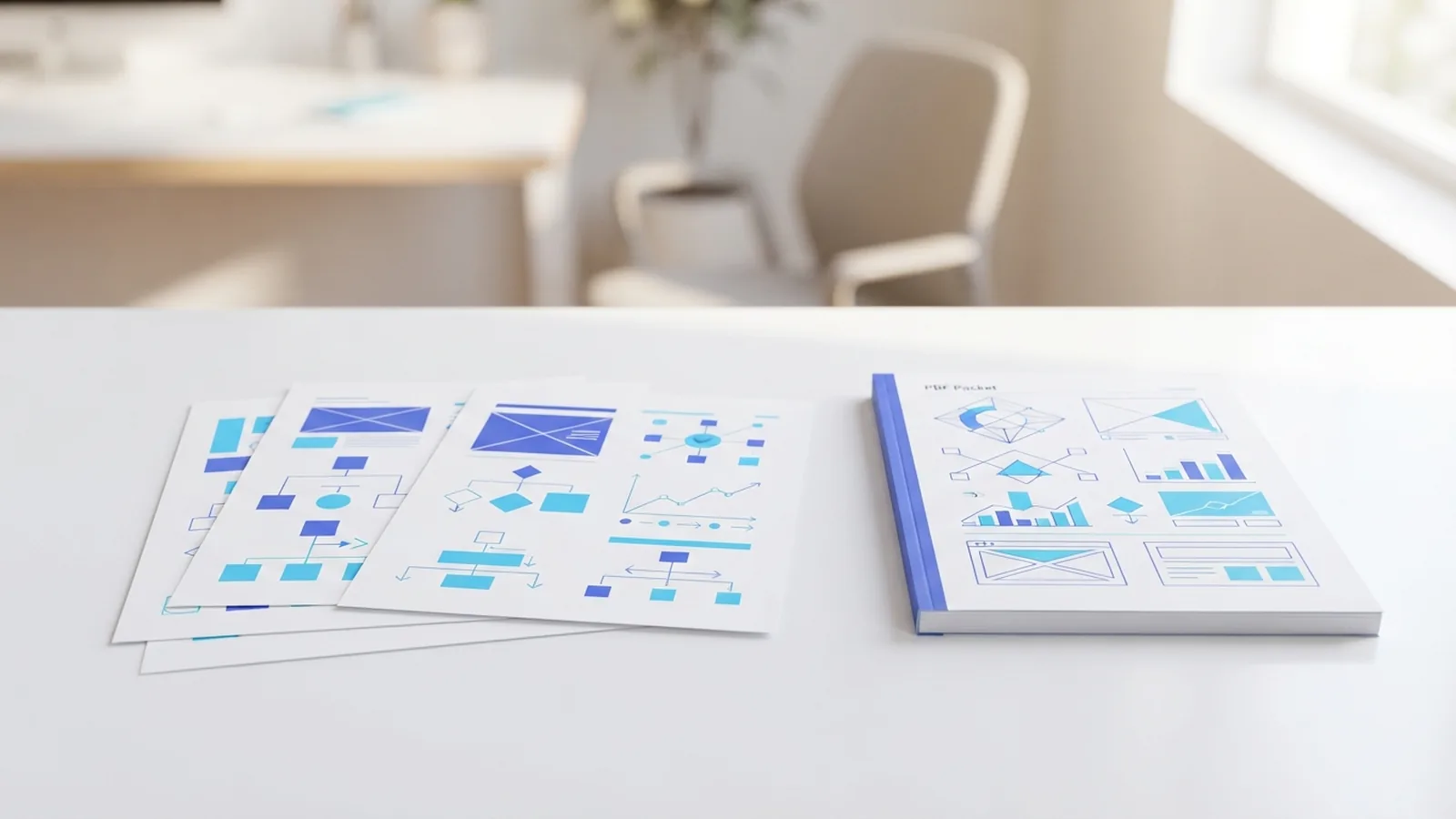
To bind PDF files, merge several files into one PDF document. The new file keeps each page in one ordered sequence. You can then share, store, print, or archive it as one item.
The process is also called PDF merging or combining PDFs. It does not create a paper book by itself. Instead, it joins digital pages into a single file. For example, you can join a cover letter, resume, and work samples into one PDF.
Most tools let you set the page order before you save the result. Some also let you rotate pages, remove blank sheets, or add more files. Check the preview before you create the final copy.
What happens during a merge?
A PDF merge places pages from each source file into one new file. Each source may use a different page size, font, or image quality. Good tools keep those settings as close as possible to the original.
Still, a merge may change file size or page display. A scan can look less sharp after compression. A page may also appear sideways if its source file held the wrong rotation data.
- Choose files from your device or cloud storage
- Set the page and file order
- Remove pages you do not need
- Merge the files into one PDF
- Open the result and check every page
Why Bind PDF Files?
Combining PDFs makes file storage much easier. A project with six separate reports can become one named package. That helps you find the right material later.
One file also makes sharing simpler. You can send one attachment instead of several files. Recipients can read the full set in the right order without sorting it first.
Binding also helps with print jobs. A print shop can process one file with a clear page count. You can set page ranges, double-sided printing, and paper size from one document.
When should you keep files separate?
Keep files apart when different people need different sections. Separate files also work better when you update one part often. A large merged file can make small edits harder.
Privacy matters too. A single file may contain more private data than each source file. Remove pages with bank details, home addresses, or private notes before sharing.
| Goal | Best choice |
|---|---|
| Send a complete project | Merge the files into one PDF |
| Update one report often | Keep that report separate |
| Print a full packet | Merge, check, then print |
How to Bind PDF Files Online
Online PDF tools are often the fastest option. Services such as Smallpdf, iLovePDF, and Drawboard offer browser-based PDF features. Their merge tools usually work on phones, tablets, Windows PCs, and Macs.
These tools suit short tasks and mixed file types. You can upload two files, change their order, and download one result. Many offer free PDF editors with limits on file size or daily use.
Review the privacy terms before uploading private files. Use a trusted service, a secure connection, and a strong device password. Delete uploaded files from the service when that option is available.
Step-by-step online merge
- Open a merge tool. Choose a PDF merge feature from a trusted provider.
- Add your files. Select two or more PDFs from your device.
- Arrange the order. Drag each file into the correct place.
- Check the page view. Open file previews and scan the full sequence.
- Edit the set. Rotate, remove, or add pages when needed.
- Start the merge. Select the button that creates one PDF.
- Save and check the result. Open the new file before sharing it.
This process explains how to bind two PDF files together in a few minutes. Put the first file before the second file. Then check the last page of file one and the first page of file two.
Using Offline Tools on Windows and Mac
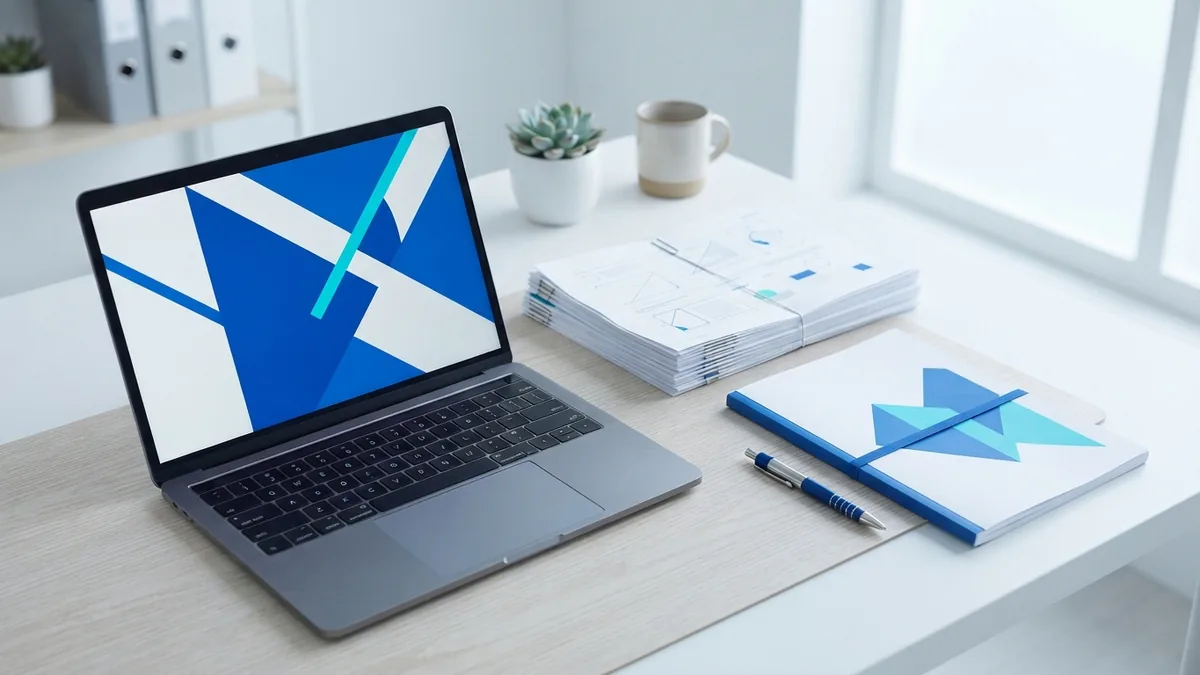
Offline tools merge files on your own computer. This can suit private records, client files, or work with no steady internet access. Desktop PDF software may also offer stronger page controls.
On Windows, apps such as Adobe Acrobat and Drawboard PDF can combine files. The menu names differ by app and plan. Look for commands such as Combine Files, Merge, or Insert Pages.
On Mac, Preview can join PDF pages with its thumbnail view. Open one PDF in Preview and show the page thumbnails. Drag pages or another PDF into the side panel, then save a new copy.
Use a desktop workflow
- Make a new folder for the source PDFs.
- Rename files with numbers, such as 01-cover and 02-report.
- Open your desktop PDF tool.
- Import the files in the planned order.
- Check page size, rotation, and page count.
- Save the merged file with a new name.
- Keep the original files until your check is complete.
Offline merging can protect sensitive data because files stay on your device. It does not remove all risk. Malware, weak passwords, and shared folders can still expose files.
Best Practices for a Clean Merged PDF
Start with a clear page plan. List the sections in order before you upload or import files. A simple plan might read cover, contents, report, appendix, and contact sheet.
Use file names that show both order and purpose. Names such as 01-cover.pdf and 02-invoice.pdf reduce mistakes. Avoid names such as final-new2.pdf when several drafts exist.
Preview the pages before saving. Look for blank pages, sideways scans, cut-off edges, and missing sheets. Check the first and last page of every source file.
Protect quality and layout
Keep the original page size when possible. Mixing letter and A4 pages is fine, but it may look uneven in print. Use one paper size when the final packet must look uniform.
Avoid heavy compression if images or scans matter. Compression lowers file size by reducing image data. It can also make small print hard to read.
Check links, bookmarks, forms, and signatures after the merge. Some tools may not carry every feature into the new file. Save a copy of the original signed file.
- Use the highest useful quality setting
- Match page sizes for a uniform print set
- Check page count against the source files
- Open the final PDF on another device
- Keep an unmerged backup copy
How to Print and Bind a PDF
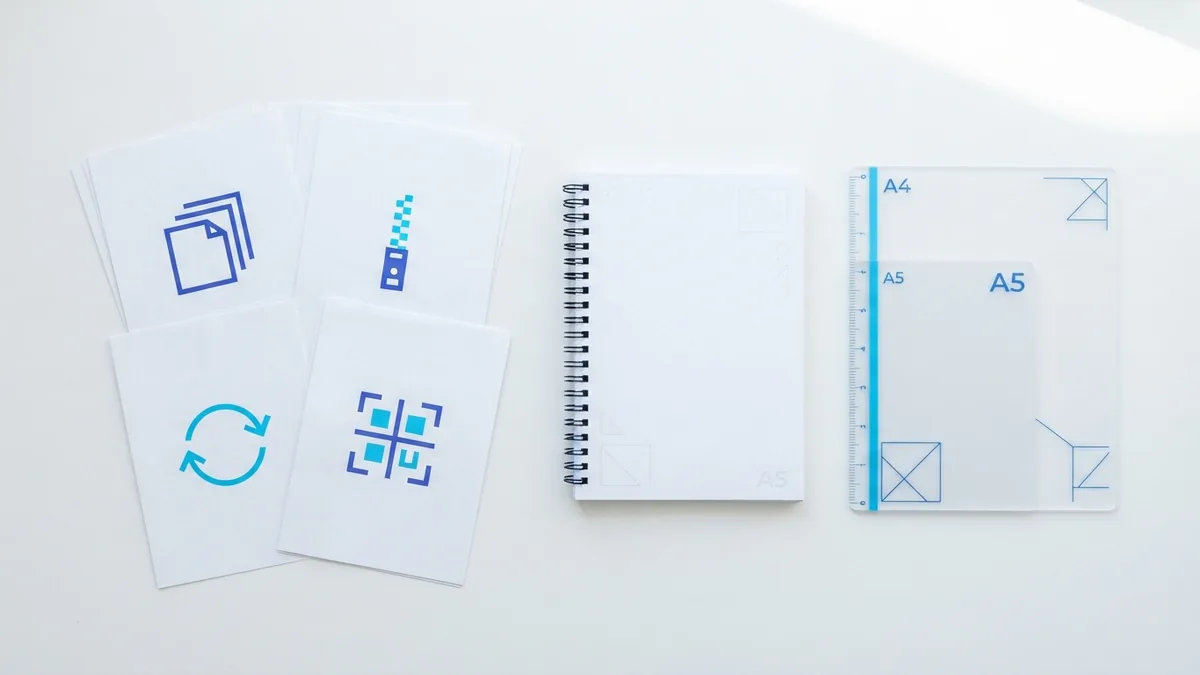
Digital binding and paper binding are two different steps. First, merge the files into one PDF. Next, print the file and choose a physical binding style.
Before printing, check the paper size and page direction. Select double-sided printing when the layout supports it. Print one test page if the packet has charts, color blocks, or narrow margins.
If you need to know how to print and bind a PDF, start with your local print settings. Choose the full page range, the right number of copies, and a suitable paper type. Then select a binding style such as staple, comb, coil, or thermal bind.
Where can I print and bind a PDF?
Local copy shops, office supply stores, libraries, and campus print centers often provide this service. Search for a print shop that lists document binding near you. Ask about file delivery, paper sizes, color costs, and turnaround time.
Many shops accept uploads through a website or email. Ask how they protect customer files and when they delete them. For private records, use an offline print counter or bring the file on a secure drive.
Tell the shop how many pages you need and how the pages should turn. A 20-page packet may suit staples. A 120-page manual may need coil or comb binding.
| Binding type | Good for |
|---|---|
| Staples | Short packets and handouts |
| Comb binding | Reports that need to lie flat |
| Coil binding | Manuals with frequent page turning |
| Thermal binding | Clean report covers and presentations |
Troubleshooting PDF Binding Problems
A file may fail to merge when it is damaged, locked, or too large. Open each source file first and scroll through every page. If one file will not open, download it again or export a fresh copy.
Some PDFs have password limits. You may need the owner’s password before you can merge or edit them. Do not try to bypass a password without permission.
Large scans can create a very large final file. Remove unused pages first. Then lower image quality in small steps and test the result after each change.
Fix common page issues
- Wrong order: Return to the page organizer and move pages one at a time.
- Sideways pages: Rotate those pages before saving the final file.
- Blurry scans: Start again with the highest quality source files.
- Missing links: Test links after merging and keep the source copy.
- Huge file size: Remove blank pages and reduce image data with care.
- Print shifts: Check margins, scale, and paper size in print preview.
Finally, name the finished file with a clear version. For example, use project-packet-2026-08.pdf. Open it once more before sending it to a client, printer, or archive.
Related reading
Rotate PDF Pages: Fix Every Orientation
Turn sideways PDF pages, save the changes, and check the final file.
How to Turn Any File Into a PDF
Turn documents, images, and presentations into PDFs in a few simple steps.
How to Rearrange PDF Pages Free Without Installing Software
Move PDF pages into the right order online, free, and without installing software.