How to Convert a PDF to Text: From Scans to Editable Documents
Learn how to convert a PDF file to text using text extraction and OCR. Get step-by-step online steps, plus fixes for messy output.
Overview of PDF-to-text conversion
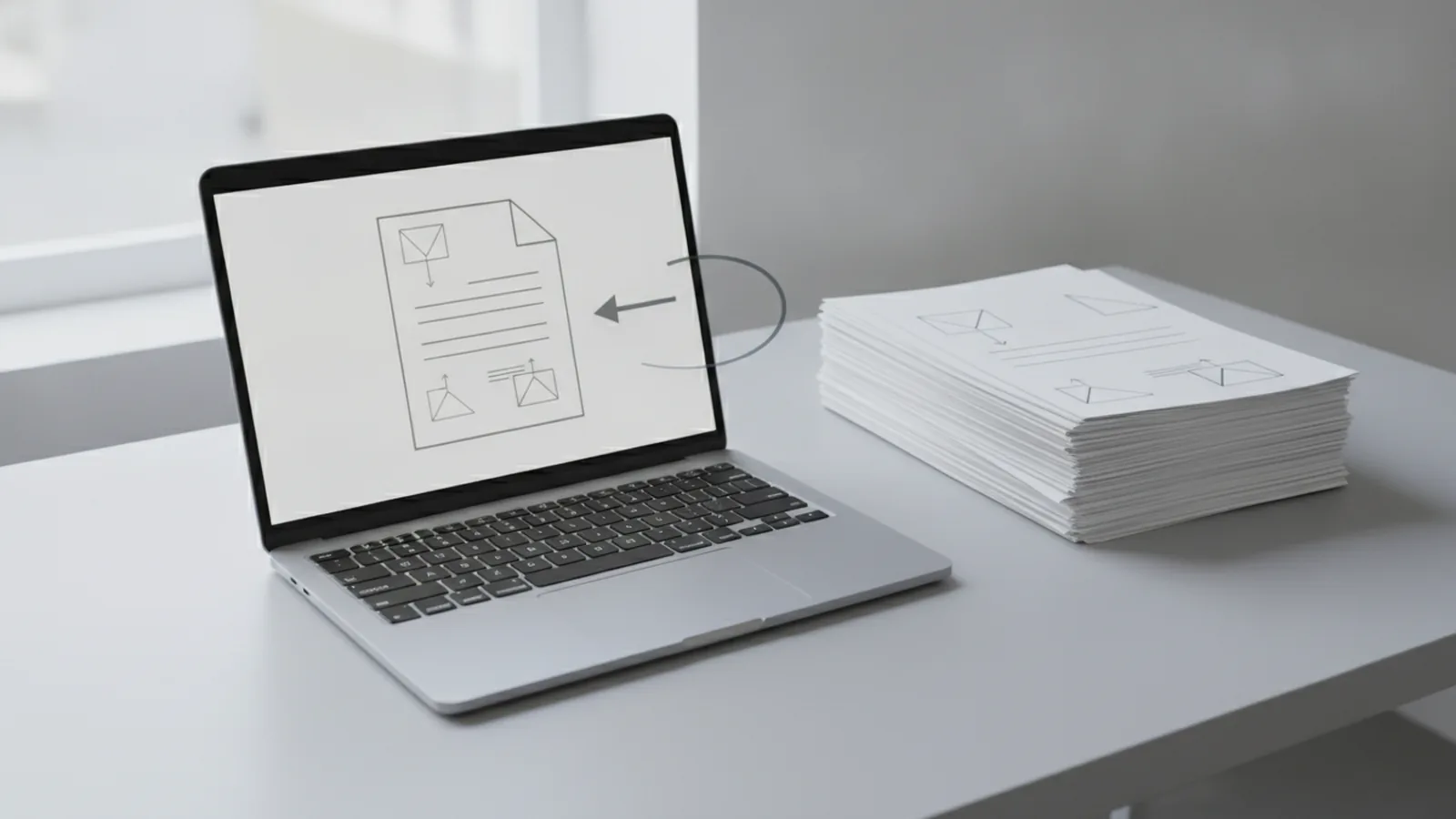
If you want to edit content from a PDF, the fastest path is converting the PDF into plain text. Most of the time, you can do this by extracting the embedded text. When the PDF is scanned or image-based, you need Optical Character Recognition (OCR) to “read” the characters.
A PDF is a file format designed to keep layout consistent across devices. It is used for contracts, invoices, reports, and forms because spacing stays the same. Text extraction matters because editable text documents are easier to search, copy, proofread, and reuse in other tools.
In practice, “convert PDF to text” usually means creating a text file format like TXT. You might also want the result in editable formats such as DOCX, but plain text is the most universal output for analysis and archiving.
- Text extraction works for PDFs that already contain selectable text.
- OCR is needed for scanned documents and photos.
- Output quality depends on fonts, resolution, and layout complexity.
Methods for converting PDF files
There are several ways to convert a PDF file to text, and the “best” method depends on how the PDF was created. If the PDF came from Word, Google Docs, or an export from a database, it usually contains real text. Those files can be converted with simple extraction.
If the PDF came from scanning, a phone photo, or a fax, the content is typically just images. OCR turns those images into characters you can edit. OCR quality varies, so expect more cleanup for low-resolution scans or unusual fonts.
You can also choose where conversion happens: offline software, browser-based tools, or desktop apps. Online conversion tools are convenient because you upload a file and get the text back quickly. Offline tools can be better for batch processing and privacy needs, but they require setup.
Common conversion paths
- Extract text from selectable PDFs, then save as TXT.
- Run OCR on scanned pages, then export to TXT.
- Hybrid approach for mixed files, where some pages are text and others are scans.
Using OCR for scanned documents
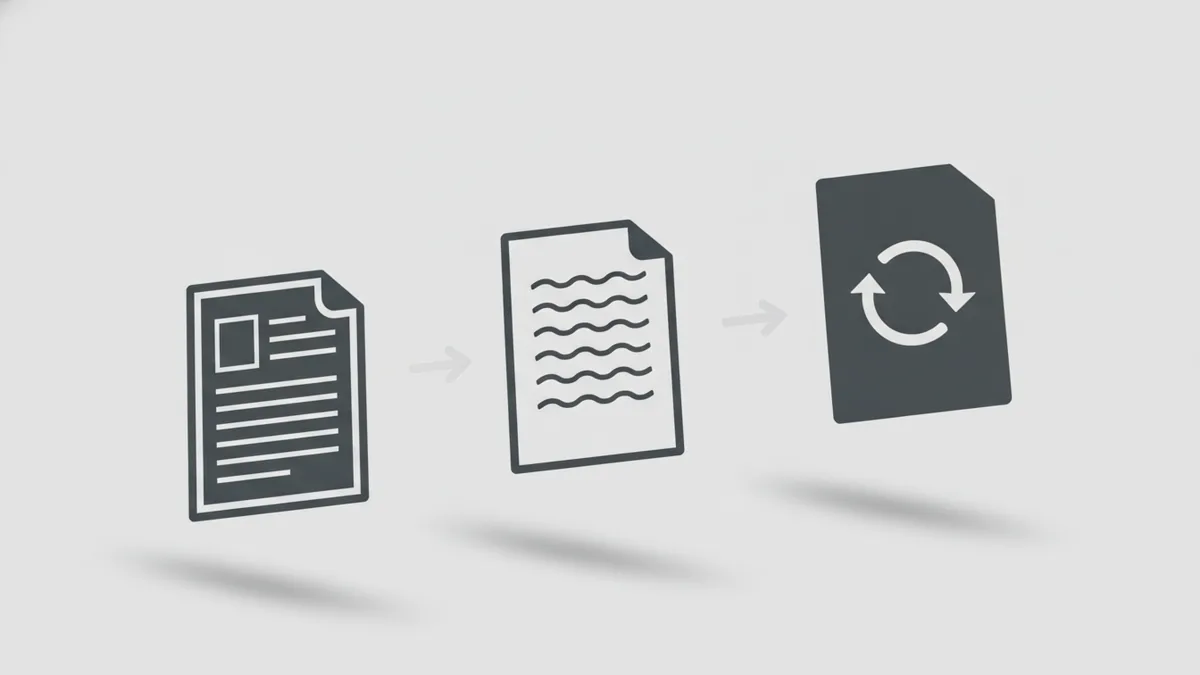
Optical Character Recognition (OCR) is the process of converting image content into machine-readable text. It works by detecting character shapes, matching them against language models, and outputting text with line breaks. OCR is essential when you try to convert a PDF file into text file, but the PDF has no selectable text.
OCR results depend heavily on scan quality. A 300 DPI scan is usually the difference between clean text and frequent errors. Skewed pages, heavy compression, or glare can confuse recognition and lead to wrong letters.
Before you OCR, check whether the PDF is truly scanned. Many PDFs look like images in previews, but still contain hidden text layers. If you can highlight text in the PDF viewer, you probably want extraction instead of OCR.
OCR settings that affect accuracy
- Language: choose the right language for best character matching.
- Resolution: higher DPI produces clearer character edges.
- Layout: multi-column pages can need better spacing rules.
- Output mode: TXT focuses on text, while formats like DOCX preserve more structure.
Step-by-step: convert a PDF to text with an online tool
This guide focuses on using online conversion tools because they are quick. The same general steps apply to most browser-based “PDF to text” workflows. When you follow these steps, you can learn how to save a PDF file as a text document with fewer surprises.
Step 1: Open the PDF-to-text conversion page in your browser. Choose the option that converts PDF to TXT or a text document.
Step 2: Upload your PDF. If the tool asks, confirm whether your PDF is scanned. This choice helps the tool decide between extraction and OCR.
Step 3: If OCR is available, select the language for the document. Then run the conversion. For best results, wait for the process to finish rather than refreshing early.
Step 4: Review the preview carefully. Check headings, line breaks, and number-heavy sections such as IDs or tables. OCR often makes small mistakes in digits and similar letters.
Step 5: Download the output as a text file. Then open it in a plain editor like Notepad or TextEdit. Save a version with a clear name, such as “contract_extracted.txt”.
If you are asking how to convert a pdf file into text file for an editable workflow, you can also copy the text into a word processor afterward. Keep formatting expectations realistic, because TXT does not store the PDF layout.
- Goal for text extraction: clean paragraphs and correct reading order.
- Goal for OCR: correct characters first, then fix spacing and errors.
- Goal for tables: decide if you need true table structure or plain rows.
Tips for successful conversion and better formatting
Good conversion is mostly preparation plus quick checks. Before you convert, inspect the PDF type. If you can select text in the PDF viewer, you are likely working with text extraction and will get better results.
For PDFs with many pages, plan how you will verify quality. Scan the first page and one middle page. If line breaks and headings look correct there, the rest usually follows the same pattern.
Formatting will not match the original PDF exactly when you save as TXT. That is expected. However, you can still improve usefulness by managing how the tool interprets structure.
Practical tips that reduce cleanup time
- Remove noise first: if the PDF is skewed, fix the scan quality before OCR.
- Use consistent margins: OCR works better with straight edges and clear spacing.
- Expect table issues: table cells often become lines or columns out of order.
- Review numbers closely: digits are a common source of OCR mistakes.
Choosing output for your next step
| What you need | Best output |
|---|---|
| Search and store content | TXT text file |
| Edit in a word processor | Text you paste into DOCX workflow |
| Keep more layout detail | Export options that preserve structure, if offered |
Common issues and troubleshooting
Even with a good tool, PDF-to-text conversion can fail in predictable ways. The key is to identify the cause quickly: missing text layer, OCR confusion, or layout order problems. When you know which one you are dealing with, the fix becomes straightforward.
Below are common issues and what to do next. These steps help whether you are figuring out how to convert a pdf file to text for quick edits, or how to convert a pdf file to a text file for long-term archiving.
Issue: output is blank or nearly empty
This usually means the PDF has no embedded text and the tool tried extraction only. Switch to OCR, or re-upload using an option like “scanned document.”
Issue: letters look wrong (e.g., “O” and “0”)
OCR is struggling with character shapes. Increase scan resolution if you control the source. Otherwise, re-run OCR with the correct language and check digit-heavy lines.
Issue: paragraphs are jumbled
Complex layouts like multi-column text can break reading order. Re-run conversion with layout or reading-order settings, if available. If not, manually repair after conversion by reassembling headings and paragraphs.
Issue: tables are unusable
TXT cannot store table structure like a spreadsheet. For tables, you may need to convert to text and then recreate rows in a spreadsheet. As a quick check, see if each row becomes a separate line.
Issue: you need to send the result by message
Text messages have length limits, so sending a full extracted document can fail. If you need how to send a PDF via text message, it is often better to share the PDF itself and extract text on the recipient side. For small excerpts, you can convert to text and paste a short section.
As for attachment workflows, “attach then convert” is usually smoother than trying to send the full converted output. Always test with a short message first. Then confirm that formatting stays readable on the phone.
- Try extraction first if text is selectable.
- Try OCR if the PDF is scanned.
- Re-run with the right language when characters look off.
- Expect manual cleanup for tables and multi-column layouts.
FAQ: PDF to text conversion
How to convert a pdf file to text if it’s scanned?
Use OCR instead of text extraction. Choose the correct language and rerun conversion if the first output has many digit or letter errors.
How to convert pdf file to text when the PDF has selectable text?
Use text extraction mode and export to TXT. This usually keeps paragraphs cleaner than OCR.
How to convert a pdf file into text file while keeping line breaks?
Most tools preserve basic line breaks, but TXT cannot match every PDF layout detail. Review the preview and fix the reading order if you have multi-column sections.
How to save a pdf file as a text document for editing?
Convert the PDF to TXT, then copy the text into your editor or word processor. Expect formatting changes, especially for headings and tables.
Why does OCR output miss some characters?
Low resolution, skew, glare, or unusual fonts can reduce accuracy. A higher-quality scan and correct language selection usually improve results.
Can I convert and then attach the text to a message?
Yes for short excerpts. For long documents, attachments or a share link often work better than pasting huge text blocks.
FAQ
- How do I convert a PDF file to text if it is scanned?
- Use OCR to read the characters from the scanned pages. Pick the right language and rerun if digits or letters look wrong.
- How do I convert PDF to text when the PDF already has selectable text?
- Use text extraction and export to TXT. This usually keeps paragraphs and headings more accurate than OCR.
- What is the difference between PDF text extraction and OCR?
- Text extraction pulls embedded text from PDFs. OCR converts characters from image-based scans into editable text.
- How do I save a PDF as a text document?
- Run a PDF-to-text conversion tool and download the TXT output. Then open it in a plain text editor for cleanup.
- Why does my converted text have jumbled lines or wrong order?
- Multi-column layouts can confuse reading order. Re-run with layout or reading-order options, then manually fix the sections.
- Can I convert a PDF to text and send it via text message?
- For short excerpts, you can paste the converted text into a message. For long files, sharing the PDF is usually more reliable.