How to Print 2 or 4 PDF Pages on One Sheet
Learn how to print two or four PDF pages on one sheet on Windows and macOS. Includes print settings, scaling tips, and online tools.
Understanding page layout
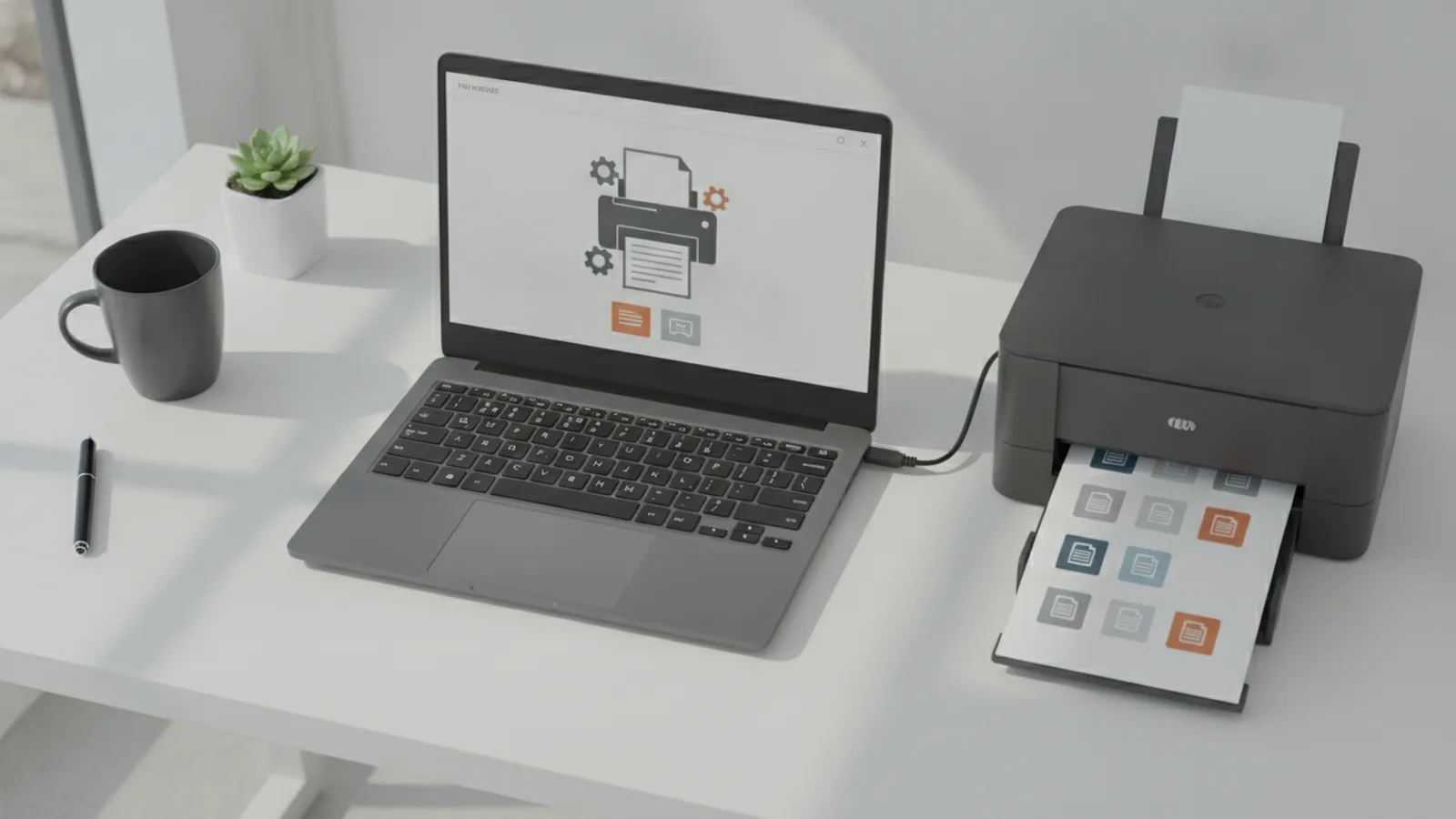
If you want several pages on one sheet, you must control two things. First, the PDF viewer must scale and place content. Second, your printer must accept the sheet layout you request.
Most PDF apps offer “multiple pages per sheet” or similar layout options. Some use a grid like 2×1 or 2×2. Others rely on scaling plus a “pages per sheet” setting that changes how the viewer tiles pages.
Before you change anything, check the PDF orientation and page size. A letter-sized sheet expects content sized for Letter. If the PDF uses A4, it may look slightly off on US printers.
Also check whether your printer supports duplex (two-sided printing). Duplex changes which margins the driver uses. It can affect how tightly the viewer can place tiles.
- Confirm paper size: Letter vs A4
- Confirm orientation: portrait vs landscape
- Confirm duplex support if you plan two-sided printing
Printing two pages on one sheet
To learn how to print two pages on one sheet pdf, start by opening the PDF in your viewer. Then go to the print dialog and find page layout options. Look for choices like “2 pages per sheet” or “multiple pages per sheet.”
On many Windows setups, the exact wording depends on the PDF app and printer driver. Still, the flow is consistent. You open Print, choose your printer, then adjust page layout and scaling.
On macOS, the process is similar. You use the macOS Print dialog, then select the page layout mode. If you do not see the option, you may need to switch PDF viewers or rely on an editor’s print settings.
Windows steps (Windows PDF viewer or Acrobat Reader)
- Open the PDF in your reader.
- Press Ctrl + P to open Print.
- Select your printer in the printer drop-down.
- Open Page setup or More settings.
- Find Pages per sheet and choose 2 (or “2 pages per sheet”).
- Set Scale to “Fit to page” or “Auto” if available.
- Turn off duplex for now if you want a simple test print.
- Print a single test page first.
macOS steps (Preview or Acrobat Reader)
- Open the PDF in Preview or your PDF app.
- Press Command + P to open Print.
- Select your printer.
- Open Layout or Page Setup.
- Set Pages per Sheet to 2.
- Choose the arrangement if it appears (for example, horizontal or vertical).
- Set scaling to Fit or Scale to fit.
- Print one page to verify margins and readability.
Those steps cover how to print 2 pages on 1 sheet pdf in a way that works across typical Windows and macOS viewers. If you do not see pages-per-sheet controls, you can usually fix it by switching apps, not by changing the PDF itself.
Printing four pages on one sheet
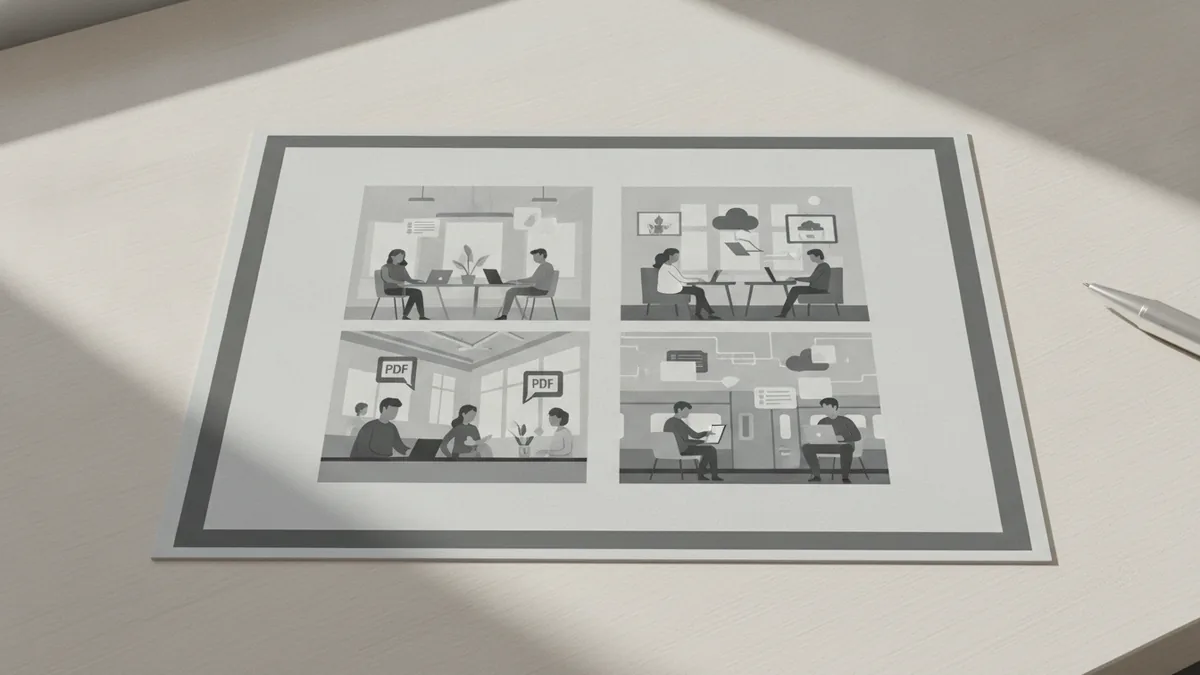
If you need how to print 4 pages on one sheet pdf, you generally move from a 2×1 or 2×2 grid. The main risk is legibility. Text can become too small if margins and scaling are not tuned.
Start by choosing a 2×2 layout if it exists. If the dialog only offers “4 pages per sheet,” it may automatically tile into a grid. If it offers arrangement choices, pick the one that matches your reading style.
Then check scaling and margins. Many viewers keep a default margin that looks fine on single-page prints. On a 2×2 grid, those same margins can shrink the usable area too much.
What to change for four-up printing
- Pages per sheet: set to 4
- Arrangement: choose 2×2 if offered
- Scaling: choose “Fit to page” or a “Reduce” option
- Margins: reduce if the viewer lets you
Typical four-up setup (Windows and macOS)
- Open the PDF and open the print dialog.
- Select your printer and paper size.
- Set Pages per sheet to 4.
- If there is an arrangement choice, pick 2×2.
- Set Scale to Fit to page.
- Reduce margins if an option exists.
- Disable duplex for the first test.
- Print one sheet and zoom to confirm readability.
When scaling is automatic, four-up printing can still cut off headers or footers. If that happens, try a slightly smaller reduction or switch scaling to “Actual size” plus a margin adjustment. The goal is to keep all content inside the printable area.
For dense documents, also consider switching to landscape on the print dialog. Landscape often gives the text more horizontal room, which helps when using how to print several pages on one page pdf layouts.
Printer settings to check
Even when the PDF viewer sets four-up or two-up, the printer driver can override layout. This is where Printer configuration matters. A driver might force “fit to printable area,” change margins, or ignore the viewer’s scaling.
In the print dialog, check for printer options like “Two-sided,” “Booklet,” or “Finishing.” These options can conflict with tile layouts. If you want one-sided output, set it explicitly before printing.
Also check “Paper size” and “Paper source.” A mismatch between the PDF and printer paper size can cause small shifts that make tiles drift or crop.
One-sided vs two-sided printing differences
For one-sided printing, the layout grid usually stays predictable. Margins are applied once, and scaling is based on the full sheet.
For two-sided printing, printers often reserve extra space for binding on the second side. This can reduce the tile area even further. Some drivers shift the image to account for duplex alignment.
To avoid surprises, print a single duplex sheet after you confirm four-up looks right in one-sided mode. If text looks squeezed, try a smaller margin setting or change the duplex “binding edge” option.
| Setting | What to pick for 2-up or 4-up | Why it matters |
|---|---|---|
| Paper size | Match the PDF (Letter or A4) | Prevents cropping and shifts |
| Orientation | Use portrait, or try landscape for 4-up | Improves text spacing |
| Duplex | Start with off, then test duplex | Duplex can change margins |
| Scaling | Fit to page (or the closest option) | Keeps content inside tile boxes |
| Margins | Reduce if offered | Gives more room per tile |
If your print dialog does not show margin or scaling options, check the printer “Preferences” page. Many drivers hide those controls there.
Common troubleshooting tips
Four-up printing can fail in a few repeatable ways. Most problems come from mismatched paper size, conflicting scaling controls, or a driver that “helpfully” fits output differently than the PDF app expects.
If the output is blank, the viewer may be placing tiles outside the printable area. Try disabling “borderless printing” if your driver offers it. Then reset scaling to “Fit to page.”
If the text is blurry, print quality may be low or the printer may be using draft mode. For readable results, switch from draft to normal or high quality. Also ensure you are not printing to a low-resolution fax-like mode.
Quick fixes that solve most issues
- Wrong paper size: set Letter vs A4 to match the PDF
- Tiles cut off: choose “Fit to page” and reduce margins
- Too small text: switch to landscape and re-test
- Duplex misalignment: print one duplex sheet test first
- Driver overrides: turn off any “poster” or “fit” extras
Quality checklist for readability
- Print one page first, then check the smallest text.
- Look at page edges for cropping or trimming.
- Check spacing between tiles for white gaps.
- Use normal print quality, not draft.
- Confirm the final sheet matches what you expect to read.
Remember that “readability” depends on your document type. Legal forms with dense lines may need 2-up instead of 4-up. Slides and posters may need scaling adjustments or landscape mode.
If you manage many PDFs, keep a simple setup profile in your printer preferences. Consistent settings reduce the chance of cut-off tiles across document management tools.
Using online tools for PDF adjustment
If your viewer does not offer pages-per-sheet tiling, online tools can help. These services often let you rearrange pages into a new PDF layout designed for printing. This can support how to print 4 pages on one sheet pdf even when your printer dialog is limited.
When using online tools, focus on two features: page layout settings and safe export. Some tools let you set rows and columns for tiling. Others simply “shrink pages to fit,” which can still work but may be less predictable.
Look for options like “multiple pages per page,” “tile,” or “impose layout.” If you see settings for margins, use them to avoid clipped content. If the tool offers image-based output, confirm the quality is sufficient for text.
What to look for in online PDF layout tools
- Pages per sheet controls: 2-up and 4-up style layouts
- Scaling and margin options: reduce cropping risk
- Export quality: keep text crisp for small tiles
- Orientation: allow landscape for 4-up readability
After you generate the adjusted PDF online, print it with the same paper size as the output. Do not rely on “auto” paper selection if your printer supports manual selection. That is how you prevent last-minute shifts.
For the best results, print a test sheet and zoom in. If you can read body text comfortably at tile scale, you are set. If not, go back and increase margins less aggressively or reduce to 2-up.
Key takeaways
- Print two-up by setting “Pages per sheet” to 2 and using fit-to-page scaling
- Print four-up by using 4 pages per sheet with 2×2 tiling when available
- Match paper size and orientation, then test once before printing full runs
- Duplex printing can change margins, so validate alignment with test sheets
- Online layout tools can tile pages when your viewer lacks page grid options
FAQ
- How do I print two pages on one sheet PDF in Windows?
- Open the PDF, press Ctrl+P, then find Pages per sheet in the print layout options and set it to 2. Use Fit to page scaling and print a test page first.
- Can I print 2 pages on 1 sheet PDF on macOS?
- Open the PDF in Preview or your PDF app, press Command+P, then set Pages per sheet to 2 in the Layout section. Choose Fit and verify margins with a one-sheet test.
- How do I print four pages on one sheet PDF without the text getting cut off?
- Set Pages per sheet to 4, choose a 2×2 arrangement if available, and use Fit to page. If content is clipped, reduce margins and reprint a single test sheet.
- What should I check in printer settings for two-sided printing with multiple pages per sheet?
- Start with duplex off to confirm layout. Then enable duplex and test one sheet because binding and driver alignment can change effective margins.
- Are online tools safe for printing several pages on one page PDF?
- Use reputable tools, and prefer ones that let you control tiles, scaling, and margins. After creating the adjusted PDF, print one test sheet to confirm readability.
- Why does my PDF look blurry when printed four-up?
- Your printer may be in draft or low-quality mode. Set print quality to normal or high, then reprint the same four-up sheet.