How to Change Highlight Color in a PDF
Change PDF highlight colors in Acrobat, browsers, and online editors.

Understanding PDF Highlighting
To change highlight color in PDF files, select the mark and open its color settings. The exact steps depend on your PDF app. Adobe Acrobat Reader, Preview, Edge, and online editors use similar tools.
Highlighting makes key parts of a document easier to find. It can support study, contract review, and team feedback. A few clear colors work better than many random shades.
Use yellow for key facts, blue for questions, and green for approved points. Keep a small color guide near the start of long reviews. This helps readers make faster decisions.
- Choose a color with strong contrast against the page.
- Use the same color for the same type of note.
- Save a new copy before changing many marks.
How to Change Highlight Color in Adobe Reader
Adobe Reader now appears as Acrobat Reader in many versions. Its comment tools let you add and adjust PDF highlights. The steps below work in most recent desktop builds.
- Open the PDF in Acrobat Reader.
- Choose the Comment tool from the right panel.
- Select the highlight tool, then mark the needed text.
- Click the new highlight to select it.
- Open the color button in the floating toolbar.
- Pick a new color and close the color menu.
For an existing mark, right-click it and choose Properties. Pick a color under the appearance settings. Select Make Properties Default if new marks should use that color.
The floating toolbar may not appear in every layout. In that case, open the comment list and select the mark there. Adobe explains its comment controls in Adobe's PDF comment guide.
Use the same method when asking how to change highlight color in Adobe PDF files. The menu names may vary by version. The color setting usually sits under appearance or properties.
Changing Highlight Color in Online PDF Editors
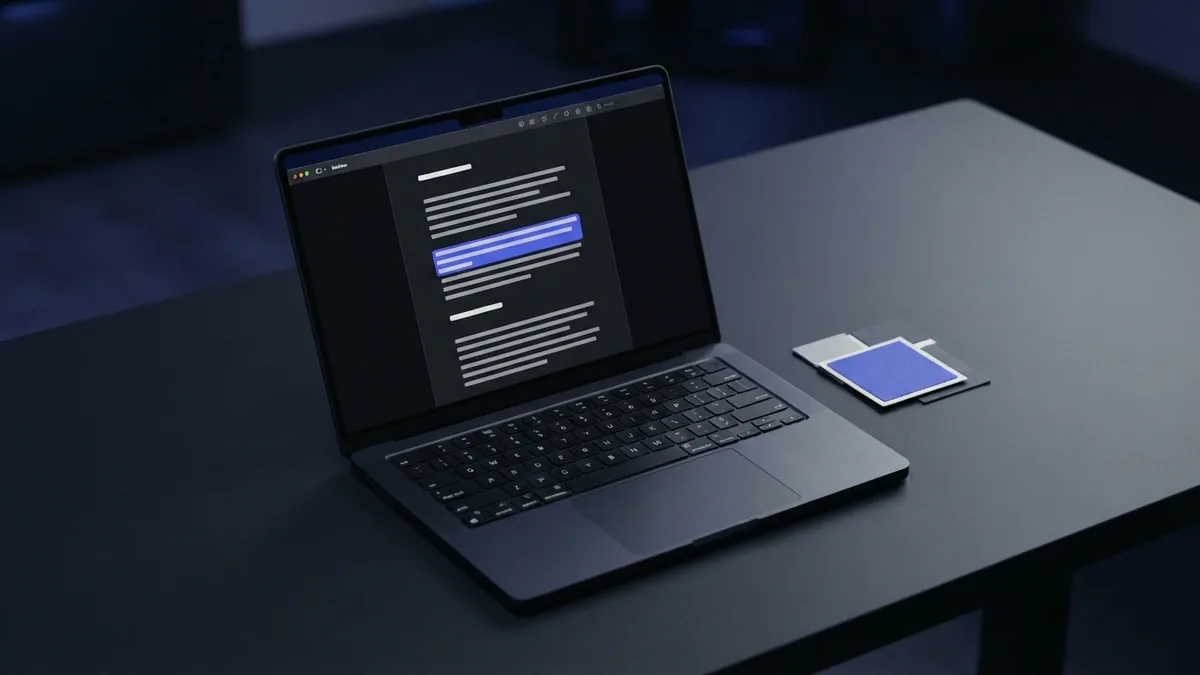
Online editors can change a PDF highlight without a software install. Smallpdf offers a simple route for adding and editing marks in a browser. Other online PDF editors use much the same flow.
- Open the editor's PDF annotation tool.
- Upload your file through the secure file picker.
- Choose the highlight tool.
- Select a color from the toolbar palette.
- Apply the mark to the needed passage.
- Download the edited PDF when finished.
Some tools let you select an old highlight before changing its color. Others ask you to delete the old mark first. Check the editor's save preview before downloading the file.
Online tools suit quick reviews and shared devices. Avoid uploading private records unless the service fits your privacy needs. Remove the file from the service when its controls allow that step.
This approach answers how to change highlight color on PDF files when you lack desktop software. It also helps with short tasks on tablets or work computers. A desktop app remains better for large or sensitive files.

Using Built-In PDF Tools on Mac and Windows
Mac users can highlight and recolor PDF marks in Preview. Open the file, select the markup toolbar, and choose the highlight button. Use the color menu beside the tool to pick a shade.
Preview may apply the chosen shade to your next highlight. To change an old mark, select it first and use the same color control. Save the file after checking each page.
Windows users can use Microsoft Edge's built-in PDF viewer. Open the PDF in Edge, choose the highlight pen, and select a color. The toolbar may show several preset colors rather than a full palette.
Built-in viewers work well for quick notes. They may offer fewer controls than Acrobat or a full online PDF editor. Test one mark before reviewing a 100-page file.
| Tool | Best use | Color control |
|---|---|---|
| Acrobat Reader | Detailed review | Toolbar or Properties |
| Preview | Mac quick edits | Markup color menu |
| Edge | Windows quick edits | Preset toolbar colors |
| Online editor | Temporary access | Browser palette |
Common Problems With PDF Highlighting
Locked PDFs can block new highlights or prevent color changes. A password may limit comments, copying, or editing. Ask the file owner for an unlocked copy or the needed password.
Some PDFs contain scanned pages instead of live text. A highlight tool may then select nothing. Run optical character recognition, or OCR, before trying again.
OCR turns page pictures into a searchable text layer. Its results can include errors. Check each highlight against the scanned page before sharing the file.
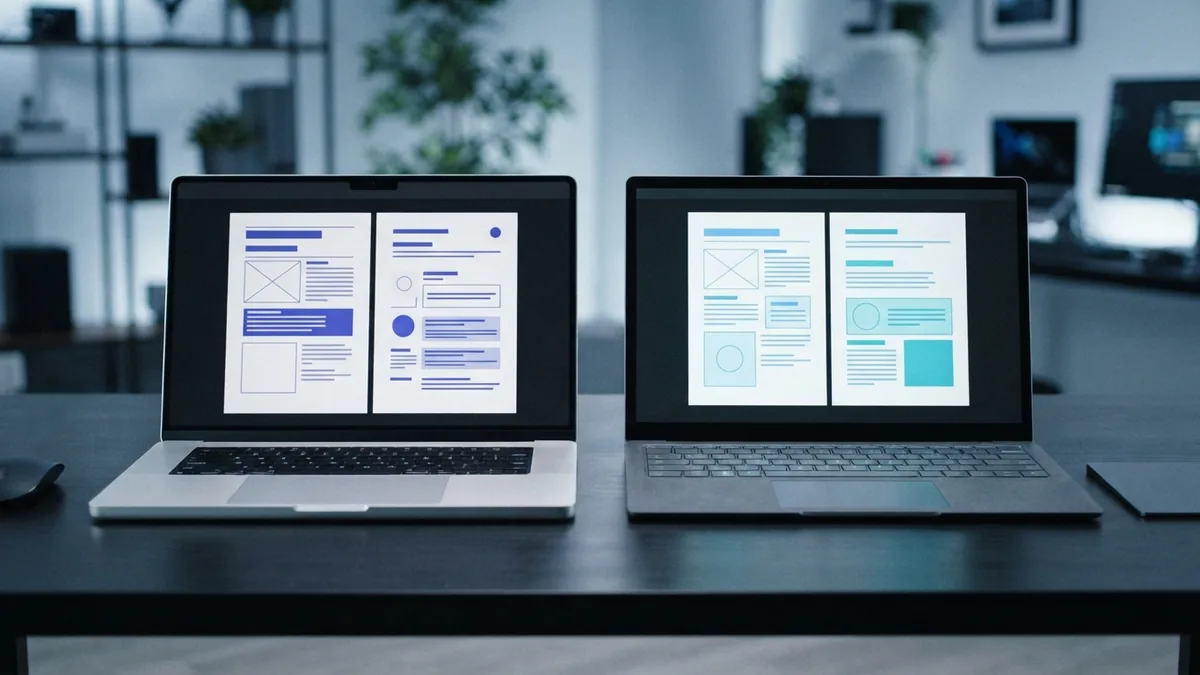
Highlights can also look different across apps. One viewer may show a bright shade, while another uses a softer tint. Export and reopen the file in your main viewer before sending it.
- If selection fails, check whether the page is a scan.
- If editing fails, check the document's security settings.
- If colors vanish, save a fresh copy and reopen it.
- If marks move, use a stable desktop app for final work.

Best Practices for Clear, Useful Highlights
Color coding works best when each shade has one clear job. Do not use five colors for five moods. Use colors for decisions, risks, questions, and final approval.
Keep bright colors for key passages. Pale colors can disappear when printed in black and white. Check a print preview if readers may use paper copies.
Do not highlight whole pages without a reason. Mark the phrase that supports your note or choice. Short marks make later review much faster.
Keep the original PDF untouched. Save a named copy such as “reviewed contract” or “study notes.” This protects the source and makes version checks easier.
- Yellow: key facts or source claims
- Blue: questions that need answers
- Green: accepted points or next steps
- Red: risks that need prompt review
Conclusion: Choose a Small, Clear Color Set
The answer to “how do I change highlight color in PDF” depends on your tool. In Acrobat Reader, use the comment toolbar or Properties panel. In Preview and Edge, use the built-in markup toolbar.
Online editors such as Smallpdf offer a fast choice for simple files. They work well when you need no install. Locked files and scanned pages may need extra steps first.
Pick two to four colors and give each one a fixed meaning. Then save a separate reviewed copy. Clear color rules make PDF annotation easier to read and act on.
Related reading

Edit PDFs from Email: Steps and Safety
Edit email PDFs with the right tool, safe steps, and clean formatting.

Manipulating PDF Files: Pages and Content
Edit, merge, split, and save PDF files with less hassle.

How to Remove Images from a PDF Without Losing Quality
Remove PDF images safely with online and desktop editing tools.