
How to Delete the Second Page of a PDF Safely
Remove page two from any PDF with clear, safe steps.
Start with the Fastest Way to Remove Page Two
To delete the second page of a PDF, open the file in a PDF editor. Show the page thumbnails, select page two, then choose Delete. Save the edited file as a new copy.
This works in many popular PDF editors. Most offer a page panel, a right-click menu, or a page menu. Some also support a Delete key shortcut after you select the page.
Check the page count before and after the change. A four-page file should become a three-page file. The deleted page is gone with all its text, images, links, form fields, and annotations.
- Keep the original PDF in a safe folder.
- Select the thumbnail for page two, not page one.
- Delete the page through the editor menu or shortcut.
- Save the result with a clear new file name.
What Happens When You Delete a PDF Page?
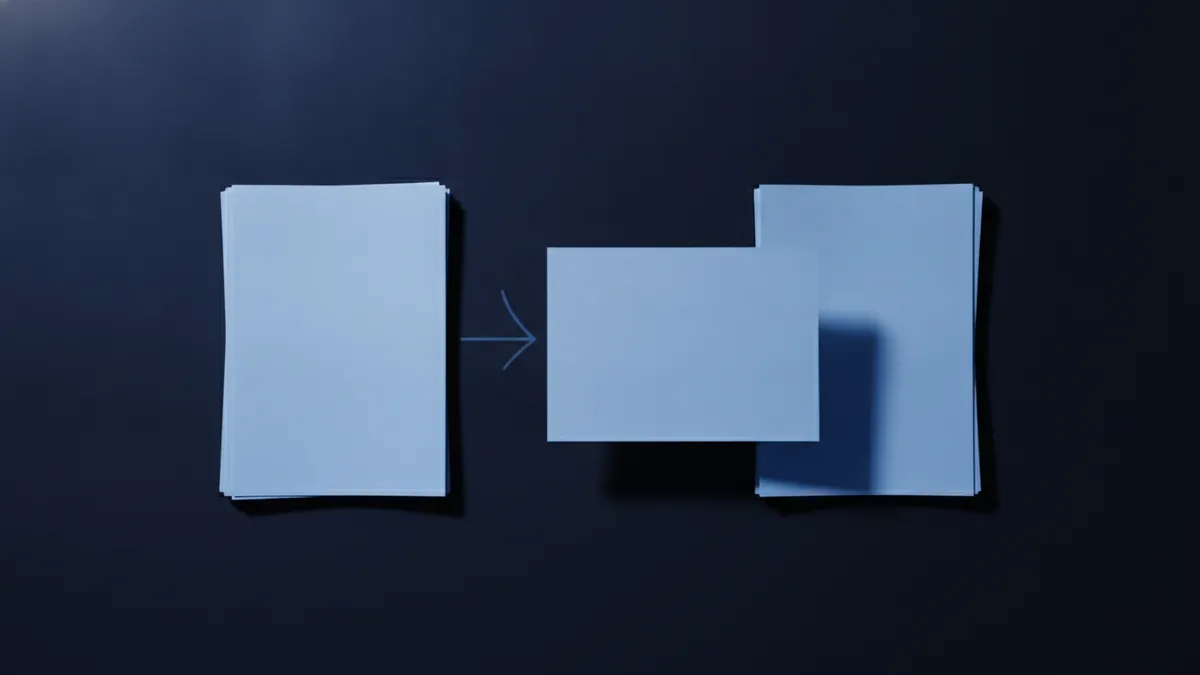
Deleting a PDF page removes the full page from the file. This includes visible content and hidden items tied to that page. Annotations, comments, stamps, and form fields may vanish too.
The pages after it move up by one position. For example, old page three becomes new page two. This matters when another file refers to a page number.
A deleted page may not return after you close the editor. Some tools have an Undo command, but that safety net may end after you save. Create a backup first.
| Before editing | After deleting page two |
|---|---|
| Page 1, page 2, page 3 | Page 1, page 3 |
| Four pages total | Three pages total |
| Notes on page 2 | Notes on page 2 are removed |
How to Delete the Second Page in PDF Editors
Open your PDF editing app and locate its page thumbnails. The panel often sits on the left side of the window. If you cannot see it, look for Pages, Organize Pages, or Page View.
Click the second thumbnail once. Confirm the selection by checking its page number or preview. Then use one of these common options:
- Right-click the selected thumbnail and choose Delete.
- Open the page menu and choose Delete Page.
- Press the Delete key when the page thumbnail is active.
- Use a trash icon shown above the page panel.
Some apps ask you to confirm the action. Read the prompt before you accept it. Then review the new page order and save the file under a new name.
Keyboard shortcuts vary between apps and operating systems. Do not assume Backspace will work. If the shortcut fails, use the page menu instead.

Delete Page Two with an Online PDF Tool
Online PDF tools can remove a page without a software install. This method suits quick jobs on a computer, tablet, or phone. It also helps when your desktop app lacks page controls.
First, open a trusted online page removal tool. Upload your PDF, then wait for the page previews to load. Select the second page and choose the delete command.
Most tools show the new file before you download it. Check the page count and the order of the remaining pages. Then download the edited PDF and open it once.
- Choose the PDF page removal feature.
- Upload the original PDF.
- Select the thumbnail marked 2.
- Remove that page and review the preview.
- Download the changed PDF to your device.
Think about privacy before uploading a file. Avoid online tools for private records unless their terms fit your needs. Remove downloaded files from shared devices after the task.
File limits can affect this method. A service may restrict file size, page count, or daily use. If the upload fails, use a desktop editor or split the file first.

Use Desktop Software for More Control
Desktop PDF software gives you more control over large or complex files. Many apps can remove one page, several pages, or a full range. Some support batch work across many files.
Open the page organizer, then select page two. You can often hold Ctrl or Command while selecting more pages. Use this only when you want to remove several pages at once.
Advanced apps may also let you rotate, move, extract, or replace pages. These features help with reports, booklets, and scanned records. They can save time when you manage many files.
- Use page thumbnails to check the page order.
- Use batch tools for repeated jobs.
- Extract useful pages before deleting anything.
- Check links, forms, and bookmarks after the edit.
Free desktop readers may only view PDFs. Full editors often require payment or a trial. Pick a tool that supports the page tasks you need.
Tips for Safe PDF Page Management
Always save a backup of the original PDF before making edits. Store it with a clear name, such as report-original.pdf. Save the changed file as report-without-page-two.pdf.
Open the new file after saving it. Confirm that the first and third pages look correct. Check any page numbers, bookmarks, links, or form fields near the deleted page.
If the file has a digital signature, page deletion may break that signature. A signed PDF needs extra care. Ask the sender for a fresh unsigned copy when needed.
Keep an audit note for work files. Record the old file name, new file name, and removed page. This simple step helps teams track document changes.
- Back up the source file before every edit.
- Use a new name for the changed file.
- Review the page count after deletion.
- Open the saved file in a second PDF reader.
- Keep private files off untrusted online services.
Can You Add a Second Page Instead?
Sometimes the real task is to add a second page, not delete it. Most PDF editors let you insert a blank page or import a page from another PDF.
Look for Insert, Add Page, or Combine Files in the page tools. Place the new page after page one. Then check the order before you save.
The same backup rule applies when you add pages. Save a copy first, then review links, page numbers, and bookmarks. Good page management prevents small edits from causing larger file problems.
Related reading
How to Remove Images from a PDF Without Losing Quality
Remove PDF images safely with online and desktop editing tools.
How to Delete Specific Pages from a PDF
Remove unwanted PDF pages on Mac, iPhone, Edge, or without Acrobat.
PDF Files: Format, Uses and Limits
See how PDFs work, what they contain, and when they are useful.