
Where Are PDF Downloads on iPhone? Find and Manage Them
Find where PDF downloads go on iPhone, then organize them in Files.

How to access PDF downloads on your iPhone
If you’re asking how to find pdf downloads on iPhone, start in the Files app. Most downloaded PDFs land in the Downloads folder, which you can open in seconds. Your exact location can vary with settings, but the process is the same: open Files, browse to Downloads, then confirm where the file saved.
In many cases, the PDF shows up under Browse > Downloads. If you downloaded from Safari, you often have a fast shortcut right where you downloaded. If you can’t find the file, you’ll likely need to search within Files or check a different directory.
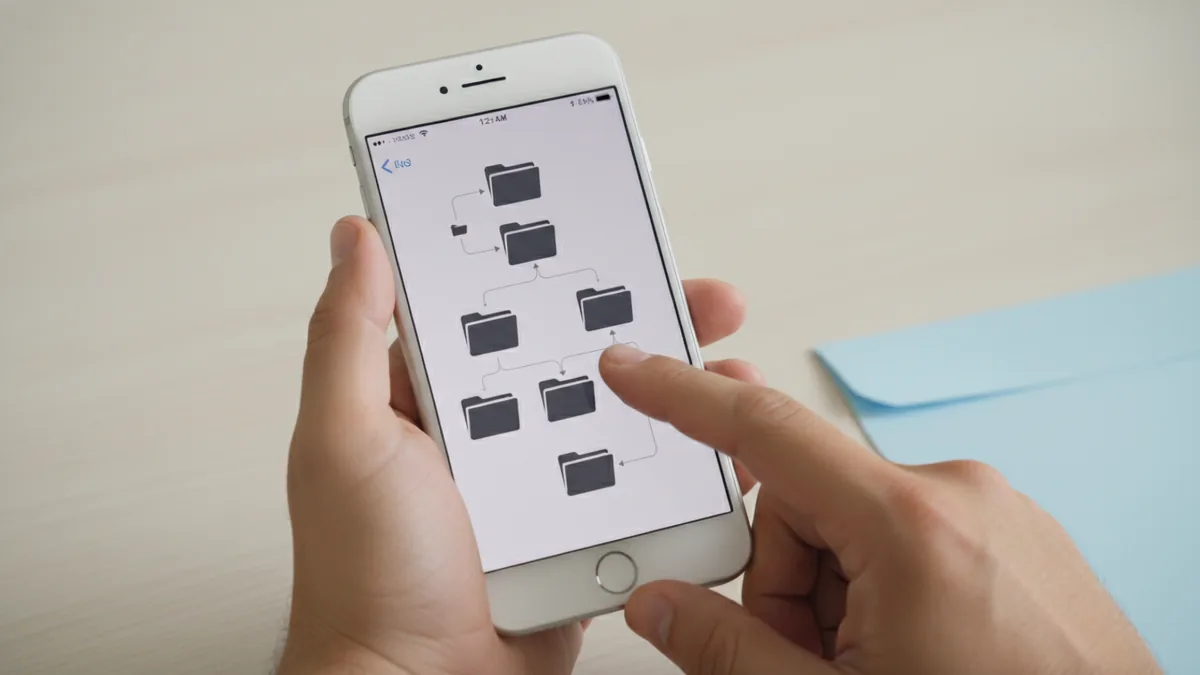
Using the Files app to locate downloaded PDFs
The Files app is the main place to manage downloaded PDFs on iPhone. After a download, open Files and look under Browse > Downloads. This folder is the default landing spot for many downloads, including PDF reader files and documents.
If you have multiple storage options, check where your files live. With iCloud Drive enabled, some PDFs appear in iCloud-backed folders. If iCloud is off for a folder, the file stays on your device storage.
To find the file quickly, use Files search or sort tools. Searching usually works best when you know part of the file name. Sorting helps when you saved multiple PDFs and want the newest one.
- Open Files.
- Tap Browse.
- Check Downloads.
- Search inside Files if you cannot see it.

Finding PDFs in Safari downloads
If you downloaded the PDF using the Safari browser, you may be able to reach it immediately from the download view. Look for the download quick access button: tap the Aa button next to the search field. Then choose the downloads option to open the latest file.
This is especially useful when you just downloaded a file and you do not want to navigate folders. Once you open the PDF, you can also share it or move it into a better folder for later.
After opening the download from Safari, take one step to reduce future confusion. Move the file into a folder you use often, like a “Receipts” or “Work” folder. Good file management on iPhone saves time when you later need the same PDF.
Common issues with PDF downloads on iPhone
Sometimes the pdf downloads location on iphone looks “missing,” even though the file downloaded. The fastest fix is to verify you are checking the right place in Files, then widen the search. Most issues are caused by iCloud storage settings, download destination changes, or file name confusion.
Here are common problems and what to do next. Use these steps in order so you don’t waste time.
- Check Browse > Downloads in Files. Start here because downloaded PDFs usually go here.
- Use Files search. Search for part of the file name, or search by file type if available in your view.
- Look in other folders. If Downloads is empty, check iCloud Drive folders or any folder you manually saved to.
- Confirm your Safari download behavior. If Safari is set to save elsewhere, the file won’t appear in Downloads.
If you still can’t find pdf files on iPhone, think about how the file was delivered. For example, some PDFs arrive via email attachments or messaging apps. Those downloads can be saved to different locations than Safari downloads.
Also, avoid assuming the PDF is “gone” just because you cannot see it in one folder. Files app search can reveal a PDF in iCloud Drive even when Downloads looks empty. Finally, if you have multiple accounts or shared devices, confirm you are logged into the right iCloud account.
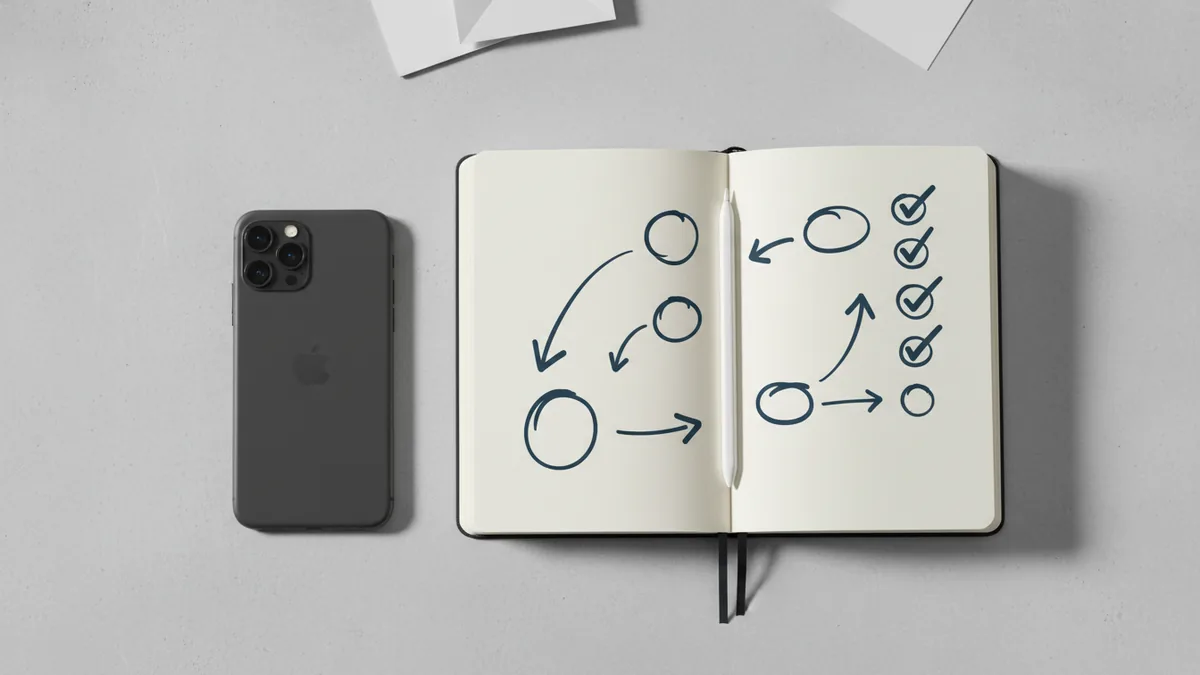
Organizing PDF files on iPhone for quick reuse
Once you know where where do pdf downloads go on iphone, the next step is making future access fast. Organize PDFs into folders that match how you use them. Then, when you download a new PDF, you can move it immediately and avoid a messy Downloads folder.
Start by creating a small folder system. Too many folders slow you down. A few clear categories often work best, especially if you download files for work, school, and personal admin.
Then, use simple habits. When you open a downloaded PDF, check where it saved. Move it into the correct folder before you forget. The PDF reader and share options make this quick.
- Create folders for your main use cases.
- Move PDFs right after downloading.
- Use consistent naming like “2026-05 Invoice.pdf”.
- Search in Files when you need something fast.
If you downloaded many PDFs at once, organization becomes even more important. Consider grouping by month or project. Sort by date, then move batches into the right folder.
Finally, if you ever want to reuse files together, you may later combine documents. Many people merge multiple PDFs into one before sharing. Keep your folder structure clean so you can pick the right files quickly when you combine downloads into one PDF.
FAQ: PDF downloads location and management
Where do pdf downloads go on iPhone?
Most downloaded PDFs are saved in the Files app under Browse > Downloads. If iCloud Drive is enabled for your folders, some files may appear in iCloud-backed locations.
Where are my pdf downloads on iPhone?
Check Files app first, then look under Downloads. If you do not see the file, use search in Files and check other folders you might have selected.
Where to find pdf downloads on iPhone from Safari?
After downloading in Safari, tap the Aa button near the search field. Then open the downloads shortcut to reach your latest PDF.
Why can’t I find downloaded pdfs on iPhone?
Common reasons are that the file saved to a different folder, iCloud settings changed where files land, or the PDF came from an app other than Safari. Use Files search to confirm where it was saved.
Do downloaded PDFs always save to the same place?
Not always. Your iCloud Drive settings and how you download the file can affect the destination. When in doubt, check Files search and verify the Downloads folder.
Related reading

Sibelius to PDF: Export and Check
Export Sibelius scores as PDFs and check every page before sharing.

VitalSource Bookshelf to PDF: Safe Offline Options
Check export rights first, then choose a safe way to read VitalSource books offline.

Khazar Conversion: Evidence and Debate
What medieval sources say about the Khazars, Judaism, and a debated conversion.