
Photo to PDF: Methods and Steps
Turn photos into clear, shareable PDFs on your phone, tablet, or computer.

Overview of Photo to PDF Conversion
To convert a photo to PDF, open the picture and choose a print or export tool. Select PDF as the file type, check the page preview, then save it. Most phones and computers can do this for free without extra software.
This method works with common image formats such as JPG, PNG, and TIFF. Menu names vary by device, but the main steps stay much the same. You can also put several photos into one PDF for easier sharing and filing.
If you are asking, “How do I convert a photo to a PDF?” start with the device you already have. Built-in tools suit quick jobs. PDF editing software can help when you need to change page order, add a password, or make scanned text searchable.
- Use built-in print tools for a quick conversion
- Combine photos when one file is easier to share
- Check page size and direction before saving
- Use a trusted PDF tool for extra features
Why Convert Photos to PDF?
A PDF keeps a page ready to share, print, or store. Instead of sending several loose images, you can place related photos in one file. This works well for receipts, forms, school work, and travel records.
The page layout is more steady across phones and computers. A PDF can also be easier to name and find later than a set of image files. That helps when you keep records for a task or event.
Some PDF tools offer more than basic conversion. Password protection can limit who opens a file. OCR, or text recognition, can make words in a scanned page searchable. You do not need either feature for a simple photo PDF.
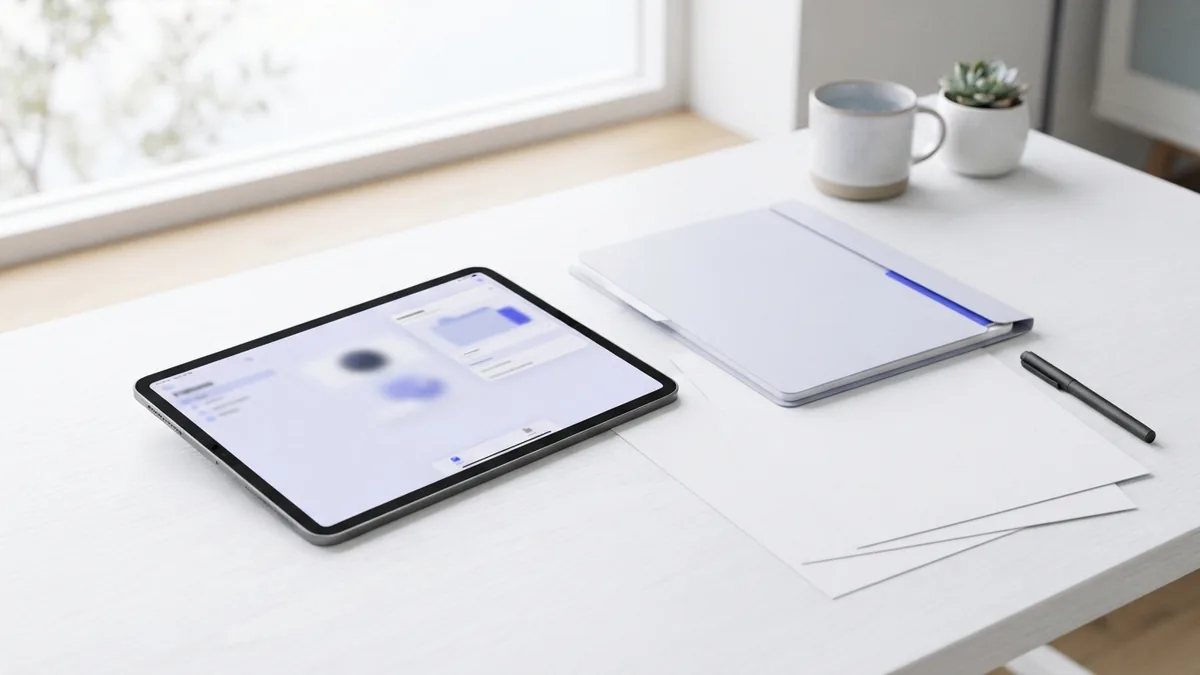
Ways to Convert Photos on Different Devices
On an iPhone or iPad, the Photos share menu leads to a print preview. From there, you can open the preview as a PDF and save it to Files. On many Android phones, the gallery or Google Photos app has a Print option.
On a Mac, open the photo in Preview and use the print or export options. On Windows, choose Microsoft Print to PDF from the printer list. These built-in methods work well for a single picture and do not require an online upload.
An online converter may help when you need to join images or set page options. Choose a service you trust, and upload only files you are comfortable sharing. For private records, use an offline tool when possible.
Pick the method that fits the job. A built-in feature is often enough for one picture. A PDF editor is useful if you need to reorder pages, add a password, or run text recognition.
How to Convert a Photo to PDF on iPhone
The iPhone has a built-in print flow that can make a PDF. Menu labels may vary by iOS version. These steps explain how to convert a photo to a PDF on iPhone, including how to save the new file.
- Open Photos and tap the picture you want to convert.
- Tap Share, then choose Print. Scroll the options if Print is not shown.
- On the print preview, spread two fingers apart over the picture. This opens the PDF view.
- Tap Share again, then choose Save to Files.
- Choose a folder, enter a clear file name, and tap Save.
That is how to convert photo to PDF on iPhone without installing an app. The same print flow works on an iPad. You can also use it to convert a photo into a PDF file for later sharing.
To make one PDF from several pictures, select them in Photos before tapping Share. Use the same print steps, then check the preview. The page order follows the order of your selected photos.
For pictures already stored in Files, find the image and open its options menu. Look for a create-PDF choice. If you do not see one, use the Photos print flow instead.

How to Convert Photo to PDF on Android
Android menus can differ by phone maker, but the Print option is common. Open the picture in Google Photos or your gallery app. Then open the share menu or the menu with more options.
- Choose Print from the menu. Tap Share first if Print is not listed.
- Tap the printer list at the top of the print screen.
- Select Save as PDF.
- Check the page size and direction in the settings.
- Tap the PDF save button, choose a folder, and save the file.
This is how to convert photo to PDF on Android with a built-in tool. It also covers how to convert a photo to PDF in mobile, since many phones use the same print flow. Check the preview before you save.
To combine pictures, select more than one before opening Print, if your app allows it. If it does not, use a trusted PDF app that can join files. Avoid broad file access when an app only needs the photos you choose.

Convert a Photo on Mac or Other Computers
On a Mac, open the picture in Preview. Choose File, then Print, and use the PDF menu to save the result. You can also use Export to make a PDF from an image.
On Windows, open the image and choose Print. Select Microsoft Print to PDF as the printer, check the layout, then save the file. The steps may vary slightly with the photo app you use.
These options answer how to convert photo to PDF on Mac without an online tool. They also work for common image files, including JPG and PNG. If you have many photos, check whether your app can print them together in one file.

Keep Image Quality and Pages Neat
Start with the sharpest copy of the photo you have. A small image may look fine on a phone but turn blurry on a full page. Avoid stretching a low-quality image to fill a large sheet.
Choose a page size that suits the task. Use A4 or Letter for printing, or fit the page to the photo for screen viewing. Check portrait or landscape direction, since the wrong setting can leave wide margins or crop the edges.
Review every page before saving a group of photos. Look for sideways pictures, cut-off edges, and blank pages. Give the file a name that will make sense when you look for it later.
- Use clear, high-resolution source photos
- Match page size to the way you will use the PDF
- Check image direction and page order
- Keep related pictures together in one named file
Frequently Asked Questions
How do you convert a photo to a PDF?
Open the photo, choose Print or Export, and select PDF as the output. Check the preview, then save the file.
Can you convert a photo to PDF for free?
Yes. Most phones and computers include a free print or export tool that can save a photo as a PDF.
How do I convert a photo to PDF on iPhone?
Open the image in Photos, tap Share, then Print. Spread two fingers apart on the preview, tap Share, and save the PDF to Files.
How do I convert photo to PDF on iPad?
Use the Photos app and follow the same Share and Print steps as on iPhone. Save the PDF to Files when the preview opens.
Can I put several photos in one PDF?
Yes. Select multiple photos before using Print if your app supports it. Check the page order in the preview before saving.
Will a PDF keep my photo clear?
A PDF can keep the source photo’s quality, but it cannot add detail that is missing. Start with a sharp image and avoid enlarging it too much.
Related reading
DOC to PDF: Easy Methods for Every Device
Save DOC files as PDFs online, on your computer, or on an iPhone.
JPG to PDF: Methods and Mobile Tips
Convert JPG photos to PDFs online or on your phone, with tips for layout and quality.
Notes to PDF on iPhone: Save Them Anywhere
Turn iPhone notes into tidy PDFs with built-in tools and smart save options.