How to Upload a PDF to ChatGPT (and Get Better Analysis)
Learn how to upload a PDF to ChatGPT, what it can analyze, and how OCR improves results.
PDF uploads in ChatGPT: what you can do
Yes, you can upload a PDF to ChatGPT for document analysis. That answers the common question, “can you upload pdf to chat gpt,” and it also covers “can chat gpt analyze a pdf.”
The key detail is text availability. ChatGPT can analyze PDF content well when the PDF includes OCR text, not just scanned images. If your PDF is a scanned document, you may need OCR first for reliable results.
This guide explains how to upload pdf into chat gpt, what to expect during file handling, and how to fix typical upload and reading problems. You will also see practical use cases for extracting facts and summarizing long documents.
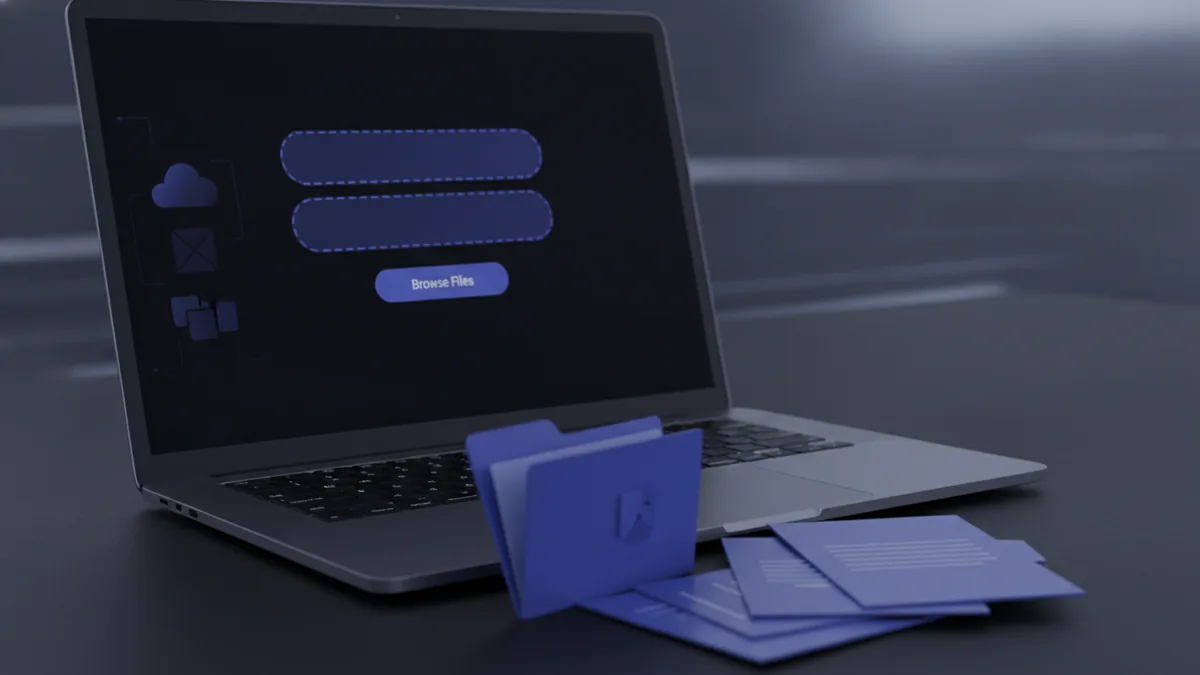
Steps to upload a PDF to ChatGPT
There are two main paths: upload directly in ChatGPT, or send the file via a third-party tool using API integration. Direct upload is usually the fastest.
Before you start, check that the PDF opens normally and includes real text where possible. If the PDF is scanned, plan on OCR (Optical Character Recognition) first.
Here are practical steps for both options.
- Upload directly in ChatGPT.
Open your chat in ChatGPT and look for the file upload button. Select your PDF and wait for the upload to finish. Then ask your question in the same chat, such as “Summarize this agreement.”
- Upload from a workflow tool like Zapier.
In the Zapier workflow, choose an event that provides the PDF file. Then connect the step that sends the file to ChatGPT. Finally, include an instruction prompt that tells ChatGPT what to extract or summarize.
- Use a clear follow-up prompt.
After upload, ask for structured output. For example, request bullet points, a table of key terms, or a short executive summary. This reduces back-and-forth when the document is long.

How ChatGPT analyzes PDFs (and why OCR matters)
When you ask “how to upload a pdf to chat gpt” or “how to put a pdf into chat gpt,” the next question becomes what happens after the upload. ChatGPT performs document analysis based on the text it can read from the PDF.
If the PDF contains selectable text, ChatGPT can do text extraction from PDFs more accurately. It can find headings, paragraphs, and key phrases, then generate an explanation, summary, or extracted fields.
However, scanned PDFs often store page contents as images. In that case, ChatGPT may not “see” the content unless OCR text is present. This is where OCR technology becomes the difference between solid answers and missing details.
What “OCR text” means in practice
OCR converts images of text into actual text data. After OCR, the PDF includes readable characters that ChatGPT can process as part of the file upload process.
If your PDF is a scan, run OCR using a reliable converter tool before you upload it. Then re-save the PDF with selectable text. After that, ask ChatGPT to analyze or extract again.
What to ask for during analysis
Good requests steer ChatGPT toward the outcome you want. Instead of asking only “analyze this,” specify the document task and the format.
For example, you can ask for a section-by-section summary, a list of requirements, or a table of dates and amounts. This works well for contracts, invoices, and technical reports.
Common issues and troubleshooting
Many failures are not about ChatGPT itself. They come from file format quirks, missing text layers, or content retrieval issues.
If you see confusing results after upload, try the checks below. They are fast, and they usually pinpoint the cause.
Issue: ChatGPT can’t read the content
Symptom: answers sound vague, key sections are missing, or results refer to “no text found.” This often means the PDF has no OCR text.
Fix: OCR the document, then upload the updated PDF. If you can select text in your PDF viewer, you are usually in a good state.
Issue: Unsupported PDF structure
Some PDFs contain complex layouts, embedded fonts, or unusual page encoding. ChatGPT may still analyze them, but extraction can be incomplete.
Fix: export the PDF again using a “flatten” or “print to PDF” option from your source application. Then re-upload and test with a small question first.
Issue: Upload errors or missing files
Symptom: the upload fails, stalls, or you do not see the document attached in the chat. This can happen with large files or unstable connections.
Fix: try a smaller PDF segment. For example, split by 10 to 20 pages and upload just one part. Also retry the upload on a stable network.
Issue: Wrong output because the prompt is too broad
Symptom: the summary is generic or misses what you care about. ChatGPT follows your instruction, but it can only do so well with clear direction.
Fix: ask for a specific output shape. You can also name what to extract, such as dates, responsibilities, or action items.
- Test with a short question first, like “List the main headings.”
- Ask for quotes only if OCR text is reliable.
- If results are off, rerun with the corrected PDF version.

Practical applications of PDF analysis with ChatGPT
Once you confirm that ChatGPT can read the PDF text, you can use it for many real tasks. The best use cases involve clear goals and measurable outputs.
Below are common document analysis workflows where “can chat gpt analyze a pdf” becomes genuinely useful.
Extracting information
Use ChatGPT to pull out structured facts from long documents. For example, you can ask for a list of key clauses, warranty terms, or payment schedules.
When you need reliability, request a table. Columns can include “Term,” “Value,” and “Page number,” assuming the PDF text supports location references.
Summarizing long documents
ChatGPT can generate summaries at different levels. You can request a one-paragraph brief, a bullet list of decisions, or a “what changed” summary comparing two revisions.
For best results, tell it the audience. For example, “Write for a non-technical manager” changes the tone and focus.
Reviewing and drafting responses
For contracts or policies, ChatGPT can help you draft an email reply or a list of questions for negotiation. It can also turn requirements into checklists.
Still, treat it as a drafting assistant. You should validate legal or technical details against the source document.
Helping with research notes
If you upload research-style PDFs, you can ask for a concept map, definitions, or a “key takeaways” section. This works well when OCR text is accurate and headings exist.
| Use case | Good prompt | Best PDF type |
|---|---|---|
| Clause extraction | “Extract all termination terms into a table.” | Text-based or OCRed PDF |
| Executive summary | “Summarize in 8 bullets for executives.” | Clear headings |
| Comparing versions | “What changed between page 2-4 in both files?” | OCRed pages |
| Action items | “List responsibilities and due dates.” | Selectable text |
Conclusion and best practices
To the question “how to upload pdf into chat gpt,” the answer is straightforward. Use the file upload option in ChatGPT or send the PDF through a workflow tool that supports API integration.
To the question “can i upload a pdf to chat gpt,” the answer is also yes. The quality of analysis depends on whether ChatGPT can read the PDF text layer.
Always plan for OCR when your PDF is scanned. OCR (Optical Character Recognition) turns page images into text that improves text extraction from PDFs and boosts accuracy for document analysis.
Finally, make your prompts specific. Ask for tables, bullet lists, and targeted extraction so the output matches your real workflow.
- Prefer PDFs with selectable text over pure scans.
- OCR scanned files before upload.
- Test with a small question if results look off.
- Request structured output for faster review.
Related reading

Circling Items in a PDF: Fast, Clear Steps
Circle key details in a PDF with shape tools, freehand drawing, and simple checks.

Google Translate PDFs: Text and Scans
Translate text PDFs directly; use OCR first for scanned files.

PDF Editing: Access and Changes
Open PDFs in a browser, desktop app, or online editor, then make and save changes.