How to Print or Save a PDF on Your iPad
Print PDFs from your iPad, or save them without a printer.
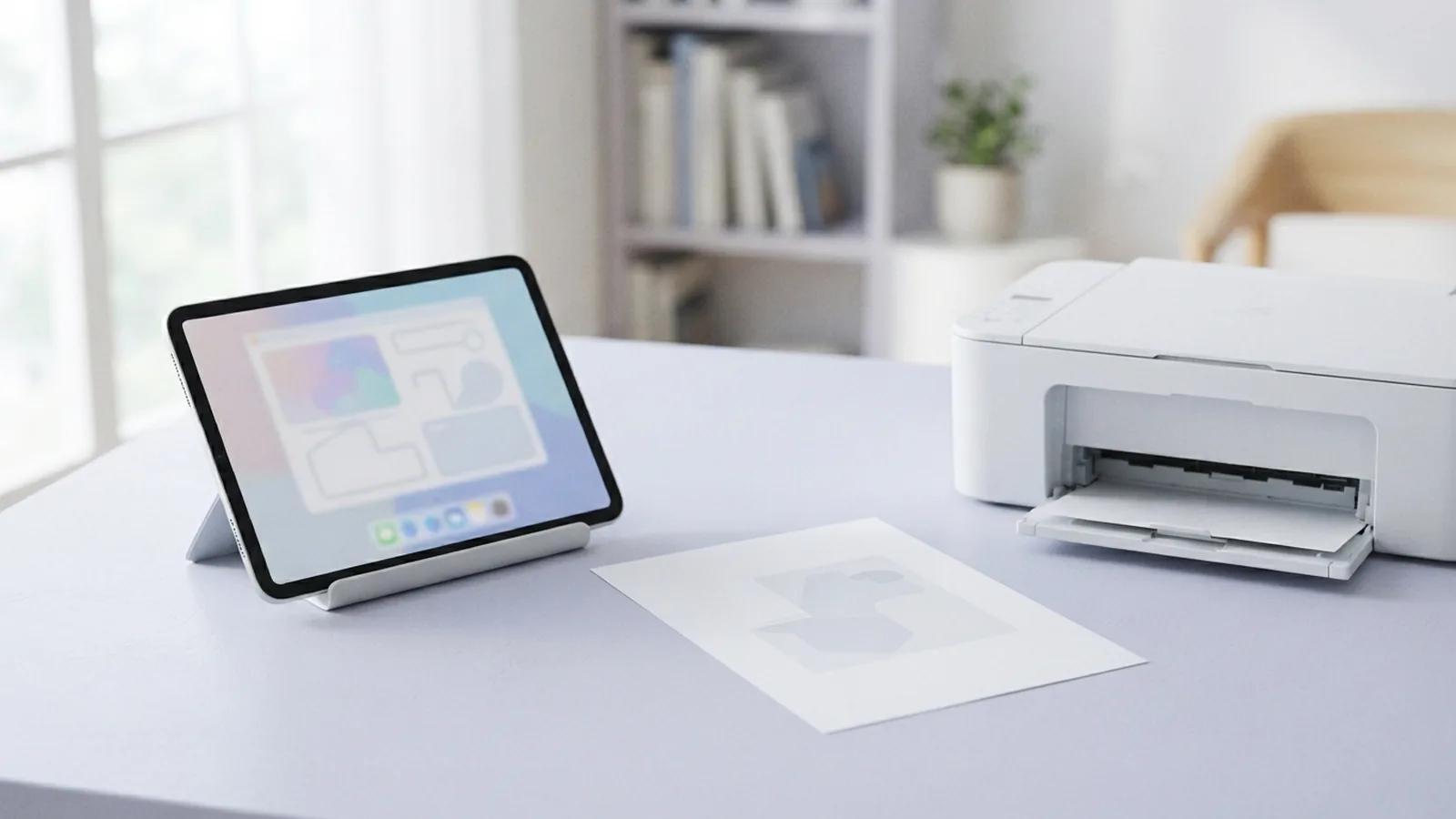
Understanding PDF Printing on iPad
You can print a PDF on an iPad with a few taps. Open the file, tap Share, choose Print, then select a printer. Your iPad needs iOS or iPadOS 15 or later for these steps.
Most direct printing uses AirPrint. AirPrint lets an iPad send files to a supported printer without extra drivers. The printer and iPad must use the same Wi-Fi network.
Can you print to PDF on iPad without paper? Yes. You can save the file as a new PDF instead. This works when no printer is selected in the print screen.
- Use iPadOS 15 or later for direct PDF printing.
- Keep the iPad and printer on the same Wi-Fi network.
- Use the Share menu to print or save a file.
- Choose iCloud Drive or On My iPad for saved files.
Apple explains the supported setup in its guide to AirPrint printers and printing. Check that guide if your printer model needs special steps.
Steps to Print a PDF on iPad
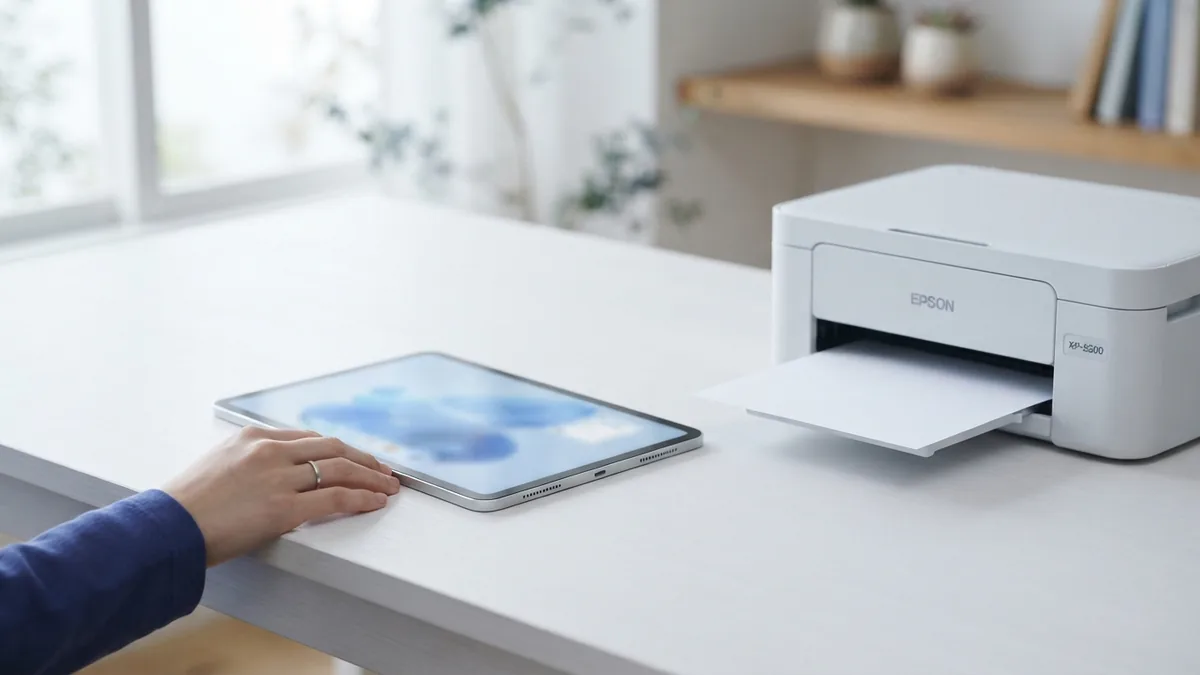
These steps show how to print a PDF from iPad using the built-in print tool. They work in Files and many document apps. App labels may differ in third-party tools.
- Open the Files app, or open the app that stores your PDF.
- Tap the PDF to open it in the document viewer.
- Tap the Share button near the top of the screen.
- Scroll through the share options and tap Print.
- Tap Select Printer, then choose your AirPrint printer.
- Set the number of copies, page range, and paper options.
- Tap Print in the upper-right corner.
The printer list may take a few seconds to load. Wait before closing the print panel. If the list stays empty, check the troubleshooting steps below.
You can print all pages or a smaller range. For example, enter pages 2 through 4 for a three-page handout. Preview the page range before sending the job.
Use the Share Menu for PDF Printing
The Share menu is the main path for learning how to print a PDF on iPad. It appears in Files, Safari, Mail, and many work apps. Look for the square icon with an upward arrow.
Open the PDF first. Then tap Share and select Print. If Print is not visible, swipe up on the menu. You may also tap More to find hidden actions.
Some apps share a file before opening it. In that case, tap the file menu beside its name. Choose Share, then follow the same print steps.
- Files: tap the PDF, then tap Share.
- Mail: open the attachment, then tap Share.
- Safari: tap Share while viewing the page.
- Cloud apps: open the file menu, then choose Share.
Use Print only after the file loads fully. A slow connection can make a cloud file appear blank. Download the file first when the app offers that choice.
Save Documents as PDF on iPad

The same print panel can show you how to print to PDF on iPad. You do not need a printer for this trick. First open the Share menu and tap Print.
When no printer is selected, press and hold the Print option. Keep holding until a new preview opens. Then tap Share again and choose Save to Files.
- Open the document or web page.
- Tap Share, then tap Print.
- Press and hold Print in the print panel.
- Wait for the full-page PDF preview.
- Tap Share on the preview screen.
- Choose Save to Files.
- Select iCloud Drive or On My iPad.
- Pick a folder, then tap Save.
This method answers the question, “Can I print to PDF on iPad?” It creates a PDF copy instead of sending paper to a printer. The original file remains unchanged.
For web pages, open the page in Safari and tap Share. Tap Print, then press and hold Print. Save the resulting PDF to Files. This captures the page in a print-friendly layout.
Choose iCloud Drive when you need the file on other Apple devices. Choose On My iPad when you need local storage. Local files remain available without an internet connection.
Fix Common iPad PDF Printing Problems
Printer issues often come from the network rather than the PDF. Start with simple checks before changing app settings. Most fixes take less than five minutes.
| Problem | What to check |
|---|---|
| No printer appears | Confirm AirPrint support and the same Wi-Fi network. |
| Print job does not start | Check paper, ink, power, and the printer queue. |
| Pages look wrong | Review paper size, page range, and print preview. |
| PDF will not open | Download the file again or try another PDF app. |
| Saved PDF is missing | Check the chosen folder in iCloud Drive or On My iPad. |
First, make sure AirPrint is enabled on the printer. The setting may sit under Network, Wireless, or Mobile Print. Printer menus vary by brand.
Next, connect both devices to the same Wi-Fi name. Guest networks can block device discovery. Turn off a VPN if the printer still does not appear.
Restart the iPad and printer if the connection fails. Then reopen the PDF and try again. Also check for a printer firmware update.
A large PDF may take longer to print. Give the file time to load before tapping Print. If only one file fails, save a fresh PDF copy and retry.
Other Ways to Manage PDFs on iPad
Printing is only one way to handle PDF files on an iPad. You can store, mark, share, and combine files without paper. A clear folder system helps you find files later.
Use Files for basic storage and sharing. Create folders for work, school, travel, or tax records. Give files useful names with dates when several versions exist.
- Save working files in iCloud Drive for easy device access.
- Keep private or offline files in On My iPad.
- Use tags to group files across different folders.
- Share a PDF link when the file should stay in the cloud.
- Save a final copy before sending it to someone else.
You can also use a PDF editor for notes, page changes, or file conversion. Choose a tool that saves standard PDF files. Check the final file before sharing it.
If you need paper later, save the PDF first. You can then print it from another device. This gives you a backup and prevents lost work.
Quick Checklist Before You Print
Use this short check when you need to print PDF from iPad quickly. It covers the most common setup errors.
- Update the iPad to iPadOS 15 or later.
- Open the correct PDF file.
- Tap Share, then choose Print.
- Select an AirPrint printer on the same Wi-Fi network.
- Check the page range and number of copies.
- Tap Print and wait for the job to finish.
No printer nearby? Press and hold Print instead. Save the new PDF to iCloud Drive or On My iPad.
That process explains how to print to PDF from iPad without paper. It also keeps a digital copy ready for later use.
Related reading
PDF Password Recovery: Safety and Access
Learn safe ways to recover access to a password-protected PDF.
DOC to PDF: Easy Methods for Every Device
Save DOC files as PDFs online, on your computer, or on an iPhone.
Copy Images from PDFs: Methods and Quality
Copy, save, and move PDF images while keeping their quality intact.