
How to Write on a PDF on iPad (Apple Pencil + Editing Apps)
Learn how to write on a PDF on iPad using touch or Apple Pencil.
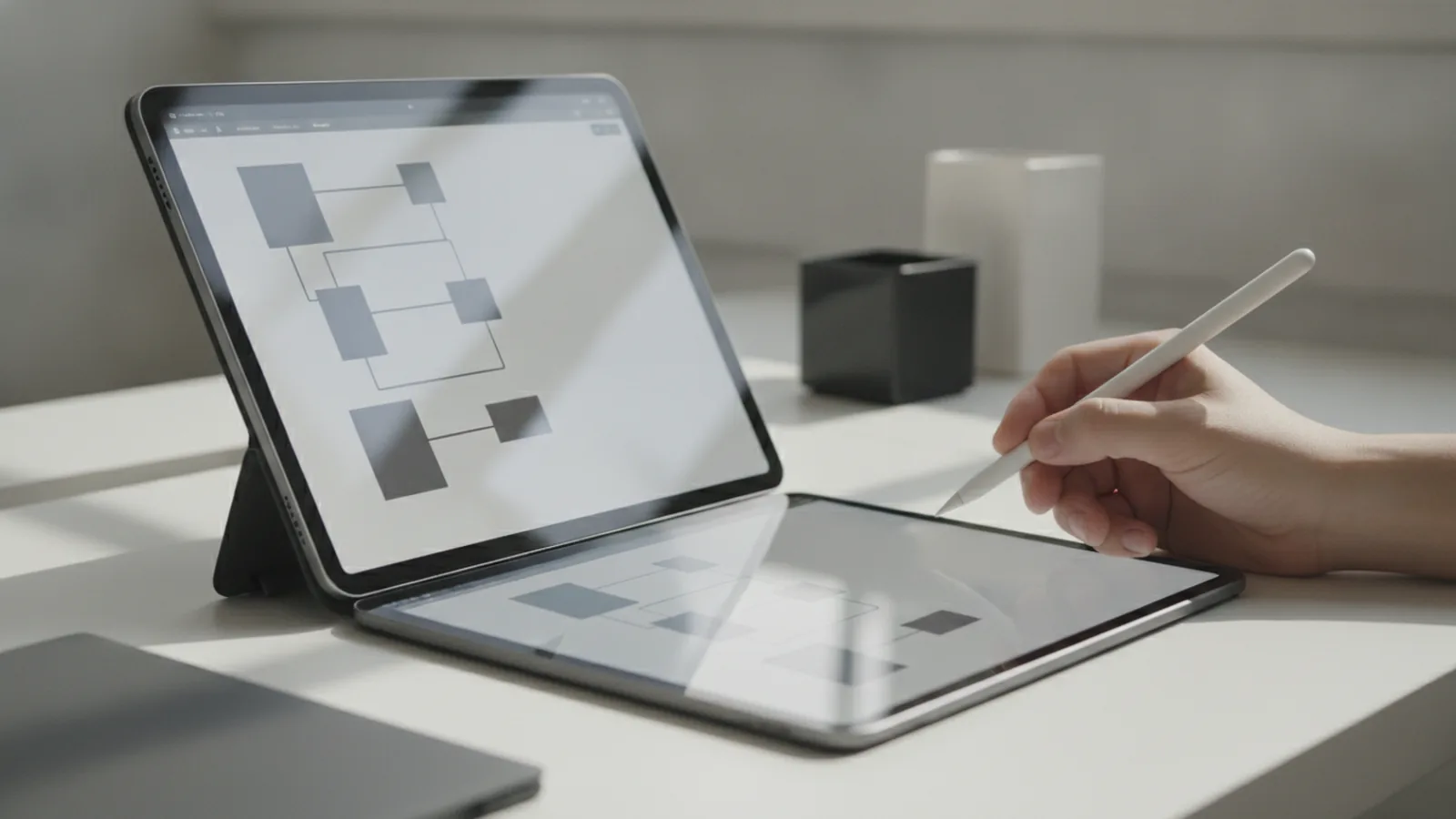
Can you write on a PDF on iPad?
Yes. You can write, draw, and add notes on a PDF on iPad using built-in iPadOS tools and popular apps. For basic markup, start with Markup in the Share sheet. For more control, use a stylus like Apple Pencil and apps made for digital note-taking.
If you are searching “how to write on a pdf on ipad,” the shortest path is this. Open the PDF in an app that supports viewing, then use Markup to add handwriting or highlights. After that, save your copy and share it back to your team or school.
In practice, the best workflow depends on two things. Do you need simple annotations or full page editing? Also, do you want touch input, or do you want Apple Pencil for finer control?
Apps for iPad PDF annotation
Many iPad apps can show PDFs, but not all of them make writing easy. Your options range from built-in tools to full-featured PDF editing apps. Below are common choices people use for PDF annotation on iPad.
When you pick an “ipad app where you can write on pdf,” think about whether you need layers, page thumbnails, and export options. Also check if the app supports Apple Pencil pressure and palm rejection. Those details change how natural the handwriting feels.
- Files app + Markup: Quick markup for taps, stamps, and basic handwriting.
- Books app: Often works for viewing PDFs, but editing can be limited.
- Adobe Acrobat for iPad: Strong PDF tools, including comments and more structured editing.
- Notability: Popular for note-taking plus PDF import and annotation.
- GoodNotes: Similar to Notability, with smooth pen feel and strong organization.
For many people, “how to write on a pdf ipad” comes down to trying one viewer plus one note app. Start with Markup for speed. Then switch to your preferred note app when you want notebooks, tags, or better pen tools.
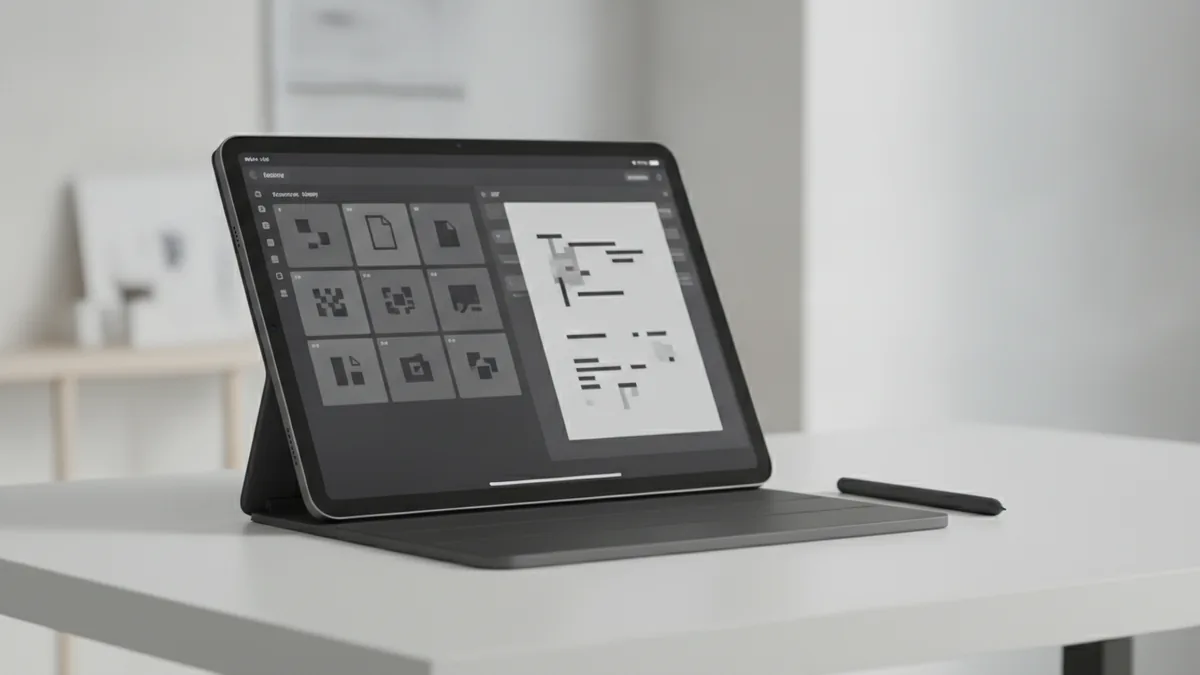
Use Apple Pencil for PDF markup
Apple Pencil is the reason most people love PDF markup on iPad. It gives you better control for small text, circles, arrows, and underlines. It also makes handwriting feel closer to paper.
To get the best results, use iPadOS pen settings before you start. In Settings, check Apple Pencil options and enable the feature that best matches your hand feel. Then choose a pen thickness that matches the PDF scale so your marks stay readable.
When you write on a PDF with Apple Pencil, keep the page zoomed in enough. If you zoom too far out, your strokes become crowded and harder to edit later. If you zoom too far in, you may lose context. Aim for a balance where text stays legible and your cursor movement feels steady.
For smooth digital note-taking, also pay attention to where your hand rests. Palm rejection reduces accidental touches, but it varies by app. If you notice stray marks, try a different nib tip or switch to a pen tool inside your PDF app.
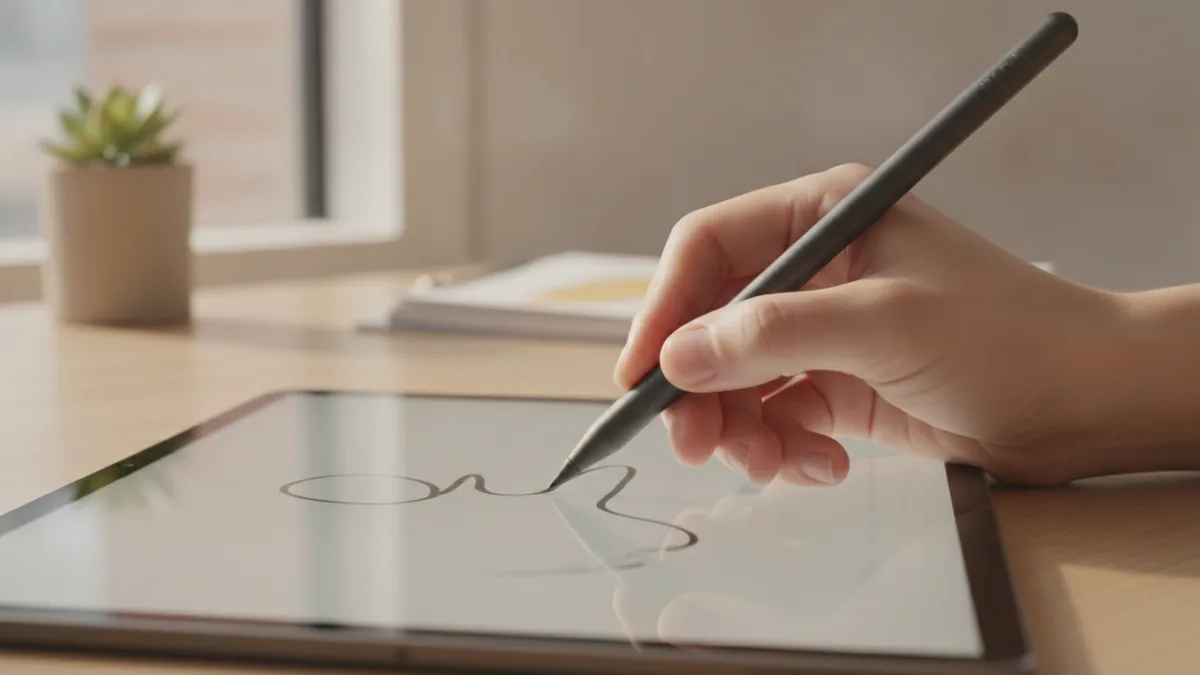
Step-by-step: write on a PDF on iPad
This section walks through a practical workflow. You will import a PDF, write on it, and save your annotated copy. It works whether you use touch, Apple Pencil, or both.
- Import the PDF. Open Files, then locate your PDF in iCloud Drive or On My iPad. Tap the file to open it in a PDF viewer.
- Choose the markup tool. Tap the Share icon, then select Markup. If you do not see Markup, check that you opened the PDF from a supported viewer.
- Write or draw. Select a pen, marker, or highlighter. Start annotating where you need notes, highlights, or signatures.
- Edit your marks. Use the undo button if available. If you need a different stroke size, switch tools before continuing.
- Save the updated PDF. Tap Done in Markup. Then choose a save location in Files and confirm your changes.
- Share or export. Use Share to send the annotated PDF by email, Messages, or cloud storage.
If you want “how to write on a pdf on ipad with apple pencil,” this same flow applies. The main difference is the input style. Pick the pen tool, then write naturally with your Pencil while zooming for accuracy.
Some apps also support editing without using Markup. For example, Notability and GoodNotes let you import PDFs into a notebook and then annotate on top. That can be a better fit for long assignments with many pages.
Comparing third-party PDF editing apps
Third-party apps can add features that Markup cannot. The big tradeoff is time. You spend more setup time, but you gain better organization and editing power.
Here is a simple comparison of three popular choices. Use it to decide which app matches your goal.
| App | Best for | What to watch |
|---|---|---|
| Adobe Acrobat for iPad | Structured PDF comments and broader PDF tools | Can feel heavier if you only need quick notes |
| Notability | PDF import plus notebook-style digital note-taking | Best results when you stay in your notebook workflow |
| GoodNotes | Fast annotation with strong organization features | Some advanced PDF tools may require extra steps |
If you are unsure, use Markup first. Then compare how each app handles page navigation, pen feel, and saving. Pick the one that matches your editing style.
Tips for effective PDF editing on iPad
Better results come from small setup choices. Start by selecting the right tool before you begin. A thin pen is for short notes. A thicker marker is for emphasis and readability.
Next, think about how your annotations will be read. Many PDFs get viewed later on a phone or laptop. To avoid tiny text, use a font-like size by trial. Then zoom out and check whether your handwriting stays clear.
Also plan for clean workflows when files move between people. Save a new version instead of overwriting the original if you want a rollback option. Then keep file names consistent so you can find the right draft later.
- Zoom before writing. It improves stroke placement and reduces accidental hits.
- Use undo often. It is faster than trying to correct a stroke later.
- Match pen color. Choose colors that contrast with the PDF background.
- Prefer fewer tools. Too many tool changes can make annotations harder to read.
If you use iPadOS features like split view, keep the PDF readable while you annotate. Annotations work best when you do not constantly shift the interface. For long edits, close extra apps to reduce interruptions.
Troubleshooting and sharing annotated PDFs
Sometimes “can you write on pdf on ipad” still has edge cases. If Markup does not open, try opening the PDF from Files. If the app does not offer handwriting tools, check that you are using a viewer that supports annotation.
Here are common problems and fixes. Try them in order to save time.
- Markup missing in Share sheet: Open the PDF directly from Files, then try Share again.
- Strokes look jagged: Zoom in a bit more and use a pen tip with a thickness that matches your scale.
- Pencil touches the page unintentionally: Adjust Pencil settings and try a different hand position.
- Edits do not save: Confirm your save location in Files and avoid switching apps mid-save.
- Other people cannot see annotations: Export or save as a new PDF, then re-share the updated file.
For sharing, remember that recipients need the right file format. Sharing an annotated PDF usually works best because it keeps the markup embedded. If you need extra control, export options in your PDF editing app can help you produce a clean version for printing.
In many workflows, you will also want to export a “final” copy. That way, the recipient gets a single PDF with all comments visible. Then you can keep the working copy on your iPad for future edits.
Conclusion and additional resources
To summarize, you can absolutely write on a PDF on iPad. Start with iPadOS Markup for quick notes and highlights. Then move to an iPad PDF editing app when you need stronger organization and pen tools.
If you are asking “how to write on a pdf ipad” or “can you write on a pdf on an ipad,” the answer is yes. Use the Share sheet Markup flow for fast edits. Use Apple Pencil for precise writing and digital note-taking feel.
When you are ready to share, save a new annotated version and re-check the final file. That small step prevents “missing markup” surprises. If you want deeper help with the Apple Pencil feature set, review Apple’s iPad accessibility and Pencil support pages via Apple Pencil support.
Related reading
MOV to PDF on Mac: Frames and Files
Turn video frames into a neat PDF on your Mac.
XBRL to PDF: Readability and Record-Keeping
Turn XBRL reports into readable PDFs and keep the source files safe.
PST to PDF: Methods and Best Practices
Compare Outlook, software, and expert options for converting PST files to PDF.