How to Highlight in a PDF: Acrobat, Preview, and Chrome
Learn how to highlight pdf text in Acrobat, Preview, Chrome, and online tools.
Understanding PDF highlighting
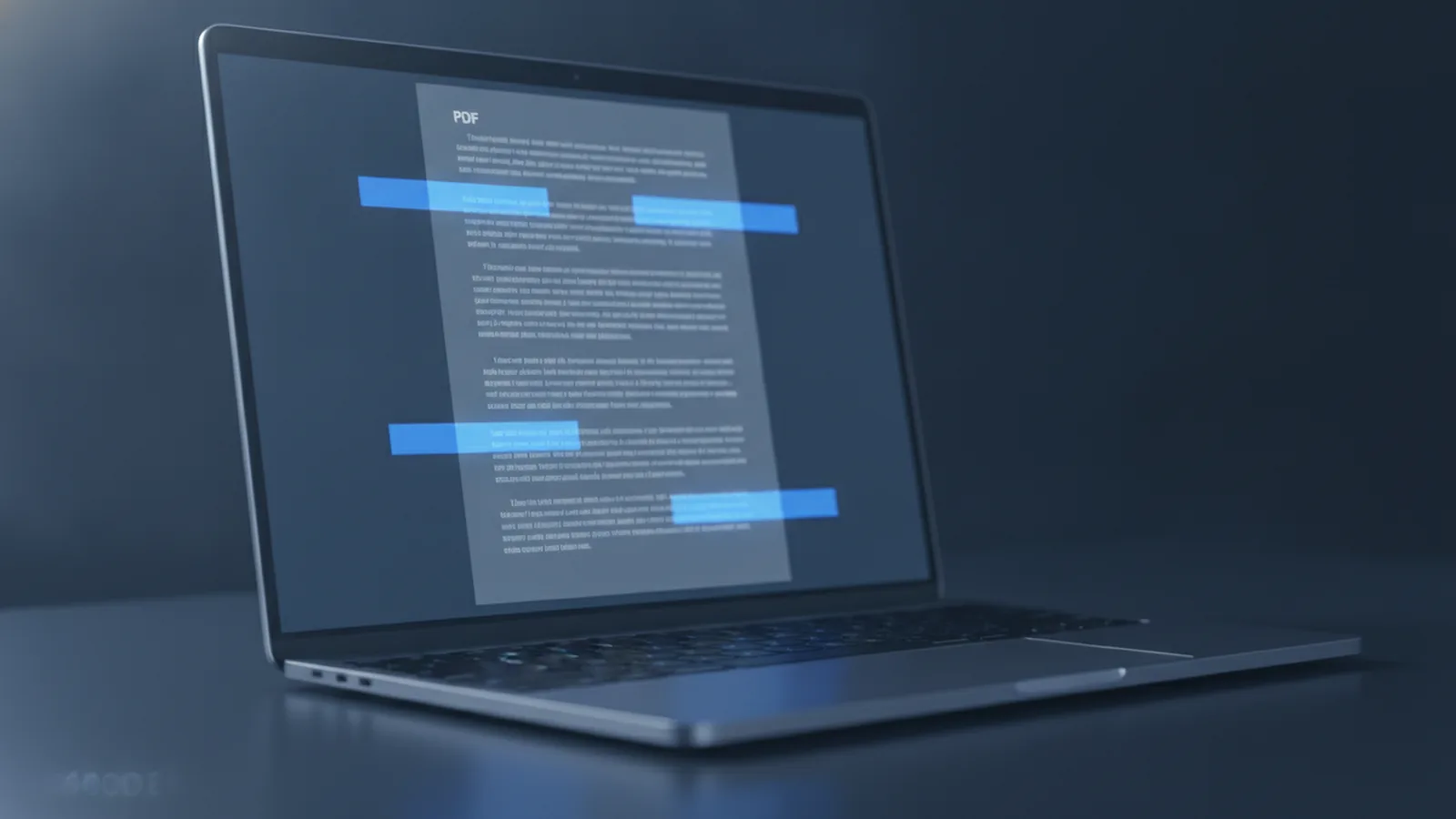
Learning how do you highlight in a pdf starts with knowing what a highlight really is. In most PDF reader tools, a highlight is a text annotation. The highlight appears on top of the marked text.
Highlights usually look like a semi-transparent colored layer. This keeps the original PDF text readable beneath the markup. It also makes it easier to scan later.
Because highlights are stored as annotation objects, you can often edit or delete them. When you share a PDF for document collaboration, highlights may show up for others too. That is why your color and meaning matter.
- Quick reading: use a light yellow.
- Review work: use green or a darker yellow.
- Action items: use stronger contrast colors.

Tools for highlighting PDF files
There are multiple ways to highlight pdf documents. The best method depends on your device and how you need to work. If you only mark up occasionally, a built-in app can be enough.
If you search how to highlight document in pdf without installing software, start with online editors. If you need consistent tools across projects, use a desktop PDF reader. For complex files, desktop apps often handle annotations more reliably.
Also consider whether the PDF is locked or password protected. Some secure PDFs block editing and annotation. In that case, can you highlight a pdf depends on the permissions you have.
| Tool | Best for | Typical limits |
|---|---|---|
| Adobe Acrobat | Full annotation control and editing | Desktop software needed |
| Preview (Mac) | Fast highlighting with built-in tools | Fewer advanced options |
| Chrome | Basic viewing and selection | Highlighting support varies |
| Online PDF editors | Highlighting without installs | Features depend on the provider |
- If you are asking how can i highlight a pdf, try Acrobat or Preview first.
- If you are asking how do you highlight on a pdf with no install, use an online editor.
- If you are asking how to highlight pdf in chrome, check if your Chrome setup supports annotations.

How to highlight in Adobe Acrobat (step-by-step)
If you want the most direct answer to how do you highlight a pdf document, Adobe Acrobat is a strong choice. You can select text, apply a highlight, and verify it attaches to the right part of the PDF. Others can see the markup when you share the file.
This section walks through how to highlight pdf text using the Highlight tool. The workflow is usually the same across common Acrobat versions. You open the PDF, pick the tool, then drag across the words you want to mark.
Before you start, zoom in. PDFs sometimes use tight line spacing or complex text boxes. A smaller selection reduces mistakes.
- Open the PDF: launch Acrobat and open your file.
- Choose the Highlight tool: select the Highlight text annotation tool.
- Set a color: pick a color that stays readable over the page content.
- Drag across text: click and drag over the exact words you want.
- Confirm the result: zoom in and check the highlight matches the intended line.
Tips for clean highlighting
Some PDFs have text layered in odd ways. When your selection jumps, highlight smaller spans. It is usually more accurate to do it line by line.
For digital note-taking, keep colors consistent. Use one color for questions and another for confirmed facts. That makes later review faster.
Troubleshooting common Acrobat issues
If the highlight tool does nothing, check annotation permissions. Some PDFs are locked for editing. You may need the owner to grant access.
If you can add highlights but cannot edit them later, switch to the Select tool. Then click an existing highlight to move, change, or remove it. This often fixes “can’t select annotation” issues.

Highlighting in Preview on Mac
If you are asking how to highlight a pdf on mac, Preview is often the easiest path. It is built into macOS. You can highlight without installing extra software.
To use Preview, open your PDF in the Preview app. Then open Markup tools. Choose the highlight option and drag across the text you want to mark.
Preview works best when the PDF includes selectable text. If your PDF is an image-only scan, you may not get reliable text selection. In that case, you might need a scan-to-text step first before highlighting.
- Preview flow: Open PDF → Markup tools → Highlight → drag across text.
- Make selections smaller: it helps with narrow line spacing.
- Use zoom: it improves accuracy on dense pages.
Common Preview problems
If the highlight option is missing, make sure Markup tools are enabled. Also check the toolbar layout. On some setups, the Markup tools button may need to be expanded.
If you can’t apply highlights, the PDF may be restricted. Some PDFs are shared with permissions that block markup. Try saving a copy only if the file rules allow it.
If highlights appear offset, redo the selection more carefully. Preview can misread the intended line when text is wrapped unusually.
Using online PDF editors to highlight
If you search how to highlight pdf files without downloads, online editors can be convenient. You upload the PDF, highlight text, then download the edited file. Many providers offer both pen-like and highlight-style markup.
This approach is great for quick work on a shared computer. It also helps when your device does not have a dedicated PDF reader. Still, feature depth varies by provider and by PDF complexity.
Before uploading a sensitive document, check what the editor does with your file. Look for clear retention and deletion details. It is also smart to avoid uploading confidential data to a tool you do not trust.
- Upload: open the online editor and choose your PDF.
- Select highlight: pick the highlight tool for text markup.
- Mark text: drag across the parts you want to emphasize.
- Check annotations: zoom in and confirm highlight placement.
- Download: save the revised PDF to your device.
When online highlighting struggles
Some PDFs are heavy or have unusual layouts. That can cause selection errors or highlight gaps. If that happens, try a desktop tool like Acrobat or Preview.
If you are asking how to highlight scanned pdf, note that scan images do not always expose selectable text. Some online editors cannot highlight what they cannot identify as text.
In those cases, you may need a conversion step that turns a scan into real text before highlighting.
How to remove highlights in PDFs
If you need how to delete highlight in pdf, start by selecting the highlight annotation. In most tools, highlights are editable objects. That means you can remove a specific highlight without clearing the rest.
In Acrobat, switch back to the Select tool and click the highlight. Then press delete or use the annotation menu to remove it. After that, verify the page view to ensure the markup is gone.
In Preview on Mac, you usually select the highlight by clicking it in Markup mode. Then remove it with the delete key or the remove option. Save the file after you finish edits.
- Acrobat: Select tool → click highlight → delete.
- Preview: Markup mode → click highlight → delete.
- Online tools: select highlight object → remove → download again.
Troubleshooting highlight removal
If you cannot select the highlight, you may be in the wrong tool mode. Switch from highlight mode to selection mode in your editor.
If delete is disabled, the PDF may be restricted. In that case, you can only remove highlights if you have permission to edit. Also check whether you are working on a read-only copy.
If highlights keep coming back after download, the editor may not save changes properly. Try re-saving as a new file name and then reload it.
Quick answers to common highlighting questions
Can you highlight on a pdf with Chrome? It depends on how your Chrome setup handles PDF annotations. Many users can view the PDF, but editing features are not always available in the same way.
How to highlight a pdf on ipad usually means using an iPad PDF reader app that supports markup. Many iOS apps include a highlight tool similar to desktop readers.
How do i highlight a pdf on Windows 10? Look for a built-in PDF viewer or install a PDF reader that supports annotations. Then use highlight markup and save a copy of the updated file.
If you are trying how do you highlight on a pdf but nothing appears, check that the PDF text is selectable. Scanned images and some secured files block reliable highlighting.
Image planning note
This section exists to place all required placeholders in the right spots. It does not add extra content for the reader.
Related reading
PDF Margins: Edit, Add, and Print with Ease
Check, change, or add PDF margins and get cleaner prints.

PDF to Slides: Tools and Workflows
Turn a PDF into editable slides and keep the layout looking its best.

Editing PDFs in PowerPoint: Images and Objects
Add, clip, convert, and present PDF content in PowerPoint with fewer surprises.