
How to Fill PDF Forms Online for Free (PC, Android, iPad)
Fill PDF forms online for free on computer, Android, and iPad. Learn steps for typing, signing, and submitting.

What PDF forms are, and what “fillable” really means
If you’re asking “how do you fill out pdf forms online,” the key is knowing what type of PDF you have. A PDF form is a document that contains fields for data entry, like names, dates, or checkboxes. Some PDFs already include those fields and behave like an online form. Others are just scanned pages with no real input areas.
A fillable PDF form has interactive fields. You can click a field and type text, tick boxes, or select options. A non-fillable PDF form looks like a form, but it has no fields. In that case, you usually need PDF editing tools to convert it into an editable layout, or you must use an overlay approach.
When you open a fillable PDF, you’ll typically see a cursor inside fields. If you cannot place the cursor where you expect, it’s likely non-fillable. This distinction matters because it changes how you fill in pdf forms free, especially on mobile devices.
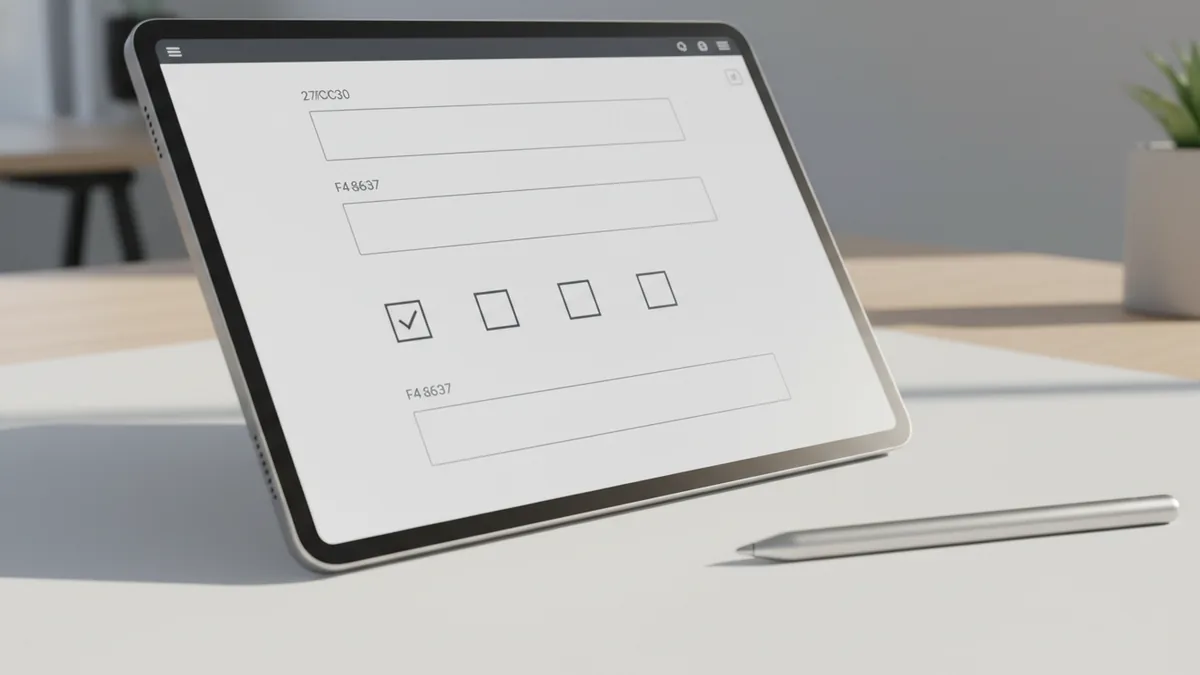
Why filling PDF forms online saves time and reduces mistakes
Filling forms online is often faster than printing, signing by hand, then rescanning. You avoid repeating steps, and you can make quick corrections before you submit forms electronically. That reduces the chance of sending the wrong page or a blurry scan.
Online PDF form filling also helps with consistency. Text fields keep your entries aligned, and checkboxes stay neat. This lowers the odds of rejection when forms require exact formatting, like account numbers or ID numbers.
Another benefit is easier tracking of what you already filled. You can re-open the completed file later and update a field if you notice an error. For many people, this is the most practical answer to “how to fill in pdf forms online” without hassle.
- Fewer steps: type, review, and download in one flow.
- Less rework: fix errors before you sign and submit.
- Cleaner output: fewer alignment issues than handwriting.
- Better portability: finish the same form on multiple devices.
How to fill out PDF forms online: a simple step-by-step flow
Here’s a practical way to fill out PDF forms online. First, make sure the PDF you’re using is accessible and clearly shows every required field. Then upload it to a free online PDF editing tool that supports form filling. After that, type into each field, checkboxes included.
Use this general workflow whether you’re on a desktop browser or a phone browser. You want to avoid guessing field locations. Zoom in if needed, and click each field one at a time so entries don’t land in the wrong spot.
When your form uses dropdowns or radio buttons, interact with those controls directly. For checkboxes, make sure each box is either clearly marked or left blank. Finally, review the completed PDF on-screen before you download it.
- Upload your PDF: choose the file from your device storage.
- Fill fields: click inside text boxes and type your info.
- Mark options: tick checkboxes and select dropdown choices.
- Review carefully: scan each page for missing or wrong entries.
- Download the completed form: save a copy for your records.
How to fill in scanned or non-fillable forms
If you don’t see input fields, you’re likely dealing with a non-fillable PDF. In that case, you may need PDF editing tools to convert it into a fillable form first. Some tools can detect areas and add fields automatically. Others require manual steps to place text boxes.
As you test, check whether the fields behave like real form inputs. You should be able to click where you want to type. If the form must be submitted with field data, “type on top” may not always work. In those cases, converting to a fillable layout is the safer route.
If your form is from a website or a portal, look for an available fillable version. People often download a “printable” PDF by mistake. If you already have the non-fillable file, converting PDF to fillable form can save you from repeated resubmission.

Filling PDF forms on computer: easiest option for most people
For how to fill out pdf forms on computer, the browser is usually the most convenient. A large screen makes it easy to spot fields, read labels, and avoid typing in the wrong box. It also helps when forms have small text like policy numbers or reference codes.
Start by opening the PDF in your browser-based PDF editor. Click each field and type. If the form has multiple pages, confirm you’re on the correct page before entering data. Use zoom controls to get close enough to read tiny instructions.
If your form includes multiple signatures, treat each signature field separately. Signatures are often validated by a later system, so keeping them in the right area matters. When in doubt, download a draft copy, review it, then finalize.
- Use browser zoom for small fields.
- Check every page before downloading.
- Keep numeric entries consistent with your source document.
Signing a PDF form electronically
Many forms ask for an electronic signature. Electronic signatures can include drawing, typing a signature style, or uploading a signature image. In most tools, you add a signature where the form requests it, then confirm the placement.
Make sure you understand what the form requires. Some forms accept typed signatures, while others expect an e-signature block. For sensitive submissions, choose the method that matches the instructions from the form provider.
If a form is strict about formatting, sign after you fill all fields. This reduces the chance you’ll move signature placement due to later edits.
Filling PDF forms on Android and iPad (phone-friendly tips)
For how to fill out pdf forms on android, the process is similar: open the file, use a mobile-friendly PDF filler, then download the updated PDF. The main differences are screen size and how zoom works. Tap fields carefully and zoom in when needed.
On iPad, for how to fill out pdf forms on ipad, you typically get good results with a tablet browser. The touch screen makes checkbox selection easy. For text entry, iPad keyboards can be fast, but you should still double-check that entries land in the correct field.
If you need how to fill out pdf forms on your phone, plan for a quick review step. Many people rush on mobile and miss a required field. Build a habit of scanning the whole form after you finish typing.

Best ways to handle mobile PDFs
Mobile PDF form filling works best when your PDF is clear and not too low resolution. If your PDF is a scan, fields may not be detected. In that case, converting to fillable can take extra steps, but it often saves time later.
Also watch for downloads. Some mobile browsers keep the updated file in a downloads folder. Save it with a recognizable name like “FormName_Completed_YYYY-MM-DD.”
- Zoom before typing to avoid wrong-field taps.
- Save with a clear file name right away.
- Do a full-page scan before submitting.
Signing on mobile devices
To sign PDF forms online on a phone or tablet, use the signature tool built into your editor. You can draw a signature with your finger or stylus, depending on device support. After you place it, make sure it stays inside the signature box.
If you sign more than once, like date and initials, place each item in the right spot. Also confirm the signature doesn’t shift when you download. If it does, re-open the file and re-place the signature.
Tips, troubleshooting, and how to save or submit completed forms
Even with good tools, issues happen. The most common one is that the PDF doesn’t accept typed input. That usually means the form is non-fillable or the editor cannot detect fields. Another common problem is that changes look correct but do not persist after downloading.
To troubleshoot, do a quick test before you fill everything. Type into one field and then download a small version of the form. Re-open the downloaded file and confirm the entry is still there. This catches field detection problems early.
Security and privacy matter when you type personal data. Use reputable PDF editing tools and avoid uploading files you don’t need. If you’re worried about data security while filling forms online, limit uploads to only what the submission requires.
Make PDF forms fillable (when they aren’t)
If you’re wondering how to add fillable pdf forms to my website, the goal is to provide users a form they can complete without printing. You can create form fields in your PDF authoring workflow first. Then host the fillable PDF so users just type and download.
If you only have a basic PDF, you can still improve it. Use PDF editing tools to add text fields, checkboxes, and signature areas. For interactive PDF features, focus on placing fields accurately. Poorly placed fields frustrate users and cause submission errors.
For complex forms, consider offering both a “fillable” and “printable” version. That gives users options and reduces drop-offs during submission.
Saving and submitting completed PDF forms
When the form is complete, download it and save it in a safe place. Most users should keep two copies. One copy is the completed PDF, and another copy is the final signed version. This helps if you need to re-submit later.
For saving specific official forms, follow the form provider’s instructions. Some requests, like how to save IRS PDF forms, require you to use the download or save flow in your browser so fields stay intact. If a downloaded file loses entries, re-save using the PDF editor and try again.
For submit forms electronically, check the required upload format. Some portals accept only a PDF file, while others also accept images. If the portal supports drag-and-drop, upload the downloaded completed PDF and confirm the system received it.
| Task | What to do | Common mistake |
|---|---|---|
| Fill fields | Click each field and type | Typing before zooming |
| Sign electronically | Place signature inside the box | Signing before filling all fields |
| Save completed form | Download and rename immediately | Saving only the browser version |
| Submit electronically | Upload the downloaded PDF | Submitting a non-fillable copy |
Quick checklist before you submit
- All required fields are filled.
- Signature and dates are in the right spots.
- You downloaded the updated file.
- You can re-open the saved PDF and see entries.
Related reading

Sibelius to PDF: Export and Check
Export Sibelius scores as PDFs and check every page before sharing.

VitalSource Bookshelf to PDF: Safe Offline Options
Check export rights first, then choose a safe way to read VitalSource books offline.

Khazar Conversion: Evidence and Debate
What medieval sources say about the Khazars, Judaism, and a debated conversion.