How to Delete a Signature From a PDF (With Safe Options)
Learn how to delete a signature from a PDF, including locked files and digital signatures.
Understanding PDF signatures
You can delete a signature from a PDF only if you first spot the signature type. Image and hand-drawn marks are usually just page content. Digital signatures are tied to security checks. That can make removal risky or impossible.
A PDF can store marks in different ways. Some signatures are plain objects on a page. Others include code that proves the file was not changed. Those two cases behave very differently.
Here is the quick way to think about it. Visual marks can often be edited away. Security marks often need a new signed file. Always start with that split.
- Visual signatures: often removable in PDF editors
- Digital signatures: removal may break trust checks
- Locked PDFs: editing can be blocked by file rules
Types of signatures you may see in PDFs
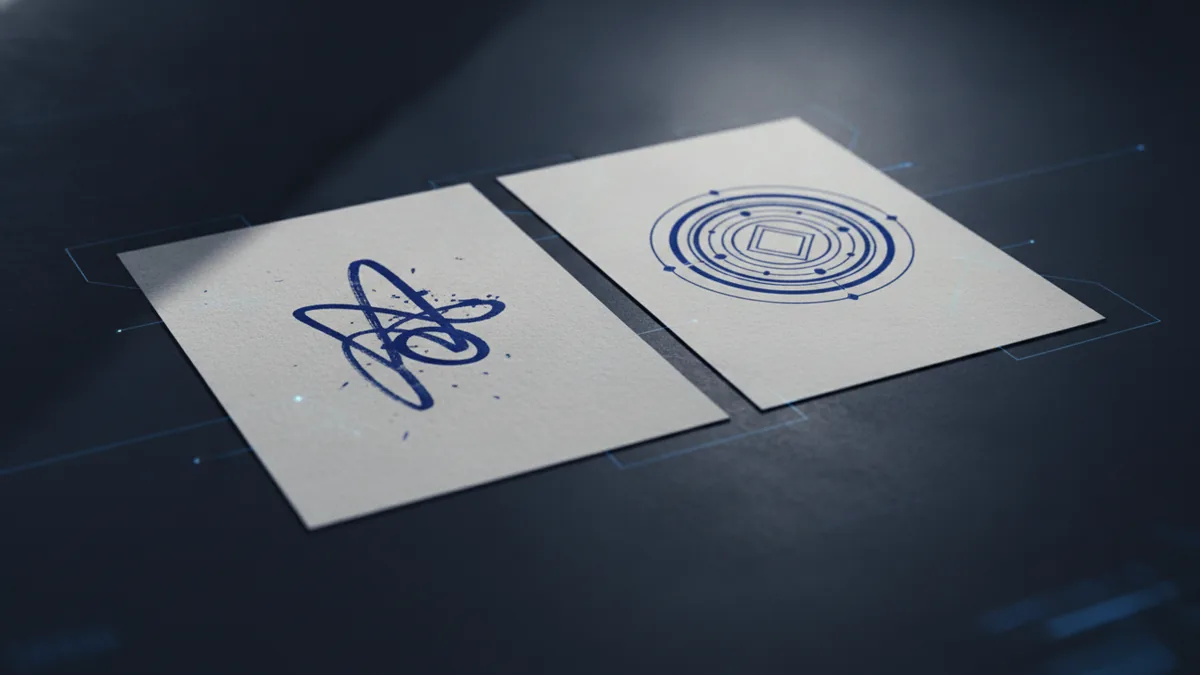
PDFs can include several kinds of signatures. You will most often see digital signatures, image-based signatures, and hand-drawn signatures. You may also see a signature block. That block can include a name, a date, and a box.
Digital signatures use cryptography. That means the signer’s system adds a proof to the file. Many viewers then check that proof matches the file bytes. If you edit the PDF, the check can fail.
Image-based signatures are simpler. They are usually a picture placed on the page. Hand-drawn signatures are often saved as an image too. So the mark acts like any other picture object.
One more detail can matter. Some PDFs use permission rules. Those rules may stop you from deleting page objects at all.
- Digital signature vs. electronic signature: digital uses proof checks; electronic can be just an image
- Signature block: a template area that may hold multiple fields
Methods to remove a signature (by signature type)
To learn how to delete a signature from pdf, match your method to the type. In many cases, a PDF editor can remove a visual mark. In other cases, you must rebuild the PDF. That is especially true for digital signatures.
Try the safest first. If the editor shows an undo option, use it. Undo can fix your last action when you just signed by mistake. If undo is gone, you must edit the page.
1) Undo the last signature action
If you just placed the mark, undo may remove it fast. Look for an undo or revert button in your editor. It may work only within the same edit session.
Punchy rule: undo saves time when it is available. If not, move on.
2) Delete from an editable PDF (image or hand-drawn signatures)
For image-based signatures, deletion is often simple. Select the signature object, then press delete. If the signature sits inside a signature block, delete the whole block.
After you delete, scan the page for leftovers. Some tools leave a border box or a date line. Remove those items too, if they are part of the block.
- Select the signature mark or the block area
- Delete the selected object
- Re-check the page for stray box edges or date text
If the mark covered text, you may need to restore it. Add new text or re-place a clean image for that spot.
3) Convert for easier access (when direct editing is limited)
Sometimes you cannot select the mark as one object. That can happen with scans or messy PDFs. In those cases, converting can help you edit the content.
Practical goal: convert so you can remove the visible area. Then convert back to PDF. This can fix some layout issues, but it can also shift spacing.
Always check the result page by page. Look for broken line breaks, wrong margins, and cut-off text. If your document is a form, conversion may break fields.
4) Flattening a PDF to erase signature layers (use carefully)
Flattening merges layers into one fixed page. It can also remove the ability to edit layered parts. Some people use flattening to lock in the page look.
But flattening is not a magic erase button. It makes later edits harder, since layers are gone. Only flatten when you accept a more fixed PDF.
- Flattening can lock the look of the page
- Flattening can make later edits harder
- Flattening is best for final, static copies
| Signature type | Common removal method | Expected result |
|---|---|---|
| Image or hand-drawn | Select and delete the object | Blank spot may need a fix |
| Signature block | Delete the block as one unit | May need to rebuild missing parts |
| Digital signature | Often not “clean” to remove | May show as invalid after change |
Handling locked or protected PDFs
Locked PDFs can block signature edits even when the mark looks simple. Many locked files use PDF file encryption or permission rules. Your editor may allow viewing only. It then blocks deleting or saving changes.
If you own the PDF and have the right pass, unlock it. Some editors ask for a password to change rules. If you do not have a pass, request an editable copy from the owner.
Also watch for scanned pages. Scans can be images, not real text. In those cases, you may need a conversion step to rebuild the page. That can help you remove a visible signature area.
Use a short test first. Try to click the signature mark. If selection fails, you likely have a lock or a merged page.
Practical workflow for protected files
- Open the PDF and try to select the signature
- Check for a lock notice or rule limits in the editor
- Unlock only if you have the right pass and right to edit
- If unlock fails, use conversion only when allowed
Legal considerations before you remove a signature
Before you try how to delete signature from pdf, think about legal use. If the doc is an agreement, removing a signature can change its meaning. It can also raise trust issues if someone later audits the file.
Digital signatures add extra risk. They are meant to show integrity and proof. If you alter the PDF, the signature check can fail. That can make the file unusable in legal flows.
When in doubt, ask the signer or the doc owner. Many teams keep a rule to re-sign instead of editing. That keeps the record clean.
Also note redaction in PDFs. Redaction hides data, but it keeps the doc in a safer state. If your goal is privacy, redaction may be the better path.
Best practices for PDF signature management
Good signature work lowers the need to delete anything later. Use a clear review step before final send. For forms, confirm the signature block position on every page. This helps avoid wrong placement.
Save a clean base file for each case. Then add the signature once. If you sign drafts, keep versions. That way you can go back to the last correct copy.
When you must remove a mark, keep the original PDF file. Save your edited version under a new name. This keeps an audit trail for your own records.
Finally, be strict with digital signatures. Do not treat them like normal edits. Plan on a new signed file if the digital proof must stay valid.
- Save a copy before you edit
- Delete visual marks by selecting their object
- Use flattening only for final, fixed pages
- For agreements, re-sign instead of editing proofs
That is the real answer to how to delete a signature on pdf. Start with the type. Then use the safest tool that fits.
Related reading

Circling Items in a PDF: Fast, Clear Steps
Circle key details in a PDF with shape tools, freehand drawing, and simple checks.

Google Translate PDFs: Text and Scans
Translate text PDFs directly; use OCR first for scanned files.

PDF Editing: Access and Changes
Open PDFs in a browser, desktop app, or online editor, then make and save changes.