How to Concatenate PDF Files: 5 Ways to Merge
Learn how to concatenate PDFs on Mac, Windows, and online tools.
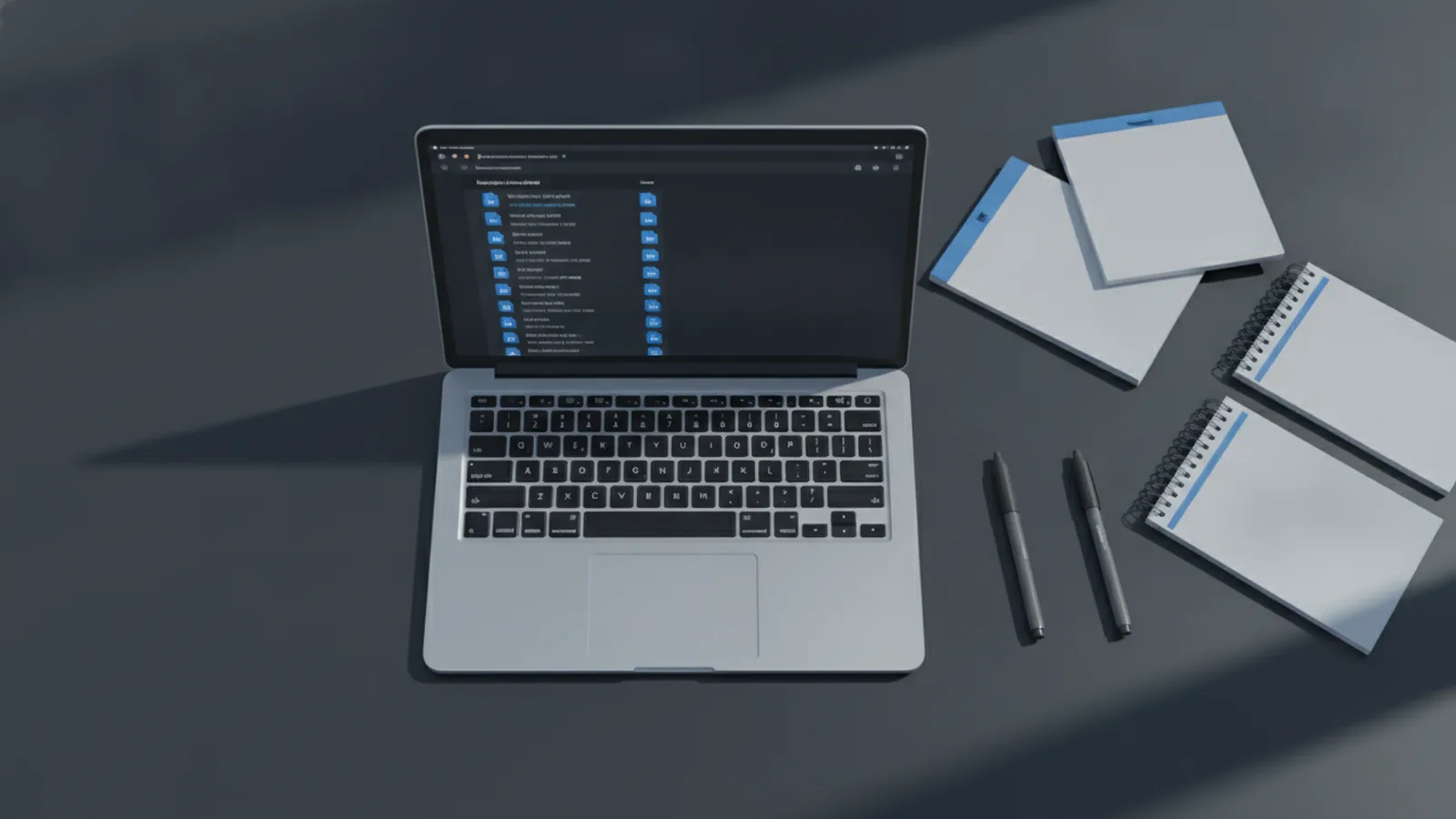
Ways to concatenate PDFs
To concatenate PDFs means to combine multiple PDF files into one document, usually in a specific order. This is a practical step when you have separate scans, forms, or reports that should share one file. When you get the order right, it also helps with PDF file management and reduces manual copy-paste.
Most people search for how to concatenate pdf files because they want a fast way to merge two or more documents. The key difference from “printing to PDF” is control. With merging tools, you can choose the exact file order and keep the PDF content intact.
Here are common approaches you can use, depending on your comfort level and the files you have.
- Desktop PDF tools that merge files with drag-and-drop and preview.
- Built-in OS options for quick merges on Mac and Windows.
- Online PDF merger tools for occasional merges when you cannot install software.
- Command-line tools for power users who manage many files.

Using desktop software to merge PDF files
Desktop PDF tools are often the best choice when you care about speed, quality, and file formatting preservation. Many apps let you reorder documents, merge by page range, and save in the same layout. Some also handle bookmarks and links better than basic methods.
If you want Adobe Acrobat alternatives, look for apps that support merging and page reordering. Practical examples include PDFsam, Foxit PDF Editor, and Nitro PDF Pro. For many users, these “Desktop PDF tools” feel similar to Acrobat’s workflow.
Even without naming every product, the pattern is usually the same. You add files, set the order, and then export one combined PDF.
| Method | Best for | Typical workflow |
|---|---|---|
| GUI desktop merger | One-off merges and reorder control | Add files → reorder → merge/export |
| Scan-to-PDF apps | Combining scans with clean output | Scan sheets → export as a single PDF |
| Advanced editors | Mixing layouts and checking links | Import pages → merge → review links/bookmarks |
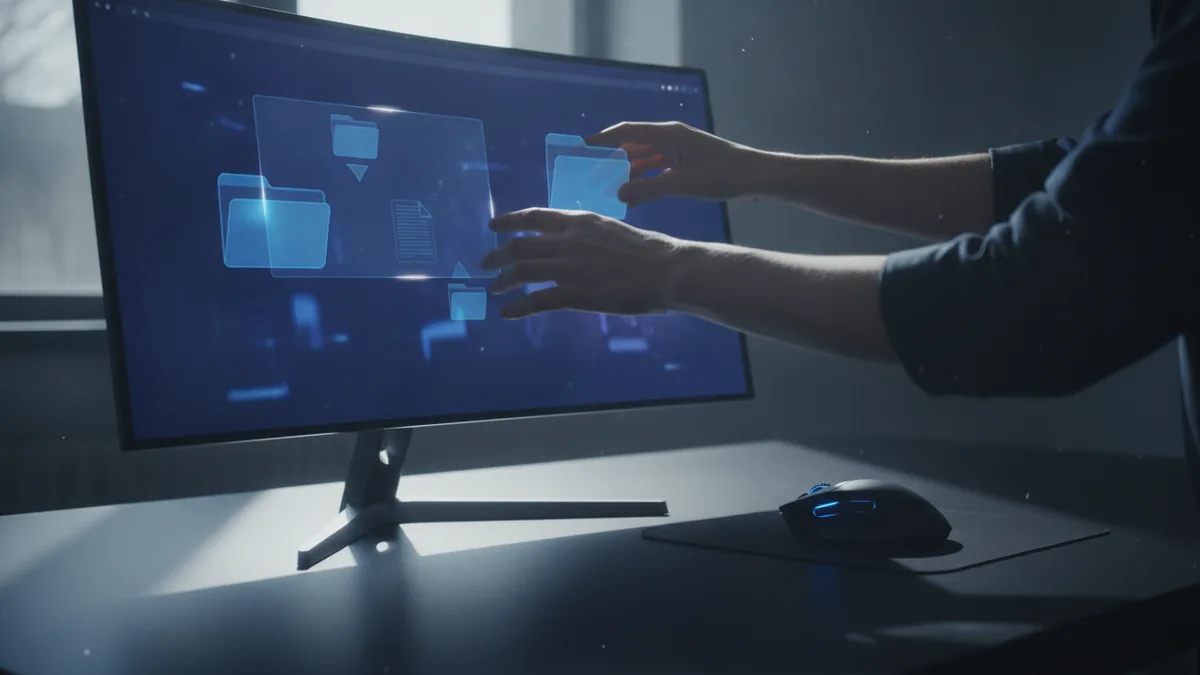
Online PDF merger tools: when they help and when they don’t
An online PDF merger is useful when you need to combine, merge, or concatenate PDFs from a browser. It can save time if you only do this occasionally. It also avoids installing a desktop app on your device.
Pros are simple: you upload files, choose an order, and download one merged PDF. Many tools also work on mobile-friendly browsers. For a quick job, it is often faster than opening a desktop editor.
Cons matter just as much. If your PDFs contain personal data, you should be cautious. Also, some online tools struggle with very large PDFs or unusual PDF features like heavy encryption.
- Use online merging for low-risk documents you can upload safely.
- Avoid online merging for confidential files or sensitive customer data.
- Check file size limits before uploading to prevent failed merges.
- Verify output formatting because some tools re-encode content.
Merging PDFs on macOS with Preview (step by step)
You can concatenate PDFs on a Mac without installing extra “Mac PDF software.” Preview can combine PDF files in a few minutes. This is one of the easiest ways to learn how to concatenate pdf on macOS using tools you already have.
Before you start, make sure each PDF opens correctly in Preview. If a file is password-protected, you may need the password first. Also, decide the order you want, since it will match how you insert documents.
- Open the first PDF in Preview. Right-click the file and choose Open With, then Preview.
- Show the page thumbnails. Click the View menu, then select Thumbnails to see page previews.
- Insert the other PDFs. In Finder, drag a second PDF thumbnail into the sidebar, near the spot you want it.
- Reorder if needed. If the pages land in the wrong place, drag them in the thumbnails list until the order looks right.
- Save the merged PDF. Choose File, then Save. Your new PDF will keep your chosen order.
This workflow lets you concatenate two PDF files or many more. You can also double-check that headings, links, and page content look correct before you share the final file.
Merging PDFs on Windows with third-party apps (step by step)
Windows includes useful PDF features, but it does not offer a universal built-in button for concatenation in most setups. Many people use Windows PDF applications to merge reliably. This section walks you through how to concatenate pdf files on Windows with a typical third-party app.
Pick a desktop app that clearly supports “combine,” “merge,” or “append” pages. Before you start, confirm your PDFs are not blocked by security settings. If any file is encrypted, you may need the password to include it in the merge.
- Install a PDF merger app. Choose a tool that supports merging or combining PDF files.
- Open the merge feature. Look for Combine, Merge, or Create PDF from multiple files.
- Add your PDFs. Select all the files you want to concatenate, then confirm the app has loaded them.
- Set the order. Use drag-and-drop or up/down arrows to place the PDFs in the right sequence.
- Merge and export. Click Merge or Combine to create one new PDF.
- Check the result. Open the merged file and scan a few pages to confirm layout and page order.
If your goal is specifically how to concatenate two pdf files, this process is the same. Add the two files, put them in order, and export one combined PDF. For bigger projects, do a quick spot-check on page boundaries because that is where ordering mistakes show up.
Important considerations when you concatenate
The merge workflow is easy, but a few details can make or break the output. PDF merging is not always a “pure” operation, especially when tools re-encode pages. If you rely on exact formatting, test with a small sample first.
First, confirm the order. Many mistakes happen because people insert pages at the wrong time or forget that tools merge by file order. Second, check file formatting preservation. After merging, open the result on the same device you will use for sharing.
Finally, consider privacy and file permissions. If you use an online PDF merger, verify whether uploads are encrypted and how files are handled after processing. If you need maximum control, use a desktop app that works fully offline.
- Spot-check page order after every merge.
- Confirm links and form fields if your PDFs are interactive.
- Watch for large file limits in online tools.
- Keep a backup before overwriting the original files.
With these steps, you can concatenate, merge, and combine PDF files with confidence. Pick the method that matches your files and your privacy needs, then verify the final output before you send it.
Related reading
Book PDFs: Create, Format, Share
Turn your draft or page files into a polished PDF book.
Edit a PDF in Word: Steps and Limits
Open a PDF in Word, make edits, then check and export the new file.
Save a PDF as a Smaller File: Size and Quality
Shrink PDF files while keeping their pages clear and easy to read.