
Combining PDF Files on a Chromebook: Tools and Steps
Merge Chromebook PDFs in order with an online tool or app.
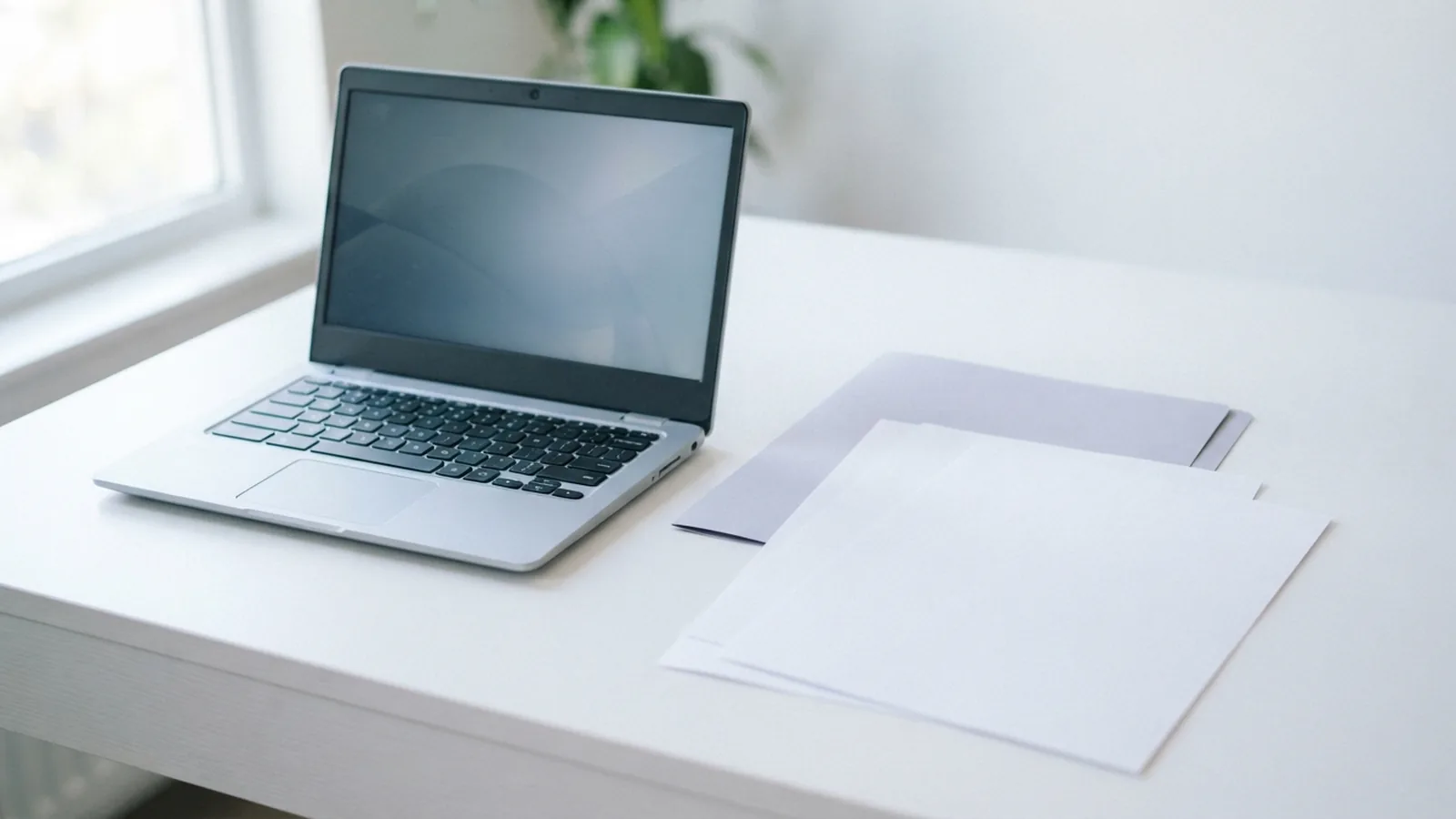
How PDF files work on a Chromebook
You can combine PDF files on a Chromebook with an online merging tool or a PDF app. ChromeOS can open and view PDFs, but its built-in tools may not include a simple way to join several files. For most people, an online tool is the quickest option. First, sort the source files into the order you want.
A PDF keeps page layout steady across devices. You can open one from the Files app or download it in Chrome, then view it with the built-in PDF viewer. Depending on the file and ChromeOS version, you may also be able to print, save, or make basic changes. These features help with single files, but they do not always offer a way to merge many PDFs.
Before starting, check where each file is saved. Downloads, Google Drive, and removable storage can all hold PDFs. If a file is in Drive, make sure it is available to the tool you plan to use. A little sorting now can prevent a wrong page order later.
Use Chromebook tools to open and organize PDFs
To open a PDF, select the Launcher and open the Files app. Browse to the folder that holds your document, then double-click the file. ChromeOS should open it in a browser tab or a PDF viewer. If it does not, right-click the file and choose an available app.
The Files app is useful for basic file management. Make a folder for the documents you plan to join, then copy or move the PDFs into it. Rename them with simple order cues, such as “01 cover” and “02 report.” That makes the intended sequence easy to check before upload.
Native tools can also help you make a PDF from a webpage or print-ready file. Open the print dialog, then choose Save to PDF as the destination. This creates a new PDF, but it does not join it with other PDFs. For merging, use an online service or add a suitable app from the Chrome Web Store.
Choose an online PDF merger or ChromeOS app

Online PDF tools can merge several files in a browser. A free PDF Merge service may let you select files, arrange their order, and download one combined document. Check the tool’s file limits and privacy terms before sending anything. Avoid uploading private records unless you trust the service and understand its file handling rules.
For sensitive material, an offline app may be a better fit. Search the Chrome Web Store for a PDF editor or merger, then check its features, reviews, and permissions. Some apps work in a browser, while others need an internet connection or a paid plan. Confirm that the app supports combining files before installing it.
Choose based on the job. A one-time merge of public handouts may suit an online tool. Regular work with client records may call for an app with clear privacy terms and local file handling. Either way, keep a copy of the original PDFs until you have checked the result.
Steps to combine PDFs on a Chromebook
These steps work with many browser-based PDF mergers. The labels may vary between services, but the process is much the same. Keep the original files in one folder so they are easy to find. For example, put a cover sheet, report, and appendix in the order you want them to appear.
- Sort the files. Rename or arrange the PDFs in their final order. Open each one to confirm it is the right document.
- Open a merger. Visit a PDF merging service you trust in Chrome. Read its privacy terms before uploading sensitive files.
- Add the PDFs. Choose the files from Downloads, Drive, or another folder. If asked, allow the browser to access those files.
- Set the order. Drag files into the right sequence, or use the tool’s move controls. Check the list from first page to last.
- Merge and save. Select the merge command, then download the finished PDF. Choose a clear name and save it in your chosen folder.
- Check the result. Open the new file and scan its first, middle, and last pages. Confirm that no pages are missing or out of order.
Some tools let you reorder individual pages after combining files. That can help if one document has a blank page or a misplaced section. Save the corrected PDF as a new file when possible. This gives you a clean copy and leaves the originals unchanged.
Tips for a clean, correctly ordered PDF
Give your files names that show their sequence. Numbers at the start of each name work well, such as “01,” “02,” and “03.” Do not rely on upload order alone, since some tools sort files by name or select them in a different sequence. Review the merger’s file list before you start.
Check each source PDF before merging. Look for blank pages, sideways scans, unreadable text, or duplicate sections. If the files have different page sizes, the finished PDF may look uneven. A PDF editor can help rotate pages or remove extras before you combine the files.
Keep the new file in a known folder, such as Downloads or a dedicated project folder. Give it a name that makes sense later, like “project-report-final.” If you share it, open the saved copy first and confirm it contains only the pages meant for the recipient. A quick review can catch mistakes before they spread.
Fix common PDF merge problems
If the upload fails, check your internet connection and file size. Try uploading fewer PDFs at once, or use a different browser tab. Some services set limits on file size or the number of files. If a file is stored only in Drive, download it first and upload the local copy.
If the merged file has the wrong order, return to the source PDFs and sort them again. Rename each file with a leading number, then check the order shown by the service. If a page is missing, make sure its source file opened correctly before upload. You can also try a different merger or app.
If the result will not open, download it again and check that the transfer finished. Try opening the file in Chrome or another PDF viewer. A damaged source file can also cause trouble, so test the original PDFs one at a time. Keep your source copies until the merged document works as expected.
Related reading
PDF Files on iPad: Opening and Managing
Open, move, find, organize, and combine PDFs on your iPad.
PDF Files on iPhone: Opening and Managing Them
Open, save, find, and combine PDFs on your iPhone with these simple steps.
Combining PDF Files in Foxit: Steps and Tips
Combine, reorder, and save PDFs in Foxit PDF Editor with these steps.