Google Translate PDFs: Text and Scans
Translate text PDFs directly; use OCR first for scanned files.
What Google Translate can do with PDFs
Yes, Google Translate can translate many PDFs that contain selectable text. Upload a supported document, choose the target language, and review the translated file. This works best for simple documents with a clear reading order.
Google's document tool also accepts DOCX, PPTX, and XLSX files. Its stated limits are 10 MB and 300 pages per file. Check the current limits before starting, since product features can change. See Google's document translation help for its supported formats and steps.
Translation is not the same as a polished remake of the original. Google Translate may shift line breaks or lose complex table and image details. It can still be useful for getting the gist of a report, handout, or form.
Which PDFs can Google Translate read?
A standard PDF holds text that you can select with a cursor. If you can highlight a sentence and copy it, the file is likely ready for direct translation. Some PDFs combine selectable text with charts or scanned pages, so results can vary within one file.
A scanned PDF is different. It often stores each page as a picture, not as readable text. Google Translate cannot pull words from those page images by itself. You need OCR (Optical Character Recognition) to turn the page image into text first.
- Selectable PDF: Upload it straight to Google Translate.
- Scanned PDF: Run OCR, then translate the text or OCR-ready file.
- Mixed PDF: Test a few pages and check the scan-heavy sections closely.
How to translate a standard PDF

On a computer, open Google Translate and choose the document option. Set the source language or leave it on automatic detection. Then pick the language you want to read.
Choose the file from your device and start the translation. The exact buttons can shift as Google updates its site. When the result is ready, open it and check the first page, a middle page, and the final page.
- Confirm that the PDF is under 10 MB and 300 pages.
- Check that its text can be selected and copied.
- Upload it in Google Translate's document view.
- Choose the source and target languages, then run the translation.
- Review names, dates, figures, tables, and page breaks.
If the file does not upload, try a smaller copy or convert it to DOCX first. Keep the original file unchanged. Compare the translated output with the source before sharing or using it for key decisions.
Why scanned PDFs need an extra step
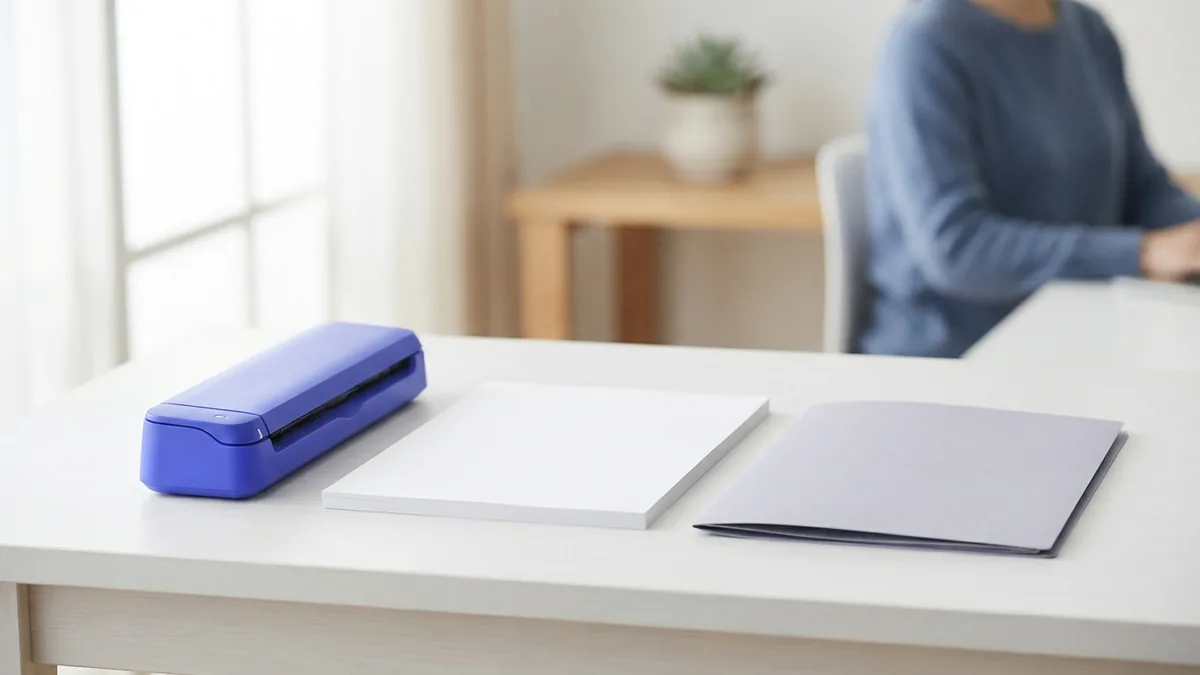
A scanner saves a page as an image. The words may look crisp to you, but the file has no text layer for a translation tool to read. That is why simply uploading a scanned PDF may fail or produce little useful output.
OCR scans each page image and guesses which marks form letters and words. Its accuracy can drop with faint ink, skewed pages, small type, handwriting, or a low-quality scan. Errors in names and numbers are common enough to merit a careful check.
OCR can also affect layout. A tool may put text in the wrong order if columns, footnotes, or sidebars sit close together. Look over the extracted text before translation, especially in forms and tables.
How to translate a scanned PDF
First, use an OCR tool to make the scan searchable or export its text. Pick a tool that supports your language and can handle the full document. For a long scan, test one page before processing everything.
Next, check the OCR output against the original pages. Fix clear mistakes, such as a misread date or a name split across lines. Then paste the corrected text into Google Translate, or upload the OCR-ready file if its format is supported.
Finally, read the translation alongside the source. Pay special attention to quantities, dates, names, and instructions. If page design matters, use a dedicated PDF service that offers both OCR and translation with layout retention.
- Use a clean, straight scan with good contrast.
- Choose OCR for the language shown in the source document.
- Check extracted text before translating it.
- Compare the final translation with the original page by page.
Other ways to translate a PDF
Google Translate is a handy choice for a quick read, but it is not the only option. Some dedicated PDF tools combine OCR and translation in one workflow. They may preserve the source layout better, though you should test the result rather than assume every table or image will stay in place.
Another route is to export the PDF to DOCX, translate the text, then save it back as a PDF. This can work well for simple files. It may also change fonts, spacing, or page breaks, so compare both versions before sending the result.
For contracts, medical records, or public-facing material, consider a qualified human translator. Machine translation can miss tone and context. A human review matters when a wrong phrase could cause harm or cost.
Tips for better results and safer files
Start with a clean source file and choose the right language pair. Short sentences and clear headings are easier to translate than dense text with many nested clauses. For scans, improve the image quality before OCR when the words look blurry or tilted.
Check the result for meaning, not just appearance. Review dates, amounts, names, and table headings first. Then scan for missing lines and odd page breaks. A translated document can look neat and still contain a serious wording error.
Think about privacy before uploading sensitive material. Translation requires sending document content to an online service for processing. Do not upload private records unless the service's current terms and your own rules allow it. For confidential files, use an approved tool or a trusted translation provider.
For a quick personal reference, Google Translate can be enough. For scanned, complex, or sensitive files, OCR and a second review make a big difference. Keep the original PDF so you can check any doubtful passage.
Related reading

Convert PDF to Word Online Without Installing Software
Turn PDFs into editable Word files in a few clear online steps.
PDF Editing: Access and Changes
Open PDFs in a browser, desktop app, or online editor, then make and save changes.
PDF: Meaning and Uses
See what PDFs do, how they work, and when to use them.