Fix “Can’t Open or Edit PDFs” in Windows 10
Can’t open or edit PDFs? Fix Edge, file associations, and pick tools to create or edit PDFs in Windows 10.
If you can t open pdf in windows 10, start by checking whether Microsoft Edge can open it. Windows 10 includes a built-in PDF reader through Edge, so many files work immediately. If it fails, the next most common causes are a corrupted PDF or a wrong file association.
This guide walks through practical how to open pdf in windows 10 steps, plus fixes for editing and printing. You will also learn how to create a pdf in windows 10 and how to fill out forms.
Common reasons PDFs won’t open or edit
Most PDF failures come from file damage or format mismatches. A download can break mid-way, or a file can be only partly saved. When that happens, a reader may show a blank page, a generic error, or nothing at all.
Another common issue is a PDF that uses features some viewers do not fully support. Examples include embedded fonts, unusual encryption, or scanned pages saved in odd ways. Even if the file opens in one tool, it may fail in another.
File associations also matter. Windows decides which app opens “.pdf” files. If your file association settings point to an outdated or broken program, you may get repeated “can’t open” behavior.
- Corrupted download: re-download from the original source if possible.
- Unsupported PDF features: try a different PDF reader.
- Wrong default app: update the PDF handler in Windows settings.
- Permission or security blocks: open from the original folder, not a blocked download.
Does Windows 10 have a PDF reader?
Does windows 10 have pdf reader? Yes. Windows 10 ships with Microsoft Edge, and Edge can open PDF files directly. That means you often do not need extra software to view a PDF at all.
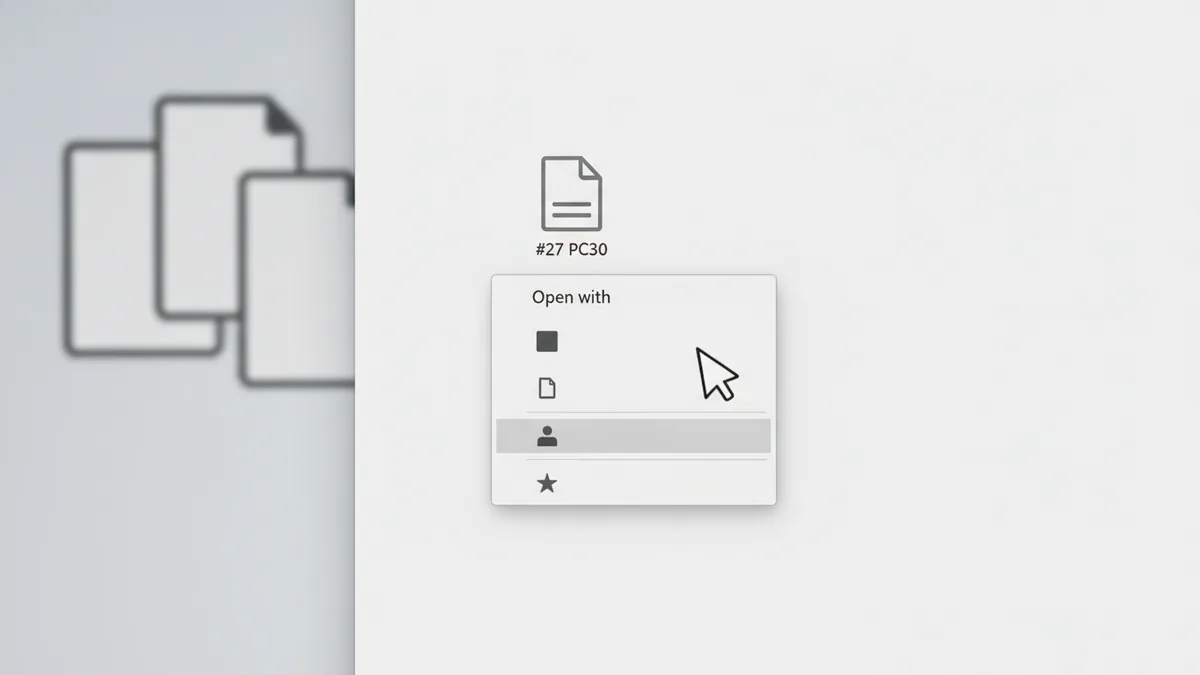
To try this path, right-click the PDF file and choose Open with. Then select Microsoft Edge. If Edge opens the file reliably, you can set it as the default PDF handler so the problem stops coming back.
Edge also lets you zoom, search text (when text exists), and print using built-in options. That helps when you are troubleshooting why a file will not behave in another app.
If Edge also fails, focus on whether the file itself is broken. You can confirm by opening the same PDF on another PC or by downloading the file again.
Using Microsoft Edge for opening PDFs
Microsoft Edge is your first-line tool for how to open pdf in windows 10. It is fast, built in, and usually good with common PDFs. In many cases, this is the simplest answer to can t open pdf in windows 10.
If Edge opens the PDF but prints poorly or shows layout glitches, check the print settings. Use Edge’s print dialog and switch between options like “Fit to page” if available. Also try zooming first, then re-open the print panel.
When Edge opens a PDF but editing fails, note that Edge is mostly a viewer. It may not support full PDF editing software workflows like form field changes or heavy redaction. You may need a dedicated app or a specific PDF editor for that job.
Finally, update Edge if you can. Outdated browser builds can struggle with certain PDF features.
Potential software fixes for PDF files
If Edge will not open the file, use alternative tools to isolate the cause. A good next step is trying Adobe Acrobat Reader, which is widely used and can handle many PDF variants. Some PDFs open cleanly in Acrobat Reader even when another reader fails.
Other PDF handling tools can help when you need specific actions. For example, some tools focus on viewing only, while others support form filling and basic editing. If your main problem is filling fields, pick a tool that supports form fields rather than one that only displays.
Also check what app is set as default. To do this, open Windows settings and find the Apps area for default apps. Then confirm that “.pdf” opens with a working reader. This is a key step when can t open pdf in windows 10 is triggered by a bad association.
| What you need | Good tool type | Why it helps |
|---|---|---|
| Open and view | Microsoft Edge PDF reader | Built in and quick |
| Open stubborn PDFs | Adobe Acrobat Reader | Strong compatibility |
| Edit form fields | PDF editing software | Form-aware tools |
| Convert or repair | PDF conversion or repair utilities | Fixes layout or structure |
Creating and editing PDFs in Windows 10
If your goal is not only to open PDFs but also to work on them, Windows 10 offers solid options. To how to create a pdf in windows 10, a practical method is Microsoft Print to PDF. This lets you “print” many documents into a PDF file.
Open the document you want to convert, then choose Print. Select Microsoft Print to PDF as the printer. Then pick a save location and create the file. This is often the fastest way to make a clean PDF from a Word document or a web page.
Office apps also support exporting. In many versions of Word or Excel, you can use Save As or Export to create a PDF without manual printing. That often preserves formatting better than a generic print workflow.
For editing, the level of change matters. Simple tasks like how to rotate a pdf in windows 10 can be done in many PDF viewers or editors. If you need how to fill out pdf on windows, look for an app that supports form fields or stamp-like input.
- How to fill out PDF on windows: use a viewer or editor that supports form fields, then save a new copy.
- How to make a PDF on windows 10: use Microsoft Print to PDF or export from Office apps.
- Does windows 10 have a pdf editor: not as a full replacement for dedicated software, but some viewers allow basic edits.
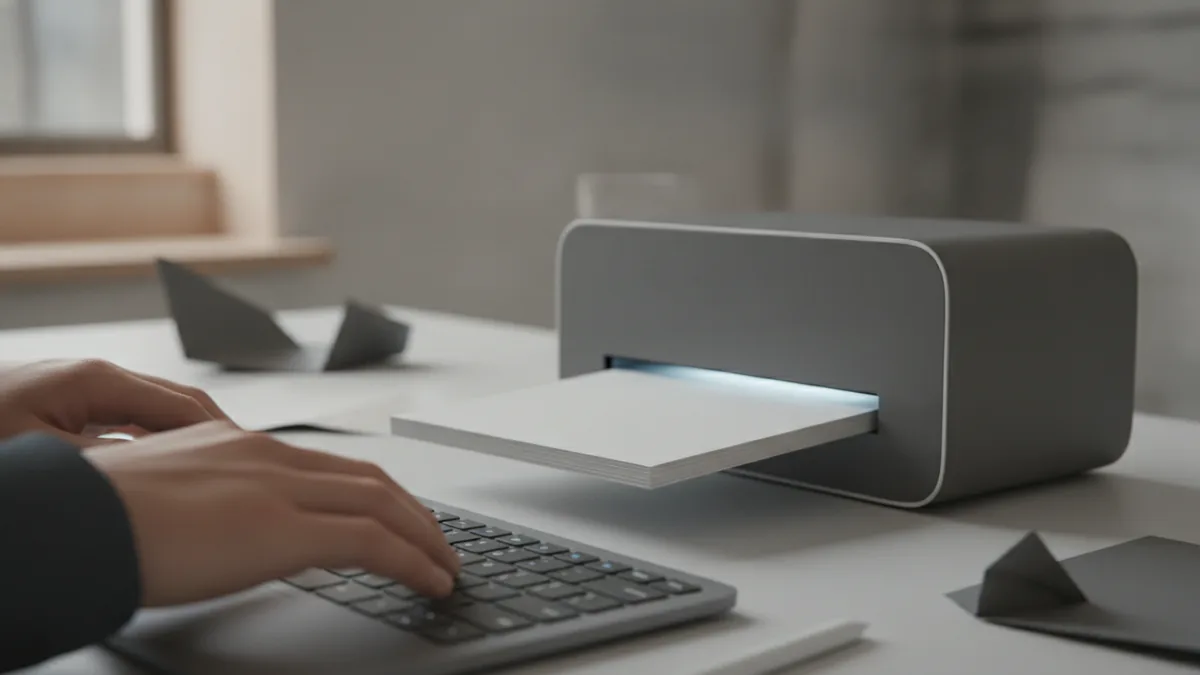
Common fixes for PDF problems in Windows 10
Now for the practical fixes you can try in order. These steps help most users when PDF actions fail, whether it is viewing, rotating, filling, or printing. Use the steps that match what you are seeing.
- Confirm the file is not damaged: download again or try opening it on another device.
- Open with Microsoft Edge: right-click the PDF, pick Open with, then choose Edge.
- Check file association settings: ensure “.pdf” defaults to a working PDF reader.
- Try another reader: install or test Adobe Acrobat Reader if Edge fails.
- Rotate and re-save: use the rotate option in your PDF tool, then save as a new file.
- Fix printing: if windows 10 can t print pdf, try printing from Edge and switch paper or scaling options.
If you specifically struggle with printing, start with Edge. Many “can’t print” issues are caused by a PDF editor or browser that renders differently for print. Also make sure you are using the correct printer and that there are no pending jobs.
For form filling, save early and save often. Many apps work in edit mode until you close the file. If you close without saving, you can lose your entries and think the tool did nothing.
When you need to share the result, create a new file name. That way you keep the original PDF untouched. It also helps if the recipient reports display issues later.
For more PDF creation options and conversions, you can also use trusted PDF tools that focus on file transformations. Just match the tool to the task. Viewing, rotating, form filling, and conversion are not all the same.
For official guidance on printing dialogs and PDF support in Edge, you can consult Microsoft Support. Use the Microsoft Support search to find the exact article for your Windows 10 and Edge build.
If you still face the same issue after trying the steps above, the fastest path is diagnosis. Identify whether the problem happens in Edge, another reader, or only one file. That tells you if the file is broken or if your Windows 10 setup needs changes.
Related reading
PDF Compression: Smaller Files and Clear Pages
Shrink PDF files while keeping pages clear, readable, and ready to share.
Adding PDFs to Adobe Portfolio: Files and Links
Add polished, useful PDFs to Adobe Portfolio without losing their key links.
Edit PDFs from Email: Steps and Safety
Edit email PDFs with the right tool, safe steps, and clean formatting.