Make PDF Pages the Same Size: Layout and Workflow
Standardize mixed PDF pages and check the layout after resizing.
Understand PDF page sizes
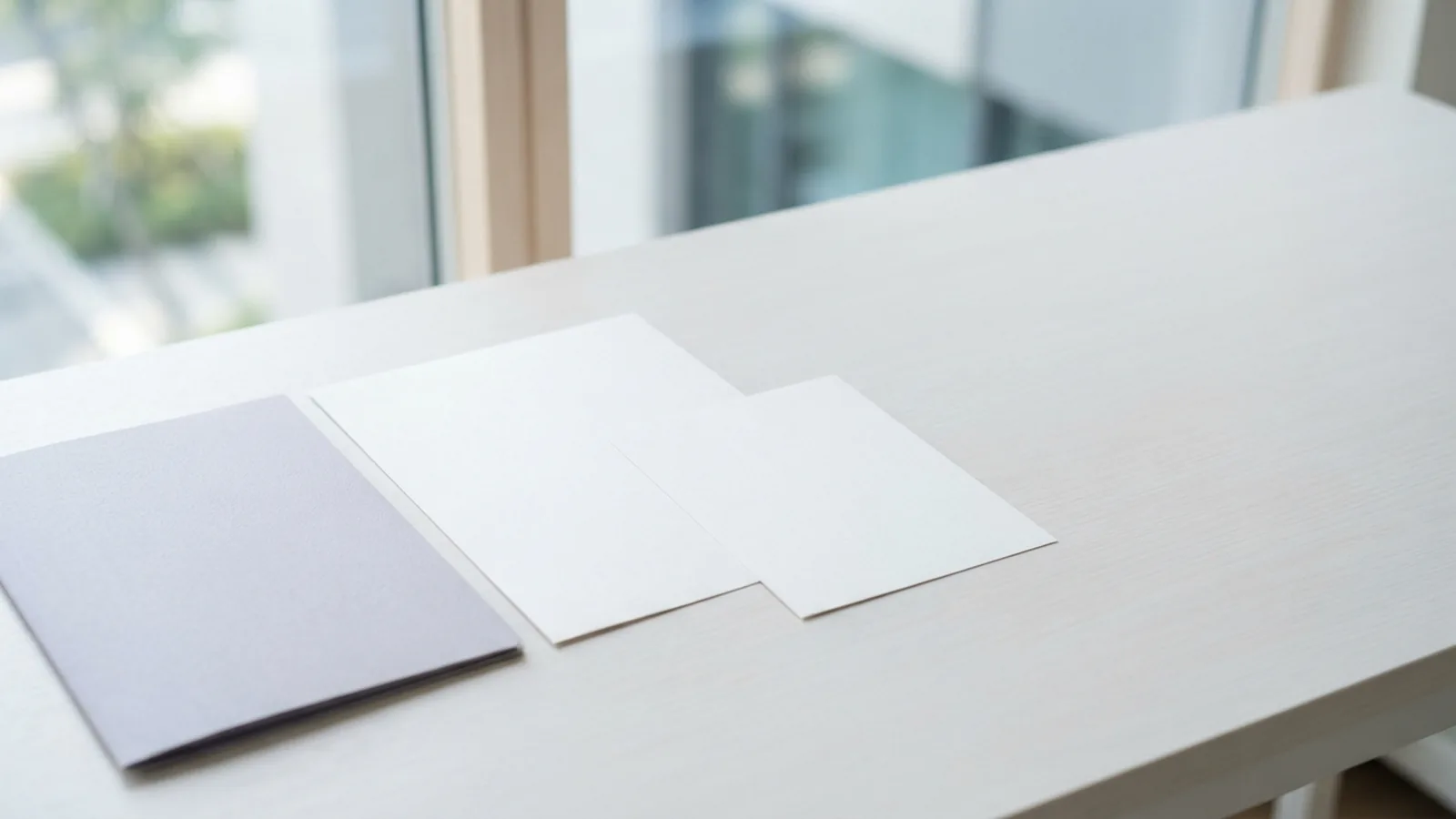
A PDF can hold pages with different widths and heights. To make all PDF pages the same size, pick one target, then resize the pages or edit the source files and export them again. The best method depends on whether you need to preserve the original layout or adjust its content.
A4 measures 210 × 297 millimeters. US Letter measures 8.5 × 11 inches. Both are common choices, while plans, forms, and booklets may use custom sizes. Also check page orientation. A portrait page and a landscape page can share the same dimensions, but they will not look alike when viewed together.
Page size is not the same as the printed content area. A page may have wide margins, or its text may sit inside a smaller box. Resizing changes the page boundary, but it does not always scale or rearrange the content to fit.
- Choose A4 or Letter for common office documents.
- Use a custom size when a print shop or form requires it.
- Set portrait or landscape to suit the content.
Why one PDF may contain mixed page sizes
Mixed sizes often come from joining files made for different uses. A Word report may use Letter pages, while an Excel sheet uses a wide print area. Scanned pages may keep the dimensions of the scanner bed or original paper.
Other causes include inserting a cover sheet, combining portrait and landscape pages, or adding a page from a different PDF. The result can look untidy on screen. It can also cause trouble when printing, binding, or sharing the file.
Before changing anything, inspect the whole document. Note which pages differ, and decide whether they need one size and one orientation. A landscape chart may need to stay landscape even when the rest of the document is portrait.

Resize PDF pages step by step
For a file you can edit, converting it to Word or Excel gives you control over page setup and layout. This method works well when the PDF came from an editable document. Scans and complex layouts may need extra care, since conversion can shift text or tables.
- Save a copy. Keep the original PDF unchanged in case you need to compare or start again.
- Convert the PDF. Open a PDF conversion tool and export the file to Word or Excel. Check that the converted pages contain the right text and tables.
- Set the page size. In Word, choose the target under the page layout settings. In Excel, set the paper size and print area in Page Setup.
- Review orientation and margins. Choose portrait or landscape for each section or sheet. Adjust margins when content sits too close to an edge.
- Export to PDF. Save or export the edited file as a new PDF. Avoid overwriting the source until you have checked the new copy.
- Inspect every page. Confirm that page dimensions match, then look for cut-off text, moved tables, blank pages, or changed page breaks.
For a direct resize, use a PDF editor that can change page boxes or scale pages. Set one target size for the full file, then check whether the tool crops, stretches, or scales each page. Those actions are not the same. Cropping removes areas near the edges, while scaling changes the size of the page content.
Use free tools with care
Free PDF tools can help when you only need to standardize a few pages. Some let you change page size directly. Others convert the PDF to Word or Excel, where you can set the page size before exporting a new PDF.
Check the tool's options before you start. Look for a choice between scaling content and changing the page canvas. If you need to process several files, check for batch resizing. This can save time, but open a sample output first to confirm that every file uses the right size.
For private or work files, review the tool's privacy terms before uploading. An offline editor may be a better fit for sensitive records. Keep the original file, and use a clear name for the resized copy so you can tell them apart.
- Test one file before running a large batch.
- Confirm the target size and orientation in the output settings.
- Check whether the tool changes content scale or only page bounds.
Keep page sizes consistent
Start with a clear standard, such as A4 or Letter, and use it across the whole file. If a page must remain landscape, keep its dimensions consistent with the chosen standard. Do not rotate a page just to make it look uniform if that makes a chart hard to read.
After resizing, review text flow, tables, margins, and page breaks. Check the first and last pages, plus any pages with images or wide tables. Print a test page when the PDF is meant for paper. A screen view may not show clipping at the edge.
When the PDF comes from Word or Excel, fix the source document if you expect future edits. Set the page size there, then export a fresh PDF. This avoids repeating the same repair each time someone updates the file.
For scanned documents, resizing cannot restore detail that was not captured. Scaling a small scan to a larger page can make it look softer. If legibility matters, scan the source again at a suitable size and resolution, then build the PDF from those pages.
A final check before sharing
Open the finished PDF in a viewer and check its page dimensions or print preview. Scroll through the entire file rather than checking only the first page. Look for shifts in content, blank pages, and pages with the wrong orientation.
If the document will be printed, use the intended paper size in the print dialog. A correctly sized PDF can still print poorly when the printer settings force a different paper size. Choose actual size when you need the set dimensions, or fit to page when slight scaling is acceptable.
Once the file passes your checks, save it with a name that signals it is ready to share. Keep the editable source and original PDF if later changes are likely. That gives you a reliable path back without repeating the conversion from scratch.
Related reading

PDF to Word Conversion: Edit Files Faster
Convert PDFs to editable Word files while keeping text, images, and layout in shape.

PDF Template Forms: Steps and Tools
Build clear, fillable PDF templates with Acrobat or online tools.
PDF to Word Conversion: Accuracy and Tips
Compare PDF to Word methods, limits, and fixes for cleaner editable files.