How to Print a PDF from Your Android Phone
Print any PDF from Android with simple steps, settings, and fixes.
Printing a PDF from Android: The Quick Answer
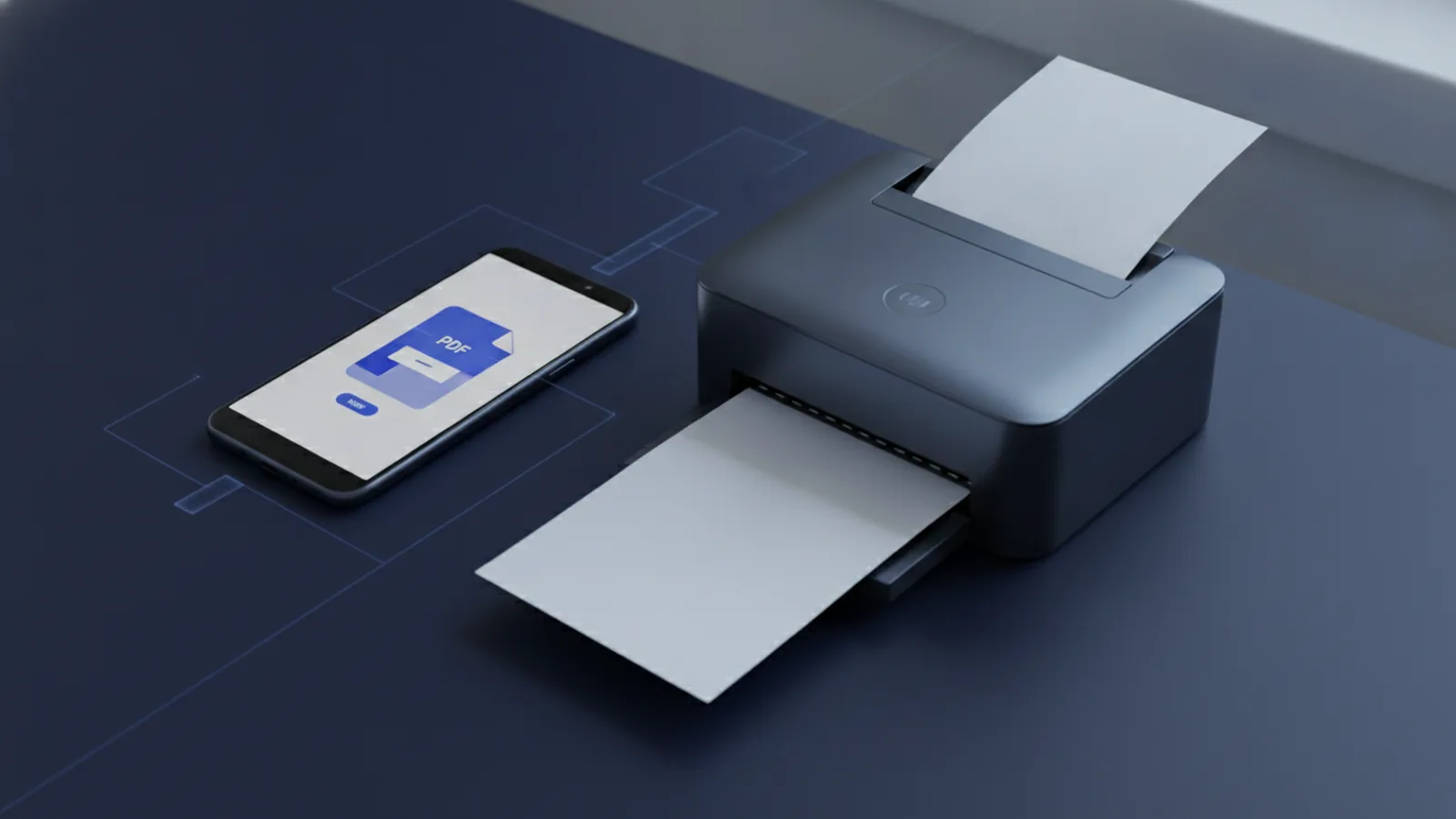
To print a PDF from Android, open the file in a PDF viewer app. Tap the three-dot menu or share button. Choose Print, select a printer, set your options, and tap the print button.
Your phone and printer usually need the same Wi-Fi network. The printer must also support Android printing. Many newer printers work through the Android print service or their own mobile app.
Google Cloud Print is no longer available. Google ended the service on December 31, 2020. Use Android print services, your printer maker’s app, or a print shop app instead. The Android printing guide explains how apps connect with print services.
What You Need Before You Start
First, make sure your phone can open the PDF. Google Drive, Files by Google, Adobe Acrobat Reader, and many browser apps can view PDF files. Pick an app that shows a clear Print command.
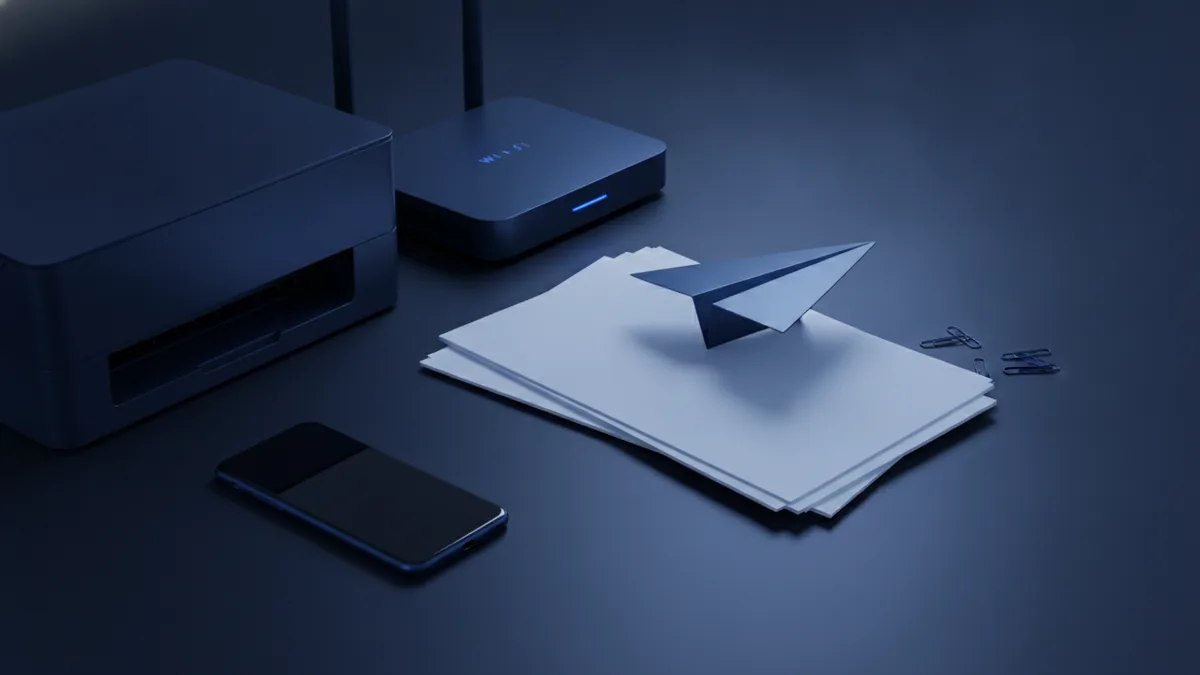
Next, check the printer connection. Turn on the printer and connect it to Wi-Fi. Your Android device should use that same network. Some printers also support Wi-Fi Direct, Bluetooth, or a cable connection.
Open Android settings and search for Printing. The exact menu name can vary by phone brand. Look for a default print service, such as the Android system print service or a printer brand service.
- Install a trusted PDF viewer app.
- Turn on the printer and load paper.
- Check ink or toner levels.
- Connect both devices to the same Wi-Fi network.
- Enable a matching Android print service.
If your printer brand has an app, install it from Google Play. Brand apps often find printers faster. They can also offer features that the basic print service does not provide.
How to Print a PDF from an Android Phone
These steps show how to print a PDF from an Android phone. Menu names may differ slightly between apps. The main process remains much the same.
- Find the PDF. Open Files, Google Drive, email, or your download folder.
- Open the file. Tap the PDF and choose your installed viewer app.
- Open the menu. Tap the three dots, share icon, or tool menu.
- Choose Print. Scroll through the menu if Print is not shown at first.
- Select a printer. Tap the printer name or choose Save as PDF to create another file.
- Set the options. Choose copies, pages, paper size, color, and direction.
- Send the job. Tap the print icon and wait for the printer to respond.
Some apps place Print inside the Android share menu. Tap Share, then swipe across the available actions. If the option is missing, open the file in another PDF viewer.
Large files may take a few seconds to prepare. Keep the app open until the print job starts. Check the printer tray before sending more copies.
Adjust Copies, Pages, and Other Print Settings
Print settings help you control the final result. The available choices depend on the printer and the app. Basic printers may show only copies and paper size.
| Setting | What it controls | Useful example |
|---|---|---|
| Copies | How many sets the printer makes | Enter 2 for two full sets |
| Page range | Which PDF pages print | Print pages 3 through 6 |
| Color | Color or black and white output | Use black and white for notes |
| Paper size | The sheet size used by the printer | Choose A4 or Letter |
| Orientation | Portrait or landscape direction | Use landscape for wide tables |
Check the page range before printing. A PDF with 40 pages can use a lot of paper. Enter a range such as 2-5, or choose selected pages if the app supports it.
Use the preview when it appears. Look for cut-off edges, blank pages, and small content. Select landscape mode for wide charts. Select fit to page when the print preview shows clipped content.
For private files, check the printer location first. A shared office printer may release every page at once. Use a secure printer or collect the pages right away.
Fix Common Android PDF Printing Problems
The most common issue is a missing printer. Confirm that both devices use the same Wi-Fi network. Guest networks can block communication between phones and printers.
Restart the printer, phone, and router if the printer still does not appear. Wait about 30 seconds after each device starts. Then open the PDF again and search for the printer.
- No printer appears: Enable the right print service in Android settings.
- The job stays pending: Cancel old jobs and restart the printer.
- Print looks wrong: Check paper size, scale, and page direction.
- Print is blank: Open the PDF in another viewer app.
- The app crashes: Update the app or clear its temporary cache.
- Only some pages print: Check the selected page range.
App compatibility can also cause trouble. A viewer may display a PDF but lack print support. Try Google Drive, Files by Google, or the printer maker’s app.
Some PDFs use fonts, forms, or image layers that a basic app handles poorly. Download the file before printing. Then open the local copy in a different viewer.
If printing fails from one network, test another approved network. Avoid public Wi-Fi when the PDF contains private data. A direct printer connection may work better for short jobs.
Other Ways to Print a PDF from Android
You do not need one fixed method for every print job. Choose the option that fits your printer and file. Each method has different setup needs.
Use the Printer Brand App
Apps from HP, Canon, Epson, Brother, and other brands can find compatible printers. They may support scanning, ink checks, and paper settings. Open the app, select the PDF, choose the printer, and send the job.
Use Wi-Fi Direct
Wi-Fi Direct connects your phone straight to the printer. It does not need a shared home router. Turn on Wi-Fi Direct on the printer, connect through Android Wi-Fi settings, and print from the viewer app.
Use a USB Connection
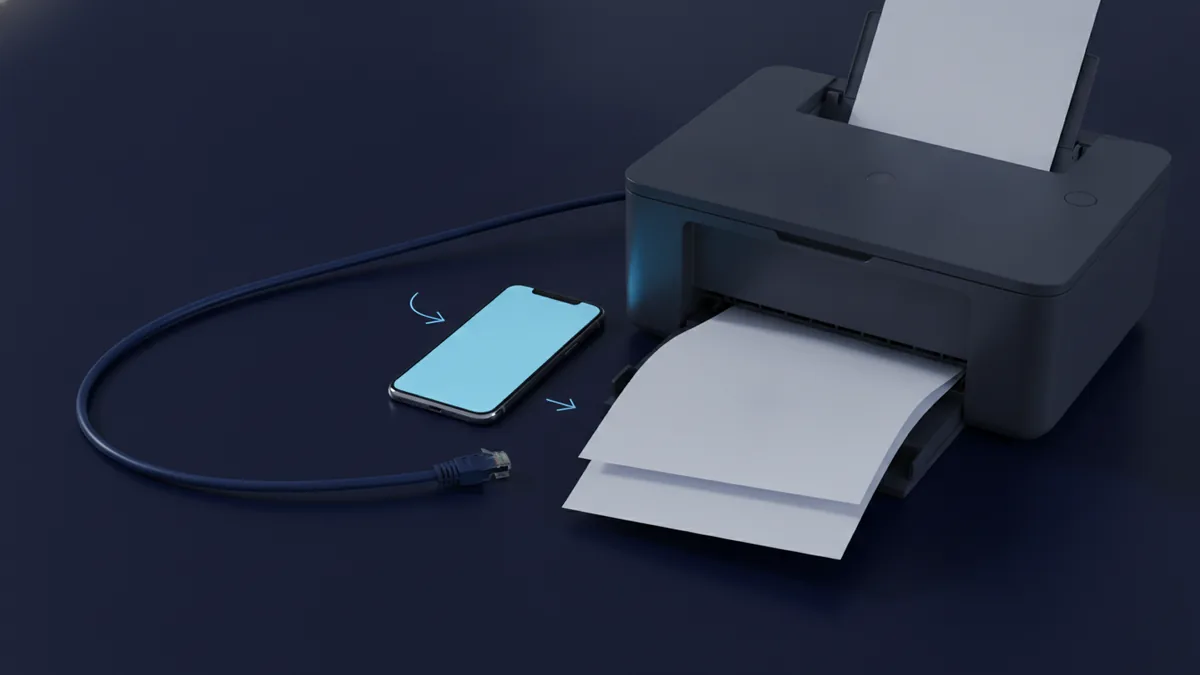
A USB connection may work with the right adapter and printer support. You might also need a print service app. This method helps when Wi-Fi is weak or unavailable.
Send the File to a Print Shop
Save the PDF to cloud storage or email it to a trusted print shop. Many shops accept files through a mobile printing app. Remove private details before sharing the file.
Printing from a computer is another reliable choice. Send the PDF to yourself, download it, and print from the computer. This works well for complex files or large batches.
Choose the Best Android Printing Method
For a home printer, the Android print service is often the fastest choice. It needs little setup after the printer joins your Wi-Fi network. Use the printer brand app when you need more control.
For an old printer, check whether it supports Android printing. A computer may act as a bridge. A print shop can help when the file is large or the printer lacks wireless support.
Before you print, confirm the file, printer, and page range. Then check paper and ink. These small checks prevent most wasted pages.
- Use the system print service for quick home jobs.
- Use a brand app for advanced printer controls.
- Use Wi-Fi Direct when no shared network is available.
- Use a print shop for large or special print jobs.
Related reading
Encrypting PDF Files with Passwords and Permissions
Lock a PDF with a password, set file limits, and share it with care.
Compress PDF Files: Size and Quality
Shrink PDF files while keeping text and images clear.
PDF Snapshots: Capture, Copy, and Paste
Capture a PDF section, copy it, and paste it into another app.