How to Convert Your Resume Into a PDF
Convert your resume to PDF with Word, Google Docs, or an online tool.
What PDF Means for Your Resume
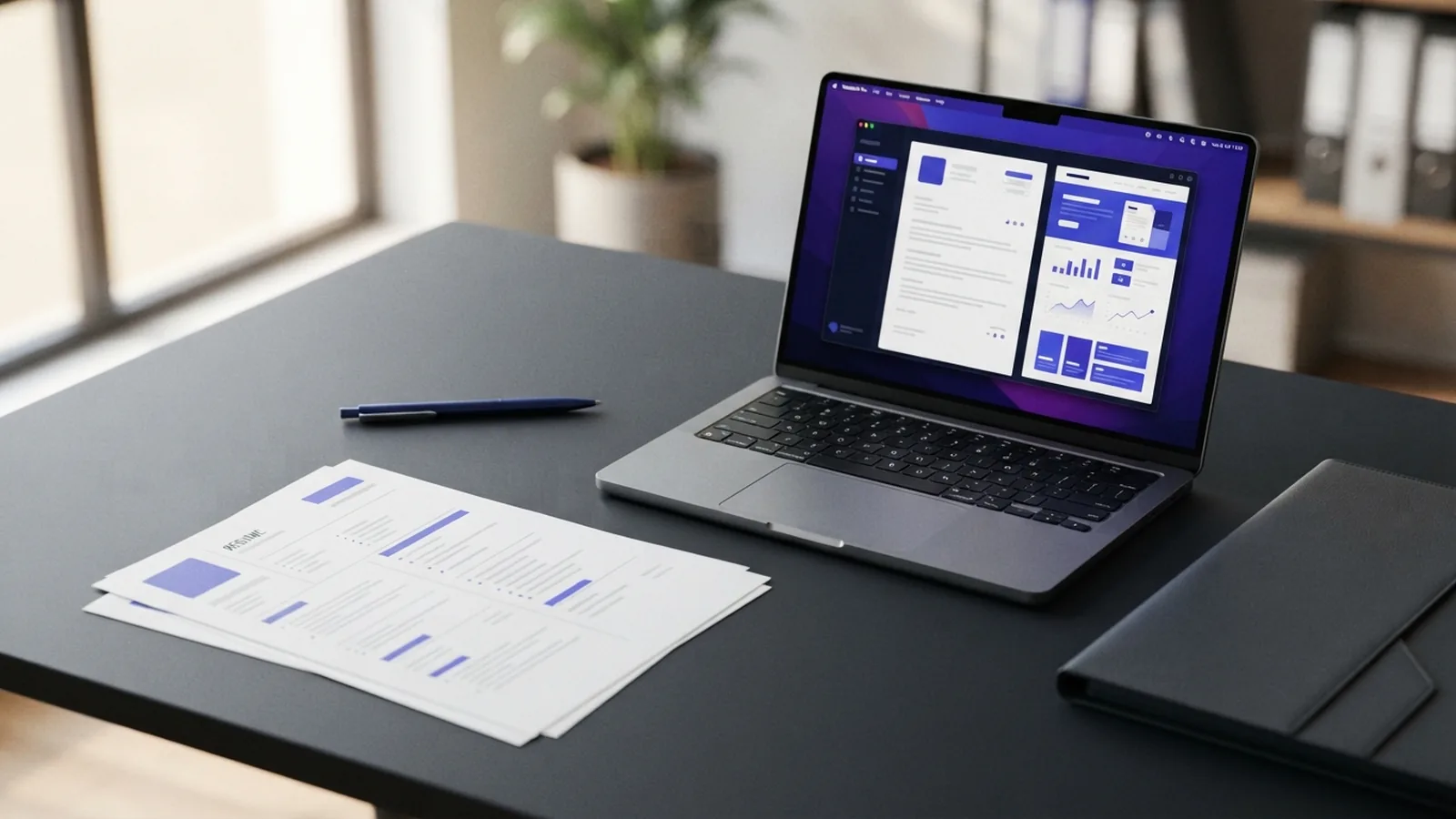
If you are wondering how to convert your resume into PDF, the process is simple. Save or export your finished resume as a PDF file. You can do this with Word, Google Docs, or an online converter.
PDF means Portable Document Format. It keeps text, spacing, fonts, and page breaks in place. Your resume should look the same on Windows, macOS, phones, and most hiring systems.
Start with an editable file, such as DOCX. Check it carefully before you convert it. A PDF preserves the current layout, so it will also preserve mistakes.
- Use a clear file name, such as Jordan-Lee-Resume.pdf
- Keep your original DOCX or Google Docs file for later changes
- Open the finished PDF before sending it
That basic check prevents many avoidable problems.
Why PDF Works Well for Resumes
PDF is a widely accepted format for job applications. It gives employers a stable copy of your resume. The file should not shift when opened with another app.
PDF also helps protect your layout from casual edits. Someone can still edit a PDF with the right software. Yet a PDF is less likely to change by accident than a DOCX file.
A good PDF can show your skills in a clean, steady way. It can also keep your chosen font and page design intact. That matters when small spacing changes affect the whole page.
There is one key limit. Some hiring systems read text better than images. Keep your resume text-based, rather than saving each page as a picture.
What to check before saving
- Use one or two easy-to-read fonts
- Keep body text near 10 to 12 points
- Check every date, heading, and phone number
- Keep contact details in the main page area
- Use normal margins and clear section headings
These choices help both people and hiring software read your resume.
Method 1: Save a Resume as PDF in Microsoft Word
Word offers two simple ways to convert a resume to PDF. The first uses Save As. The second uses Export.
Use Save As
- Open your resume in Microsoft Word.
- Select File, then choose Save As.
- Pick a folder for the new file.
- Open the file type list.
- Choose PDF.
- Enter a clear file name.
- Select Save.
Word will create a PDF copy in your chosen folder. Your original document should remain editable.
Use Export
- Open the resume in Word.
- Select File, then choose Export.
- Choose Create PDF/XPS.
- Pick a folder and file name.
- Select Publish.
Word may show a settings panel before saving. Choose the standard option for a normal job application. Use the smallest file setting only when size causes trouble.
For more detail, see Microsoft's guide to saving Office files as PDF.
Method 2: Download a PDF from Google Docs
Google Docs can turn your resume into a PDF without a desktop app. Your file must first be open in Google Docs.
- Open your resume in Google Docs.
- Check the page view and document layout.
- Select File in the top menu.
- Choose Download.
- Select PDF Document (.pdf).
- Open the downloaded file from your browser.
Google Docs will download the PDF to your normal download folder. The file name often matches the document name.
Before you send it, check page breaks and spacing. Tables, columns, and custom fonts may look different after download. Fix those items in the source document, then download a new PDF.
Google's file download instructions cover this process and other file types. They also help when you need a copy for another device.
When Google Docs needs extra care
- Check that your sharing settings do not affect the downloaded copy
- Review headers and footers on every page
- Remove comments and suggested edits before downloading
- Check links for correct spelling and working destinations
A final visual check takes less than a minute.
Method 3: Use an Online PDF Converter
Online PDF converters can convert DOCX files and other formats without software installation. They suit people who use a shared computer or need a quick file conversion.
- Choose a trusted online converter.
- Upload your DOCX or other resume file.
- Choose PDF as the output format.
- Start the conversion.
- Download the finished PDF.
- Delete the uploaded file when the service allows it.
Use a service with clear privacy terms. Your resume may contain your address, phone number, and work history. Avoid unknown tools that make unclear promises about file storage.
Do not upload a file until you confirm its format. Some tools accept DOCX, ODT, RTF, and image files. A DOCX file usually gives better results than a scanned image.
Check the result after downloading. Look for missing fonts, broken links, odd page breaks, or changed symbols. If the PDF looks wrong, fix the source file first.
Tips for a Clean, Readable Resume PDF
Good document formatting starts before the file conversion. Build a simple layout with clear headings and steady spacing. Avoid designs that rely on text boxes or many floating objects.
Keep your resume to one or two pages unless your field calls for more. A new graduate may need one page. An experienced worker may need two focused pages.
- Use dark text on a light background
- Keep headings consistent across sections
- Use bullet points for work results and key duties
- Leave enough white space around each section
- Place your name and contact details where readers can find them
- Use a common font when possible
Test the PDF on a laptop and a phone. Zoom to 100 percent first. Then check whether the smallest text stays easy to read.
Links can add value when used well. A link to your portfolio or professional profile should open in a new tab. Test each link in the final PDF.
Choose a useful file name
Use your name and the word resume. Add a role only when it helps the reader. Avoid names such as final-final-new2.pdf.
A clear name helps recruiters find the file later. It also looks more polished in an email attachment.
Common PDF Problems and Simple Fixes
Most conversion issues come from the source file. A layout may contain hidden breaks, rare fonts, or large images. The PDF then shows the same problem.
The PDF file is too large
A resume with large photos or graphics can exceed an upload limit. Many job sites set limits near 2 to 5 MB. The exact limit varies by site.
Use a PDF compression tool when needed. Pick a moderate setting first. Then open the smaller file and check its text and image quality.
- Remove unused images from the source document
- Crop photos before placing them in the resume
- Use a smaller image size
- Compress the finished PDF once
- Keep the original file in case you need better quality
The layout changed
Missing fonts often cause shifted text and new page breaks. Replace rare fonts with common ones. Then convert the file again.
Tables and columns can also move during conversion. Use plain headings and bullet lists when they work just as well. Review the PDF after every major design change.
The text cannot be selected
This often means the resume became a scanned image. Hiring tools may not read it well. Return to the editable source and export it as text-based PDF.
Links or symbols look wrong
Some fonts do not include every symbol. Replace unusual icons with simple text. Test links after conversion, then save the corrected PDF.
Final Check Before You Send the File
Now you know how to convert my resume to PDF with several tools. The method matters less than the final check. A clean PDF should open fast, read well, and match your source document.
- Open the PDF on a second device.
- Check every page at normal zoom.
- Select text to confirm it is not one large image.
- Test links and contact details.
- Check the file size against the job site's limit.
- Rename the file with your name and resume.
Save the final copy in a folder you can find. Keep the editable version beside it. That makes future updates much faster.
For most applicants, Word or Google Docs is enough. An online converter helps when you need speed or lack the right app. In each case, review the PDF before you submit it.
Related reading
PDF Compression: Smaller Files, Better Quality
Shrink PDFs by tuning image settings and choosing the right compression level.
Document to PDF: Methods and Device Tips
Convert common files to PDF on a computer, phone, or browser with confidence.
Compress PDF Files: Size and Quality
Shrink PDF files while keeping text and images clear.