Draw a Signature in a PDF
Draw, place, and save a PDF signature with the tool that suits your device.

What a PDF signature does
A PDF signature can show who signed a document and confirm their consent. To add one, open the PDF in a signing tool, draw your mark, place it in the right spot, then save a copy. You can use a mouse, touchpad, finger, or stylus. Online tools and desktop apps both work.
A drawn mark is usually an electronic signature. It is not automatically the same as a certificate-based digital signature. A digital signature uses a certificate to help verify the signer and detect later changes. The right choice depends on the document and the rules that apply to it.
For a routine approval, a drawn signature may be enough. A contract, formal record, or regulated form may call for stronger identity checks. Ask the document sender what they need before you sign. The type of mark matters.
Keep the original file before making changes. A separate working copy lets you fix placement or start again without losing the source document. It also gives you a clean record of what changed.
Ways to draw a signature on a PDF
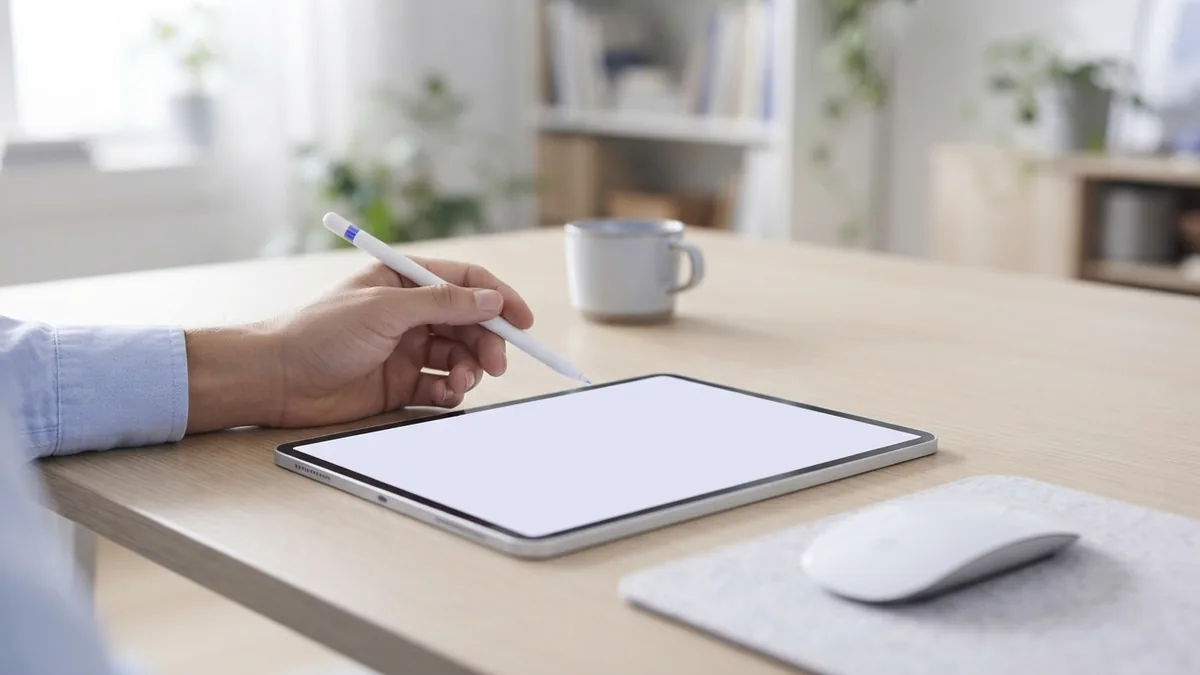
There are several ways to draw a signature on a PDF, and each has a different feel. A mouse works on nearly any computer, but small movements can look jagged. A touchpad is handy when no mouse is nearby. A touchscreen or stylus gives you more control over curves.
Use a blank test page before signing an important form. Try your usual signature at a natural size, then check whether the strokes look clear. If the line feels shaky, slow down and use fewer strokes. You can often undo the mark and try again.
- Mouse: Rest your hand on the desk and move the pointer slowly.
- Touchpad: Use short, smooth movements instead of long swipes.
- Finger: Draw on a tablet or phone screen with steady pressure.
- Stylus: Use light pressure and let the pen follow your usual writing motion.
Before drawing, zoom in enough to see the signature box. Zooming in helps you place the mark, though it may make the drawing area feel smaller. If the tool has a separate signature pad, use that area first. Then resize the finished mark to fit the document.
Do not stretch a signature to fill a box. Uneven scaling can make it look odd or hard to read. Keep its shape, and use the tool’s corner handles to adjust its size. Leave a little space around the mark.
Sign a PDF with an online tool
Online PDF tools let you sign without installing an app. Sejda, DocuSign, and Adobe Acrobat offer ways to add signatures. Their features, account needs, and file limits can differ. Check the current terms before uploading a private or work document.
Most online signing tools follow a similar path. Open the signing page, upload the PDF, and choose its signature feature. Draw your signature with a mouse, finger, or stylus. Then drag it to the signature field and save or download the signed file.
- Open the PDF tool. Choose a service you trust and find its sign or fill-and-sign feature.
- Add your document. Select the file from your device. Check the page count after it loads.
- Draw the mark. Pick the draw option, then sign in the box or on the screen.
- Place and size it. Drag the signature to the right field. Keep it within the box.
- Save a new copy. Download the signed PDF and reopen it to check the result.
Adobe’s PDF signing steps show how its tool adds a signature. The same basic checks apply to other services. Make sure the mark sits on the intended line, and confirm every page remains in place.
Think about privacy before uploading. A PDF may hold account details, health records, or private terms. Use a tool approved by your workplace when signing work files. For sensitive records, an offline app may be a better fit.
Some tools save a signature for later use. That can speed up repeat forms, but it also means another person might access the saved mark on a shared device. Remove saved signatures when you finish, and sign out on public computers.

Draw a signature with desktop software
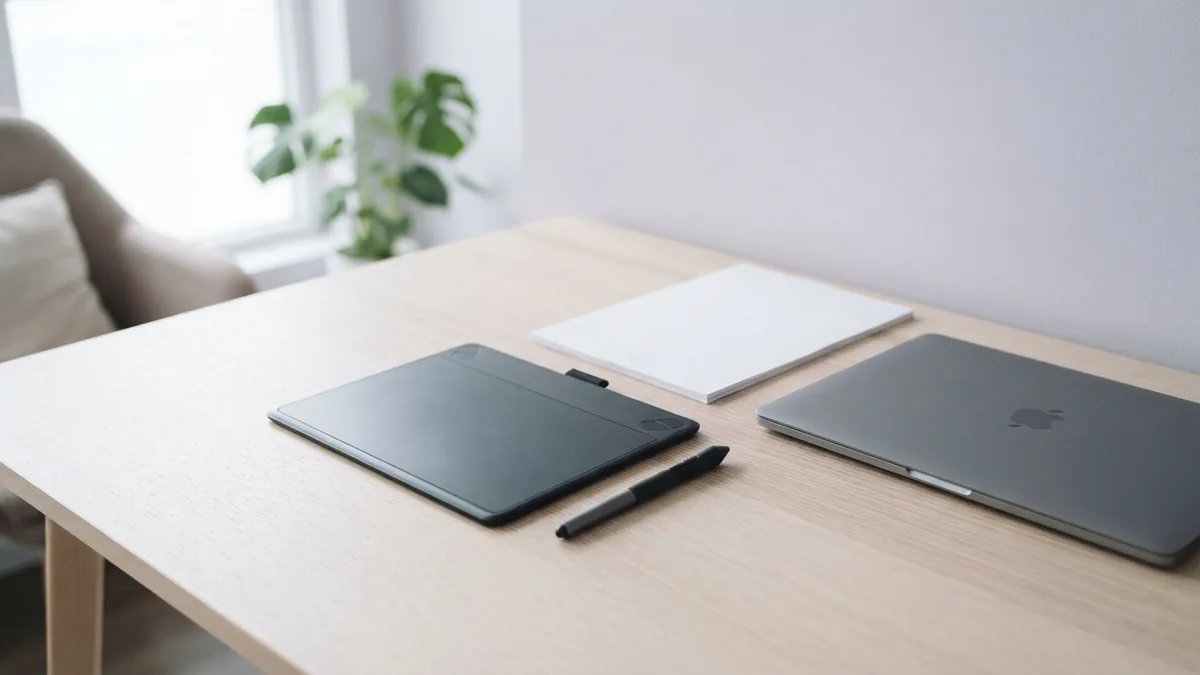
Desktop PDF apps are useful when you sign often or need to work offline. Many include a draw tool, while graphic design software can make a signature image for later use. The design app does not need to edit PDFs itself. You can export the mark, then add it through a PDF editor.
To make a reusable signature image, open a blank canvas in a graphics app. Draw your usual mark with a mouse, stylus, or touchpad. Crop the canvas close to the strokes, and save a copy in a format that supports a clear background. PNG is a common choice.
Open the PDF in a trusted editor and use its image or signature feature. Add the saved mark, then size and place it on the right line. Check the mark at normal page size. A signature that looks neat when zoomed in can appear too small on paper.
Some PDF apps let you draw directly on the page. Choose the pen or signature tool, draw within the signing field, and use undo if needed. Save the result under a new name. This keeps your original document unchanged.
A graphic editor gives you more control over the stroke, but it adds extra steps. Avoid filters or effects that change the look of your normal signature. The goal is a clear mark, not a polished graphic. Keep a copy of the image in a private folder.
Keep the signed PDF clear and intact
Correct placement is only part of a sound signing process. The saved file should still show the full document, including its pages and terms. Reopen the final PDF after saving. Check each page, the signature, and any filled fields.
Keep the signed copy separate from the blank original. Give the file a name that helps you find it, such as “service agreement signed.” Store it in a secure place and share it only with the people who need it. Avoid sending several different versions without clear names.
For records that may face legal review, keep a copy of the original and the signed version. Some tools also provide a signing history or proof of completion. Save that record when the form or sender requires it. A drawn signature alone may not meet every legal or business rule.
Do not change the signed file after signing unless the other parties agree. Editing text or pages can weaken trust in the final copy. If a change is needed, make a fresh copy and ask all signers to review it again. Some certificate-based signatures also flag later edits.
- Confirm the name and terms before you sign.
- Place the mark only in the intended signature field.
- Save the signed file as a new PDF.
- Reopen it and check all pages before sharing.
- Keep any required signing record with the final copy.
For a simple form, a mouse or touchscreen and a basic signing tool may be all you need. For sensitive agreements, check the sender’s rules and choose a service that fits them. Take a moment to verify the saved copy. That small check can prevent a costly mix-up.
Related reading
How to Sign a PDF in Google Drive or Google Docs
Sign PDFs in Drive or Docs, request signatures, and track every step.
Send a Picture as a PDF: Steps and Tips
Turn photos into a PDF, check the pages, and send the file from your phone or computer.
Encrypting PDF Files with Passwords and Permissions
Lock a PDF with a password, set file limits, and share it with care.